

Discover the Best IPTV for UK: Top Services and Features

Paying over £60 a month for a Sky or Virgin Media package that still leaves you hunting for the one channel you actually want is a frustration millions of UK households know all too well. The good news? The best IPTV for UK viewers in 2025 delivers every Premier League fixture, every Netflix-rival box set, and every international channel you could ever need for a fraction of the price. The catch is that not every IPTV service is built the same, and choosing the wrong one means endless buffering, broken EPG guides, and channels that vanish mid-season. This guide cuts through the noise and gives you exactly what you need to find, set up, and stream flawlessly on any device.
Solving this matters because a poor-quality IPTV service does not just cause buffering, it means missing the 90th-minute winner, losing your stream mid-binge, and wasting money on something that barely works. Getting this right the first time saves you hours of frustration and puts you in complete control of your entertainment.
Core Concepts & Need-To-Know Info
- M3U Playlist / M3U URL: This is a text file link your IPTV provider gives you. Apps like TiviMate, IPTV Smarters Pro, and GSE Smart IPTV use this link to load all your channels. Guard it carefully, it is tied to your subscription.
- Xtream Codes: An alternative and often more stable login method using a server URL, username, and password. Most premium UK IPTV providers support this alongside M3U.
- EPG (Electronic Programme Guide): The TV guide that shows you what is on now and next. A good EPG URL is essential for a proper TV-like experience.
- VOD (Video On Demand): Your on-demand movie and series library within your IPTV app. Quality varies wildly between providers.
- ISP Throttling: UK internet providers like BT, Virgin Media, and Sky Broadband actively throttle IPTV traffic during peak hours, evenings and weekends, exactly when you want to watch.
- Minimum internet speed: You need at least 25 Mbps for HD streaming and 50 Mbps+ for reliable 4K. Test yours at fast.com before blaming your IPTV service.
- Server location matters: UK-based or EU-based IPTV servers deliver lower latency for UK viewers, reducing buffering dramatically compared to servers hosted in Asia or North America.
Step-by-Step Guide
- Step 1: Choose a Reputable UK IPTV Provider:
- Research providers that specifically advertise UK channel packages including Sky Sports, BT Sport, BBC, ITV, and Channel 4 equivalents. Look for providers offering a free trial (24-48 hours is standard) before you commit money. Check forums like Reddit's r/IPTV or UK-specific Facebook groups for real user reviews. Avoid any provider that cannot give you a test line.
- Step 2: Test Your Internet Connection:
- Open a browser on your streaming device and go to fast.com or speedtest.net. You need a minimum of 25 Mbps download for HD and 50 Mbps for 4K. If your speed is fine but buffering persists, ISP throttling is likely the culprit and you will address that in a later step with a VPN.
- Step 3: Install Your IPTV App on Firestick or Android TV:
- On a Firestick: Go to Settings, then My Fire TV, then Developer Options, then turn on Apps from Unknown Sources and ADB Debugging. Then open the Downloader app (install it free from the Amazon App Store), type in the direct APK URL for TiviMate or IPTV Smarters Pro, download, and install. On Android TV: Enable Unknown Sources in Settings, then Security, then use a file manager or the browser to sideload the APK.
- Step 4: Add Your Playlist Using Xtream Codes or M3U URL:
- Open TiviMate, tap Add Playlist, select Xtream Codes API. Enter the server URL (exactly as your provider sent it, no trailing spaces), your username, and password. Alternatively, select M3U URL and paste your full M3U link. Tap Next and let the app load your channels. For IPTV Smarters Pro: tap Add User, then Xtream Codes API or M3U URL and follow the same process.
- Step 5: Configure Your EPG (TV Guide):
- In TiviMate, go to Settings, then Playlist, then EPG URL and paste the EPG link your provider supplies. Set the update interval to every 24 hours. If your provider has not given you an EPG URL, ask them, any serious provider includes this. A properly loaded EPG makes your setup feel like a proper Sky-style TV experience.
- Step 6: Organise Channels and Test Live TV:
- In TiviMate, use the Favourites feature to pin your most-used UK channels (Sky Sports 1, Premier League, BBC One, etc.) to the top of your list. Test a live sports channel, a news channel, and a VOD title. If all three work without buffering, your setup is solid. If you experience buffering, move to the VPN step immediately.
- Step 7: Enable a VPN to Beat ISP Throttling:
- Install ExpressVPN, NordVPN, or Surfshark directly onto your Firestick via the Amazon App Store. Connect to a UK server for the lowest latency on UK IPTV servers. Once connected, retest your streams. ISP throttling affects IPTV specifically, a VPN bypasses your ISP's traffic shaping and typically eliminates buffering caused by throttling instantly.

The real-world impact of ignoring these warnings is significant. Imagine you have got 50,000 people watching the same Arsenal match on a free service, the server collapses at kick-off and you miss the first goal. Or you have shared your Xtream Codes login with a friend, and at 8 PM on a Saturday, their connection kicks yours off mid-stream. These are not edge cases, they happen every single week to people who cut corners on setup.
Best VPNs to Stop ISP Throttling for UK IPTV
ISP throttling is the number one cause of buffering for UK IPTV users who have perfectly adequate broadband speeds. Here are the top VPNs tested specifically for IPTV streaming:
- ExpressVPN: Consistently the fastest for IPTV. Its Lightway protocol minimises speed loss to under 10%, and it has a dedicated Fire TV app. Ideal for 4K streams.
- NordVPN: Excellent UK server infrastructure. The Meshnet feature and dedicated streaming servers make it a strong choice. Slightly cheaper than ExpressVPN on long-term plans.
- Surfshark: The best value option. Unlimited simultaneous connections means you can protect every device in your home on one subscription. NoBorders mode works well against aggressive throttling.
- IPVanish: Particularly popular in the IPTV community because it has a native Firestick app and allows unlimited device connections, making it easy to set up directly on your streaming hardware.
Always connect to a UK-based VPN server when streaming UK IPTV, this keeps your latency low and ensures the IPTV server sees you as a local connection, improving stream stability.
TiviMate vs IPTV Smarters Pro: Which App is Best for UK Viewers?
Choosing the right app is just as important as choosing the right IPTV service. These two dominate the UK IPTV scene:
- TiviMate (Premium, approximately £4 one-time): Widely regarded as the gold standard for Firestick and Android TV. Its EPG is buttery smooth, the multi-screen view lets you watch four channels simultaneously, and the catch-up feature is unmatched. If you are serious about IPTV, TiviMate Premium is worth every penny.
- IPTV Smarters Pro (Free / Paid): Better for beginners and iOS users. It supports both M3U and Xtream Codes, has a clean interface, and works across more platforms including iPhone and iPad. The downside is it is slightly heavier on system resources than TiviMate.
- GSE Smart IPTV: A solid third option, particularly good if your provider uses a custom EPG format or if you are managing multiple playlists from different providers simultaneously.
For pure Firestick performance, TiviMate wins. For cross-platform flexibility across phone, tablet, and Smart TV, IPTV Smarters Pro is the safer bet.
Common Setup Mistakes UK IPTV Users Make
Even tech-savvy users trip over these surprisingly common errors:
- Incorrect server URL format: Your Xtream Codes server URL must include the port number (e.g., http://yourserver.com:8080). Omitting the port or using HTTPS when the server requires HTTP causes a connection failed error that looks baffling but has a simple fix.
- Not clearing app cache: TiviMate and Smarters accumulate cache data that causes freezing and slow EPG loading. Go to your Firestick Settings, then Applications, then Manage Installed Applications, then TiviMate, then Clear Cache every two weeks.
- Using Wi-Fi instead of Ethernet: A 5GHz Wi-Fi connection is usually fine, but for live sports in 4K, a wired Ethernet connection via a Firestick Ethernet adapter (around £10 on Amazon) is dramatically more stable and eliminates packet loss.
- Ignoring time zone settings in EPG: If your EPG guide shows programmes airing an hour off, your device's time zone is set incorrectly. Fix this in your Firestick system settings, then Date & Time, then Set Time Zone to London/GMT.
Network Requirements for 4K IPTV Streaming in the UK
Getting crystal-clear 4K streams requires more than just a fast broadband headline speed:
- Download speed: Minimum 50 Mbps dedicated to your streaming device for stable 4K. Full fibre broadband (FTTP) from providers like Openreach, Cityfibre, or Hyperoptic is ideal.
- Latency: Aim for under 20ms ping to your IPTV server. High latency causes buffering even on fast connections, this is common on congested copper ADSL lines.
- Router placement: Place your router in the same room as your streaming device or use a powerline adapter. Walls and floors kill 5GHz Wi-Fi signal.
- QoS settings: Log into your router admin panel and enable Quality of Service (QoS). Prioritise your Firestick or Android TV box's MAC address to give it bandwidth priority over other household devices.
- DNS settings: Change your device's DNS to 1.1.1.1 (Cloudflare) or 8.8.8.8 (Google). Your ISP's default DNS servers are often slower and can add latency to IPTV connections.
Troubleshooting: Fixing Playlist Errors and Stream Failures
When something goes wrong with your UK IPTV setup, use this systematic approach:
- Playlist loading failed error: Double-check your M3U URL or Xtream Codes credentials character by character. Copy the URL from your provider's panel directly. If credentials are correct, your subscription may have expired or your provider's server may be temporarily down, contact their support.
- Channels show but will not play: This usually indicates ISP throttling or a server-side issue. Enable your VPN first. If the VPN does not fix it, try changing the stream type in TiviMate from HLS to MPEG-TS (Settings, then Player, then Stream Format).
- EPG not loading: Refresh the EPG manually (Settings, then Playlist, then Update EPG Now). If it still fails, your EPG URL may have changed, ask your provider for the updated link.
- Random buffering on specific channels only: Some channels are on different servers with different loads. If Sky Sports 1 buffers but Sky Sports 2 does not, it is a server-side peak load issue, not your connection. Try the backup stream URL if your provider offers one (usually labelled as UK Sports 1 BACKUP in your playlist).
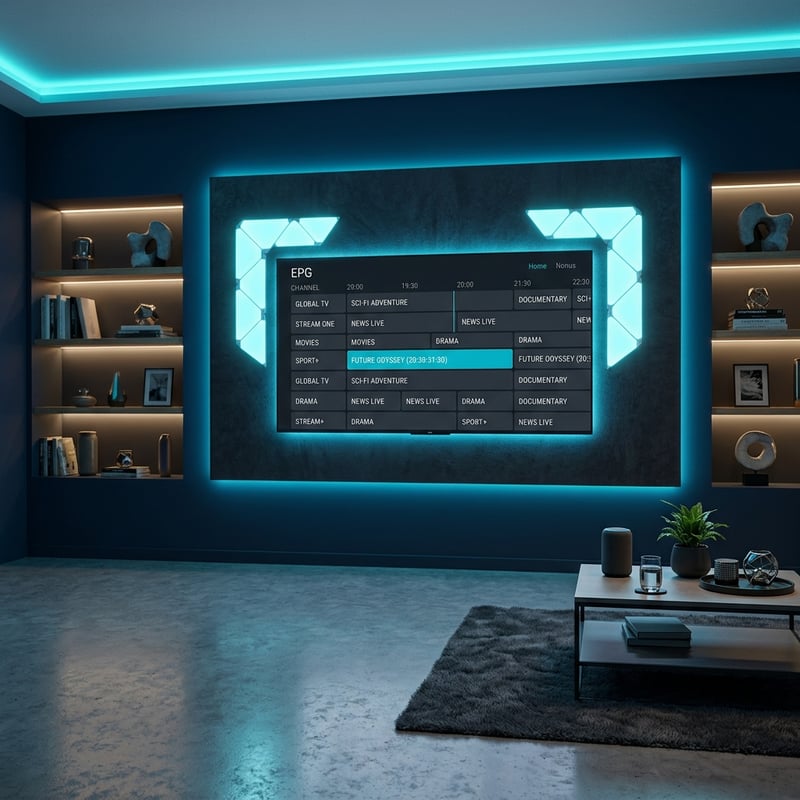
The best IPTV experience for UK viewers in 2025 is not just about finding a cheap subscription link, it is about building a complete, reliable setup from the ground up. Pair a trusted UK-focused IPTV provider with TiviMate Premium on a Firestick 4K Max, protect your connection with a paid VPN, and run Ethernet where possible, then explore our full channel list and pricing plans to find the perfect subscription for your household.
Frequently Asked Questions
Ready to get started?
Try our service risk-free with a 24-hour free trial.
Related Articles

Discover the Best Android TV Box for IPTV in 2026: Our Top Picks
Find the best Android TV box for IPTV streaming and enjoy seamless entertainment.

Discover the Best IPTV Providers in the UK for 2026!
Uncover the top IPTV providers in the UK for 2026.

Discover the Best IPTV UK Trial Subscription Options for 2026
Uncover the best IPTV UK trial subscriptions for 2026.