Home IPTV UK IPTV Canada Prices Channels Setup Buying Guides Reseller Free trial on WhatsApp

Full IPTV Setup Walkthrough | Device Configuration Guide

Discover how to configure and activate our premium IPTV platform on any gadget. Pick your device below for straightforward, illustrated directions that get you watching within minutes.

  1. Go to My Apps from Fire TV home screen
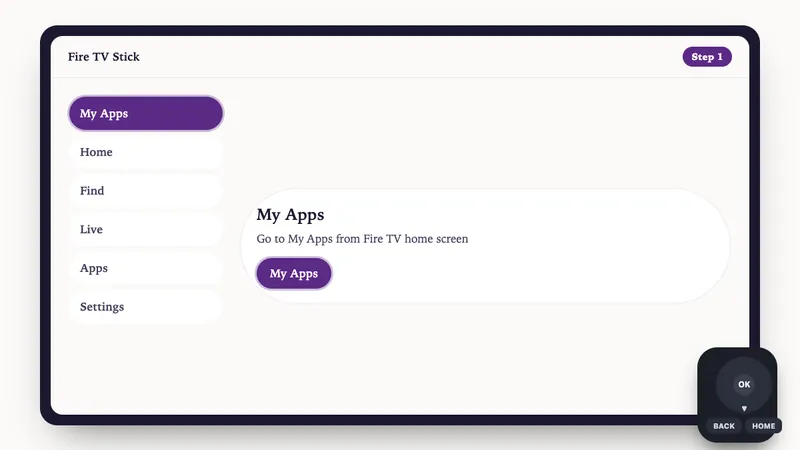
    Illustration: Fire TV Stick setup, step 1: Go to My Apps from Fire TV home screen
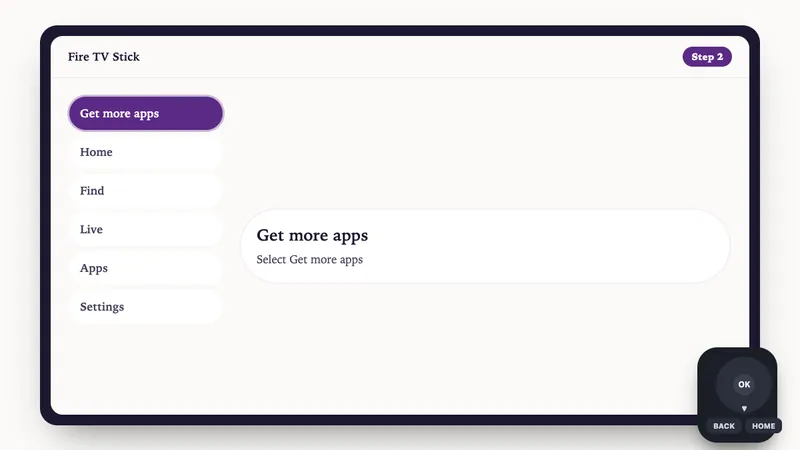
  2. Select Get more apps
    Illustration: Fire TV Stick setup, step 2: Select Get more apps
  3. Choose Search, press Down, then OK. Type Downloader
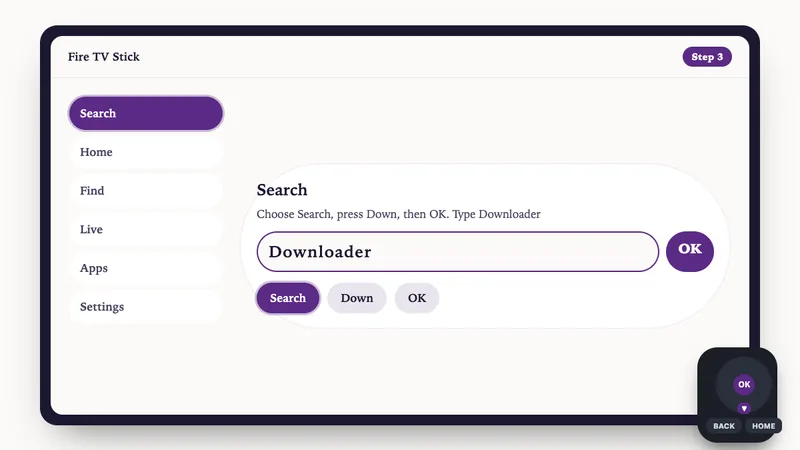
    Illustration: Fire TV Stick setup, step 3: Choose Search, press Down, then OK. Type Downloader
  4. When results show, select Downloader and press OK
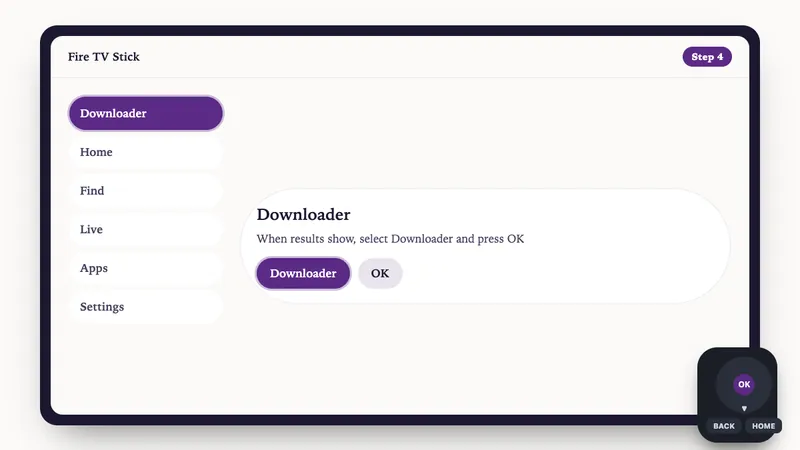
    Illustration: Fire TV Stick setup, step 4: When results show, select Downloader and press OK
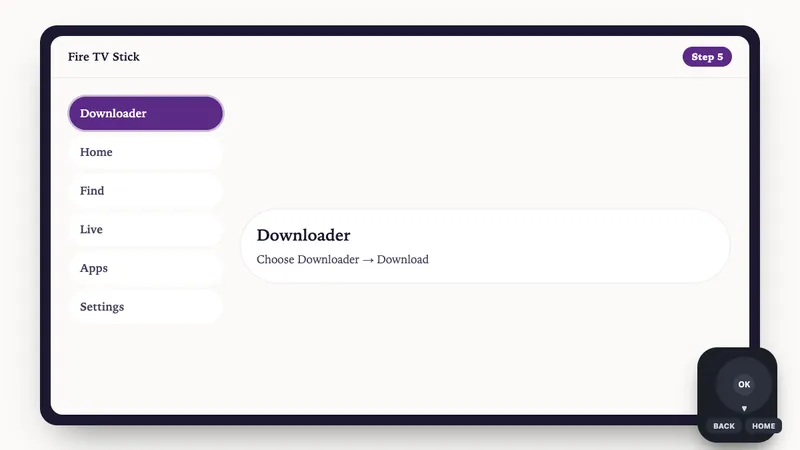
  5. Choose Downloader → Download
    Illustration: Fire TV Stick setup, step 5: Choose Downloader → Download
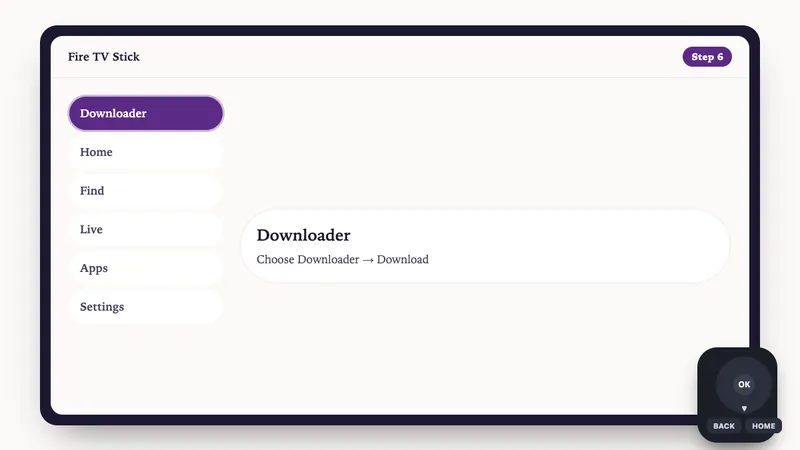
    Illustration: Fire TV Stick setup, step 6: Choose Downloader → Download
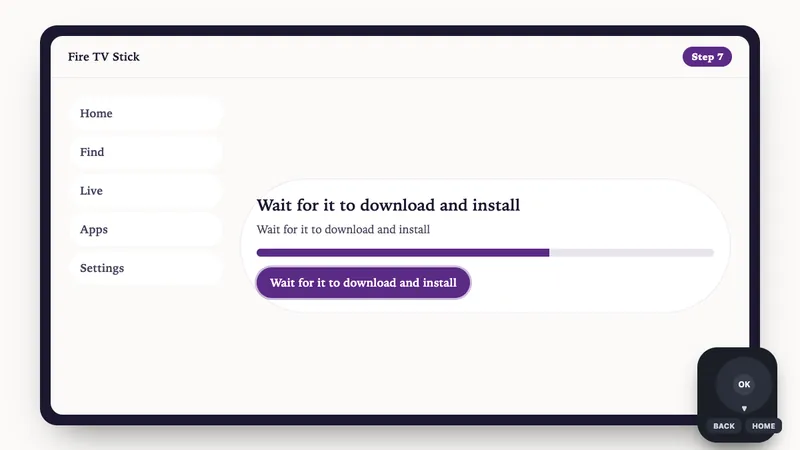
  6. Wait for it to download and install
    Illustration: Fire TV Stick setup, step 7: Wait for it to download and install
  7. Do not open it yet. Press Back to the Home screen
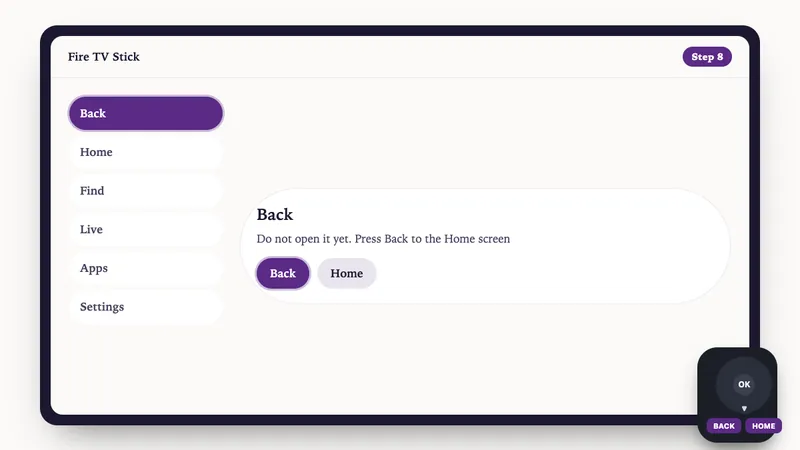
    Illustration: Fire TV Stick setup, step 8: Do not open it yet. Press Back to the Home screen

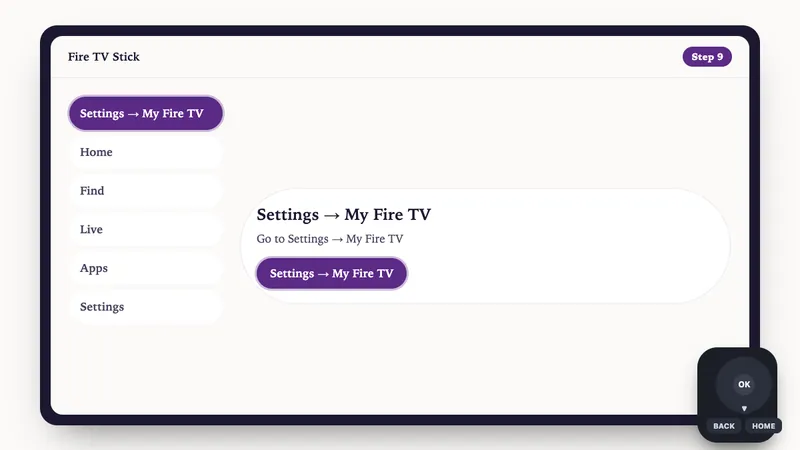
  1. Go to Settings → My Fire TV
    Illustration: Fire TV Stick setup, step 9: Go to Settings → My Fire TV
  2. Open About and click Fire TV Stick 7 times to enable Developer Options
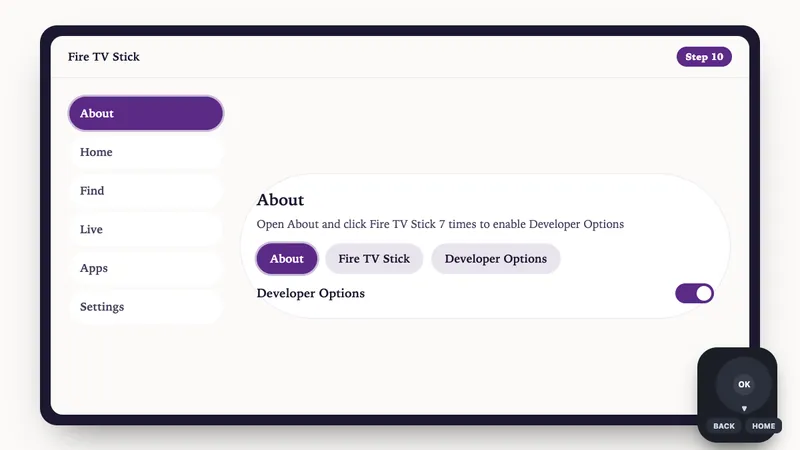
    Illustration: Fire TV Stick setup, step 10: Open About and click Fire TV Stick 7 times to enable Developer Options
  3. Press Back → Developer Options → enable ADB debugging
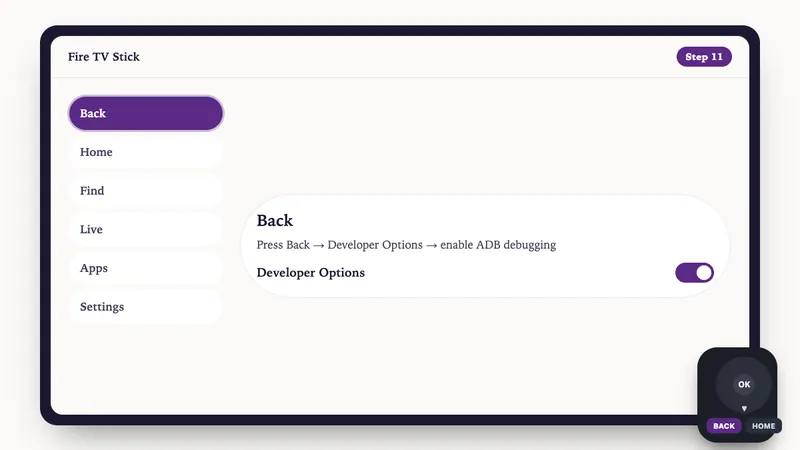
    Illustration: Fire TV Stick setup, step 11: Press Back → Developer Options → enable ADB debugging
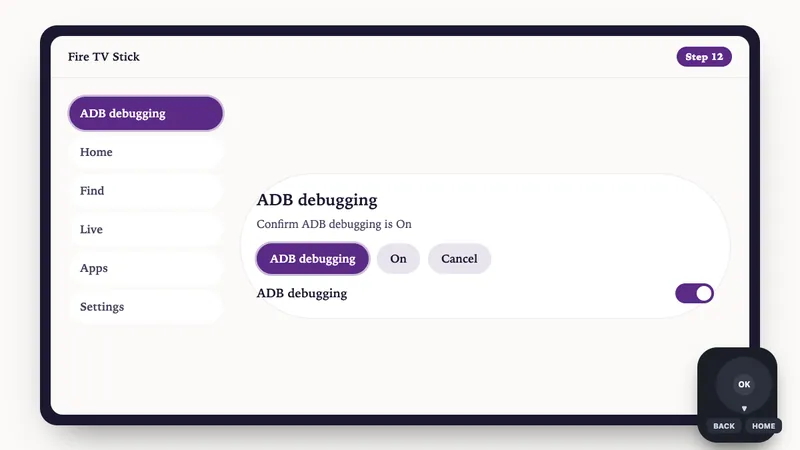
  4. Confirm ADB debugging is On
    Illustration: Fire TV Stick setup, step 12: Confirm ADB debugging is On
  5. Select Install Unknown Apps → give Downloader permission (press OK)
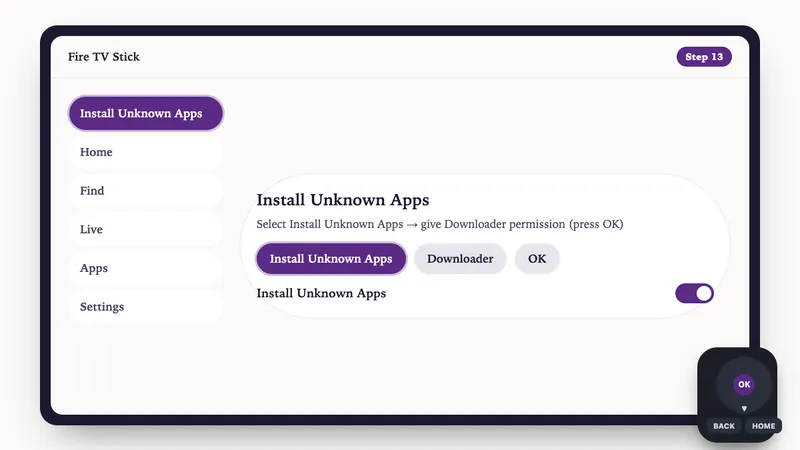
    Illustration: Fire TV Stick setup, step 13: Select Install Unknown Apps → give Downloader permission (press OK)
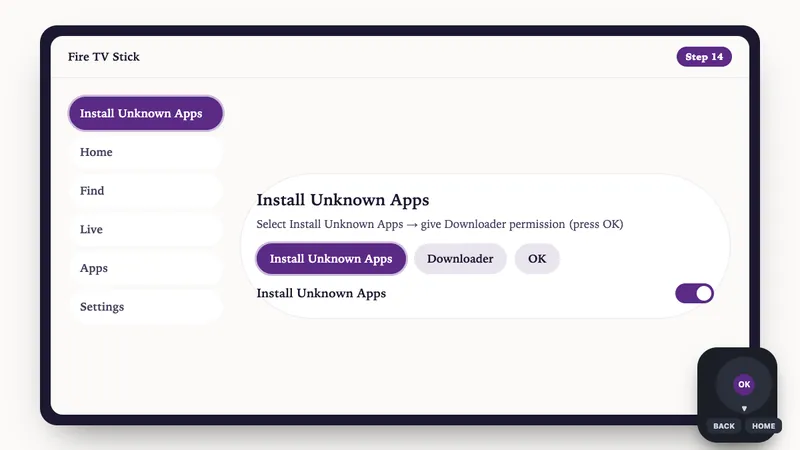
    Illustration: Fire TV Stick setup, step 14: Select Install Unknown Apps → give Downloader permission (press OK)
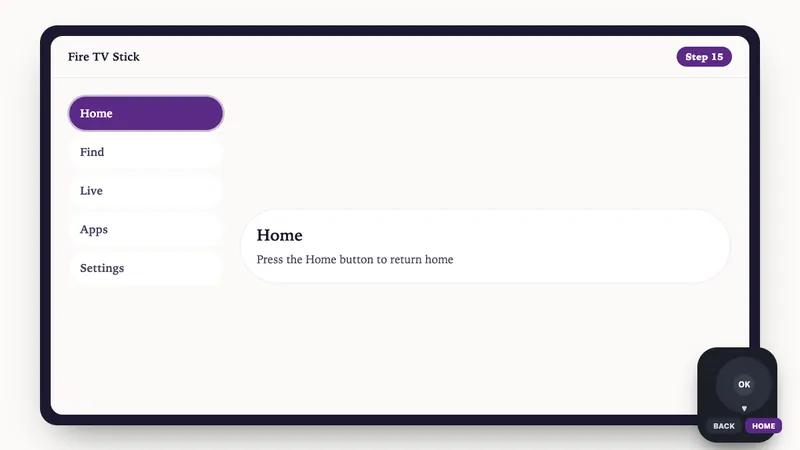
  6. Press the Home button to return home
    Illustration: Fire TV Stick setup, step 15: Press the Home button to return home

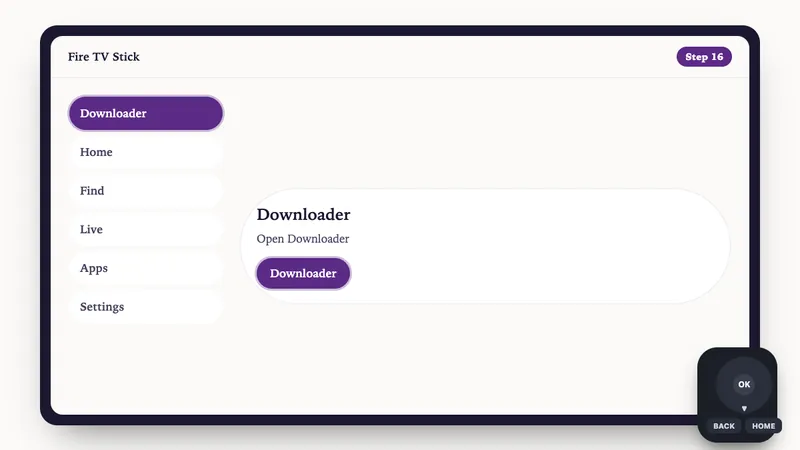
  1. Open Downloader
    Illustration: Fire TV Stick setup, step 16: Open Downloader
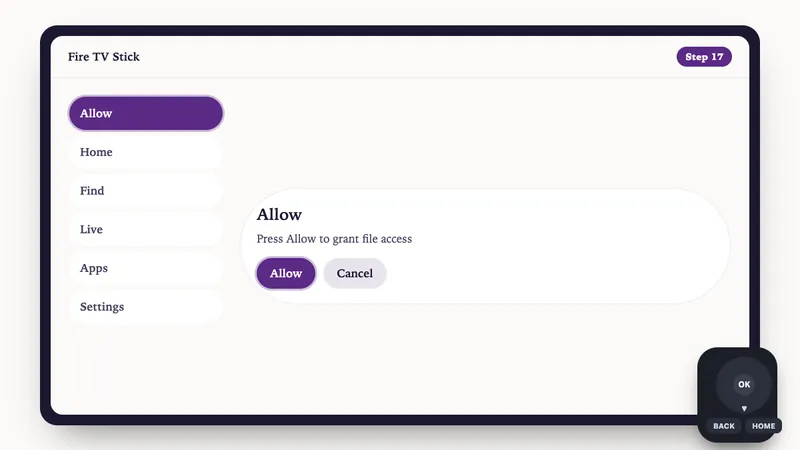
  2. Press Allow to grant file access
    Illustration: Fire TV Stick setup, step 17: Press Allow to grant file access
  3. Dismiss the welcome message (press OK)
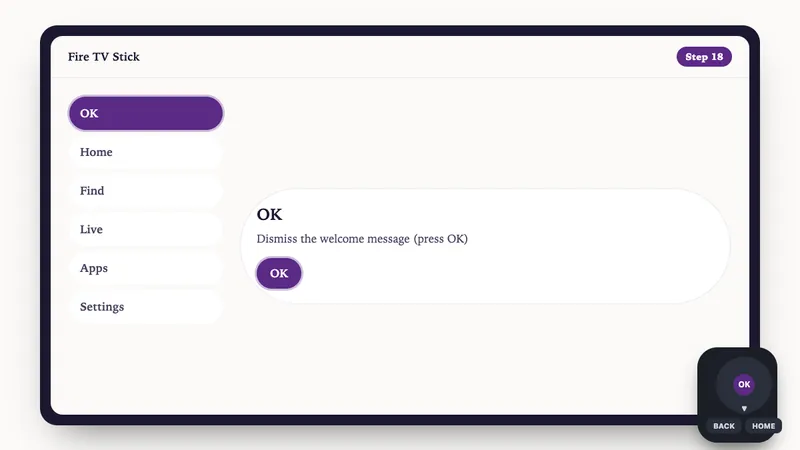
    Illustration: Fire TV Stick setup, step 18: Dismiss the welcome message (press OK)
  4. Enter the Downloader code for V12Mate: 2494311 → press GO
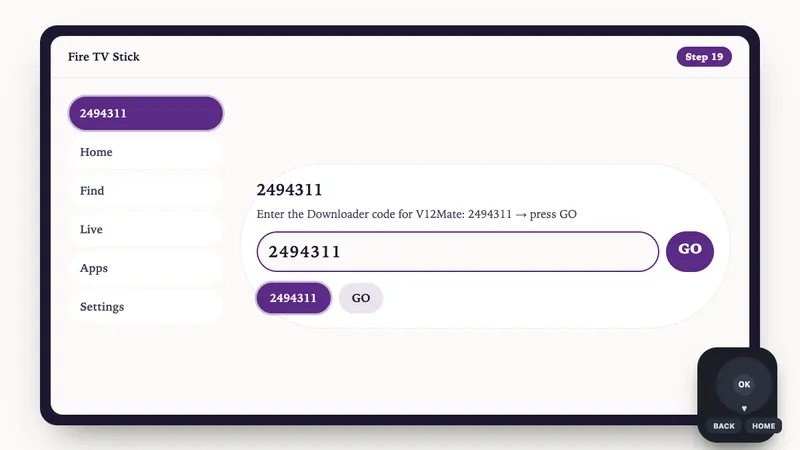
    Illustration: Fire TV Stick setup, step 19: Enter the Downloader code for V12Mate: 2494311 → press GO
  5. Accept Privacy Policy → Install → confirm Install again if asked
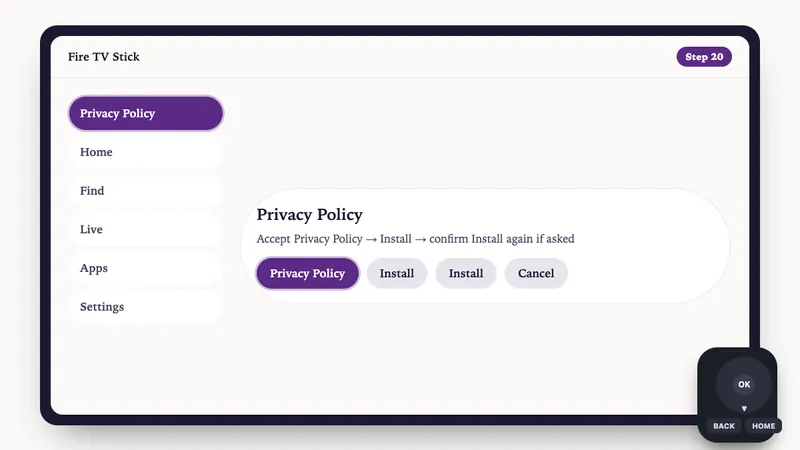
    Illustration: Fire TV Stick setup, step 20: Accept Privacy Policy → Install → confirm Install again if asked
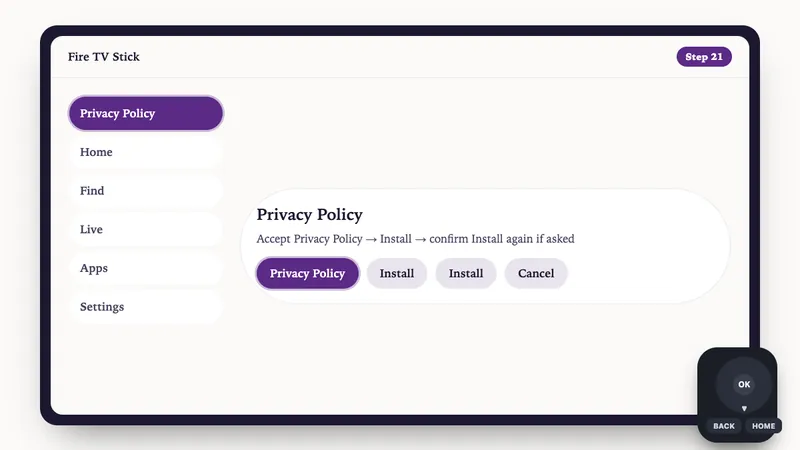
    Illustration: Fire TV Stick setup, step 21: Accept Privacy Policy → Install → confirm Install again if asked
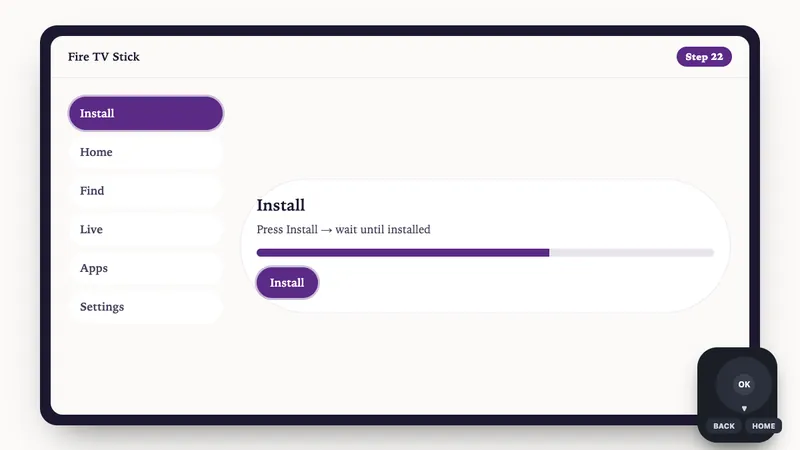
  6. Press Install → wait until installed
    Illustration: Fire TV Stick setup, step 22: Press Install → wait until installed
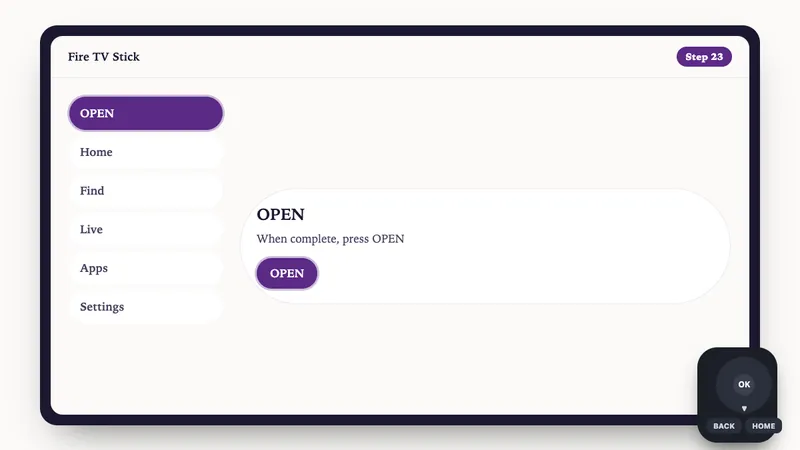
  7. When complete, press OPEN
    Illustration: Fire TV Stick setup, step 23: When complete, press OPEN
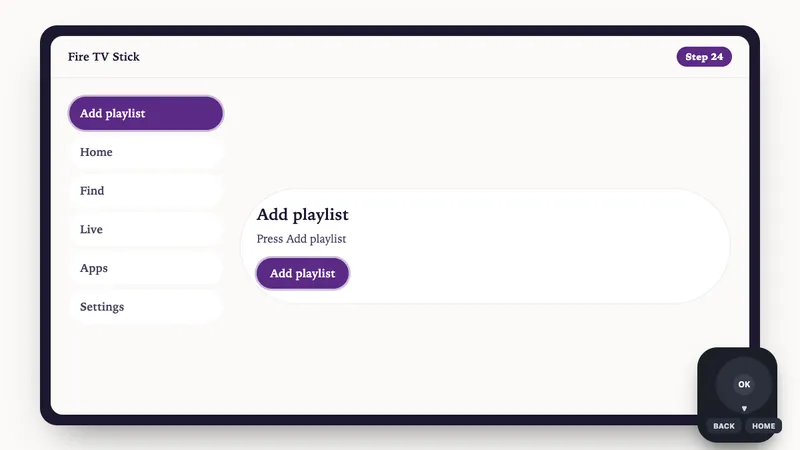
  8. Press Add playlist
    Illustration: Fire TV Stick setup, step 24: Press Add playlist
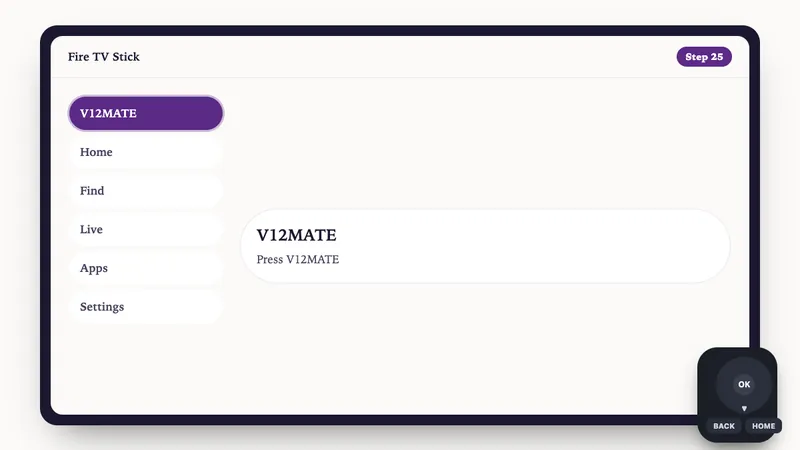
  9. Press V12MATE
    Illustration: Fire TV Stick setup, step 25: Press V12MATE
  10. Enter your Credentials - (If the app asks for a server URL, use the one in your login message.)
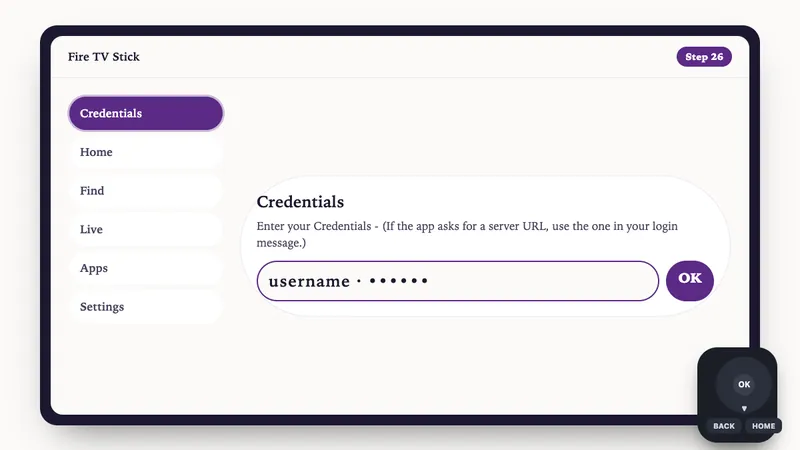
    Illustration: Fire TV Stick setup, step 26: Enter your Credentials - (If the app asks for a server URL, use the one in your login message.)
  11. Press Next, Make sure to keep VOD and TV channels selected
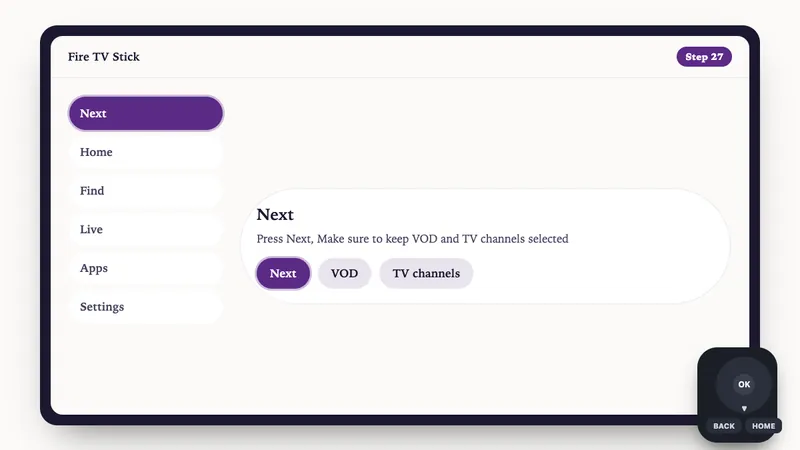
    Illustration: Fire TV Stick setup, step 27: Press Next, Make sure to keep VOD and TV channels selected
  12. Wait for it to process, (about 1 minute)
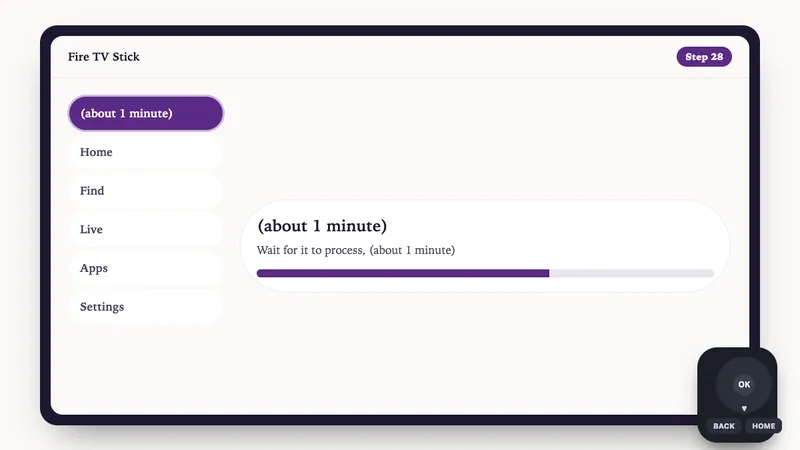
    Illustration: Fire TV Stick setup, step 28: Wait for it to process, (about 1 minute)
  13. Press Done, wait few seconds. You're ready to watch!
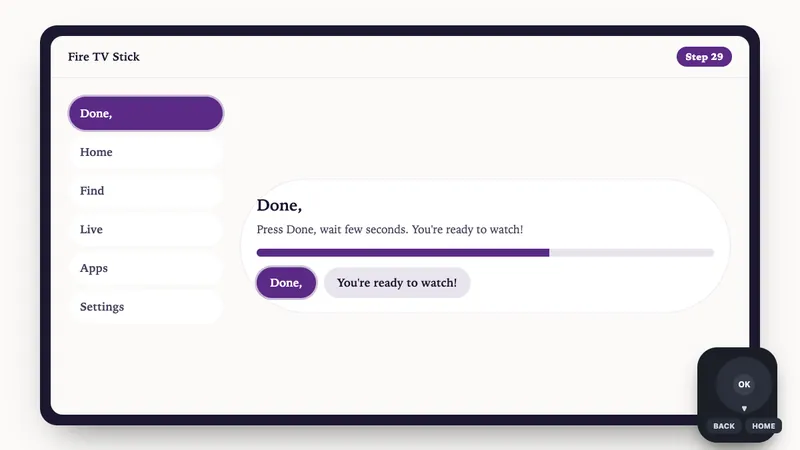
    Illustration: Fire TV Stick setup, step 29: Press Done, wait few seconds. You're ready to watch!

  1. Search for Downloader in the Play Store and tap Install
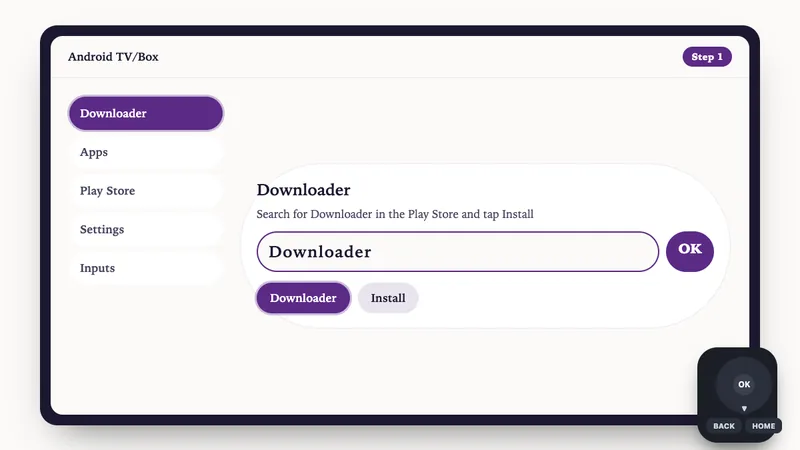
    Illustration: Android TV/Box setup, step 1: Search for Downloader in the Play Store and tap Install
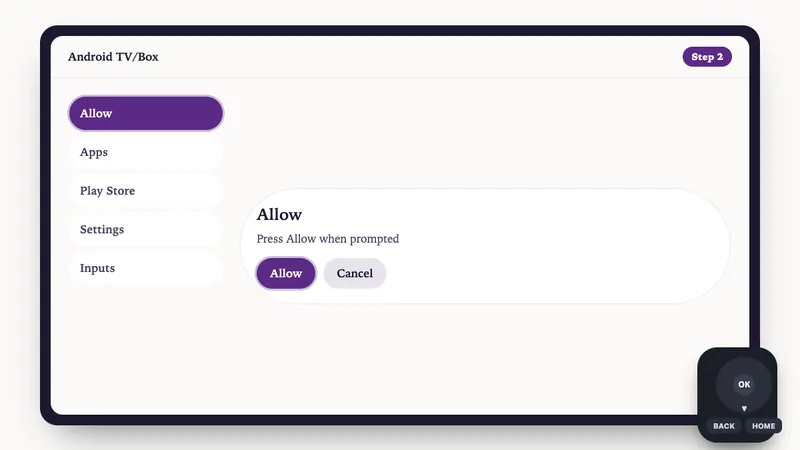
  2. Press Allow when prompted
    Illustration: Android TV/Box setup, step 2: Press Allow when prompted
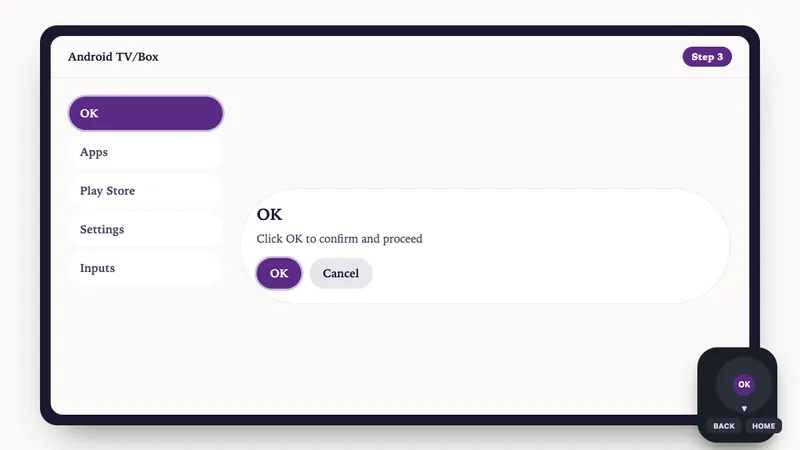
  3. Click OK to confirm and proceed
    Illustration: Android TV/Box setup, step 3: Click OK to confirm and proceed
  4. Downloader is ready — now install V12Mate
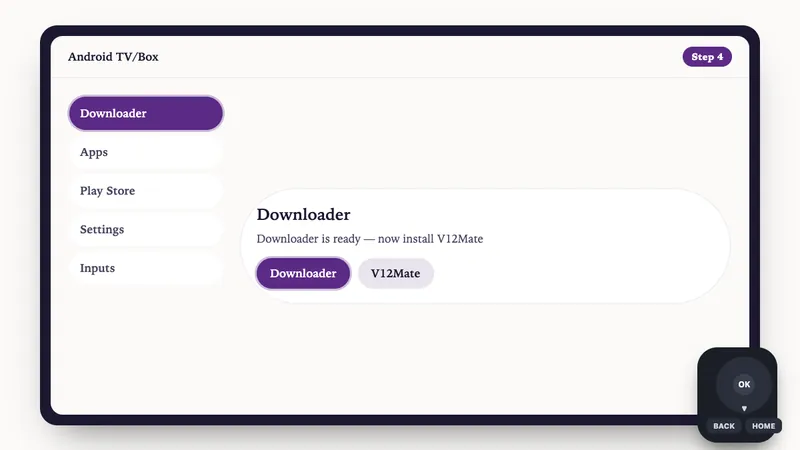
    Illustration: Android TV/Box setup, step 4: Downloader is ready — now install V12Mate
  5. Enter the Downloader code for V12Mate: 2494311 → press GO
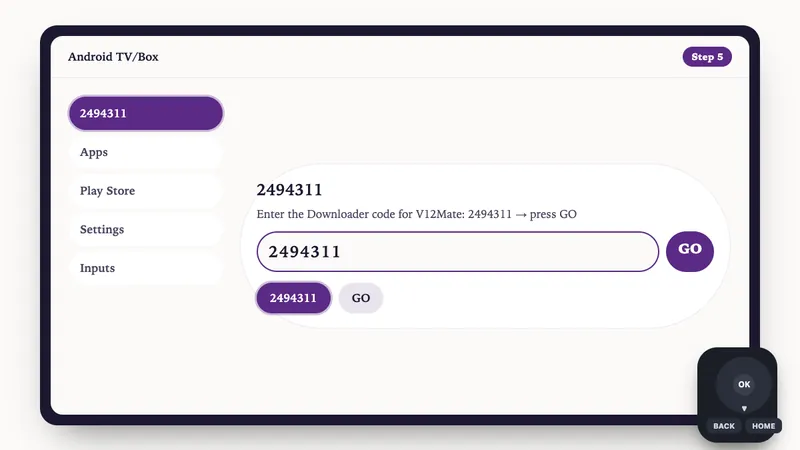
    Illustration: Android TV/Box setup, step 5: Enter the Downloader code for V12Mate: 2494311 → press GO
  6. Accept Privacy Policy → Install → confirm Install again if asked
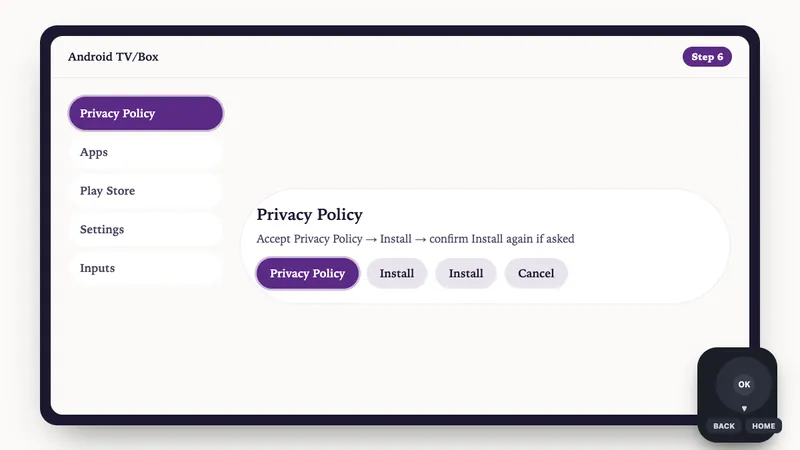
    Illustration: Android TV/Box setup, step 6: Accept Privacy Policy → Install → confirm Install again if asked
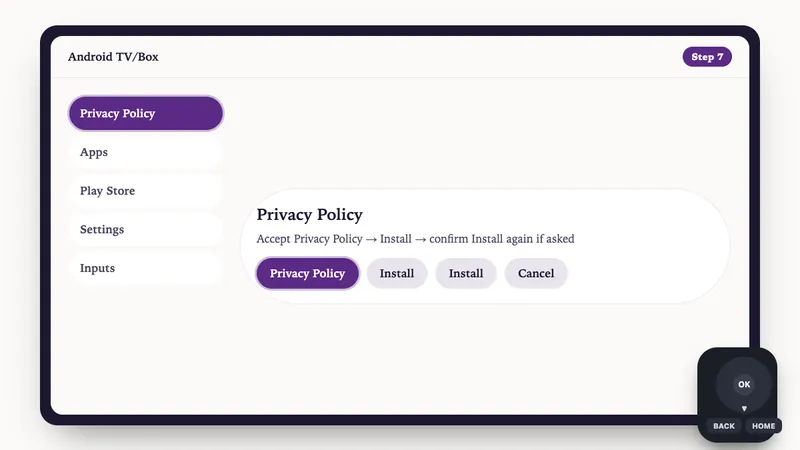
    Illustration: Android TV/Box setup, step 7: Accept Privacy Policy → Install → confirm Install again if asked
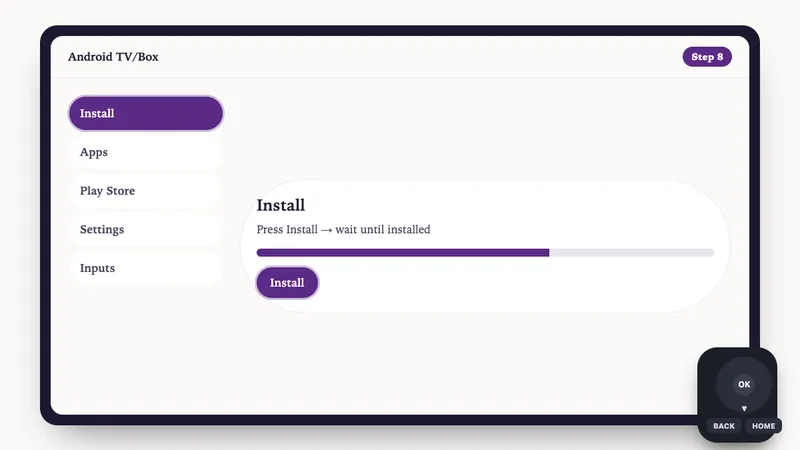
  7. Press Install → wait until installed
    Illustration: Android TV/Box setup, step 8: Press Install → wait until installed
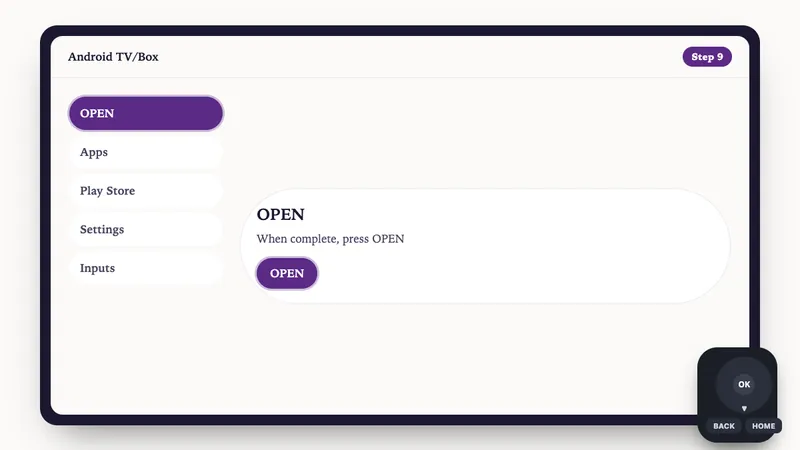
  8. When complete, press OPEN
    Illustration: Android TV/Box setup, step 9: When complete, press OPEN
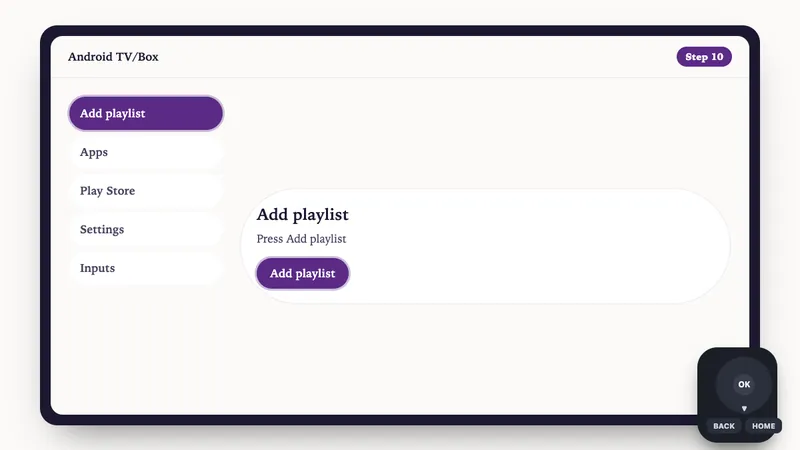
  9. Press Add playlist
    Illustration: Android TV/Box setup, step 10: Press Add playlist
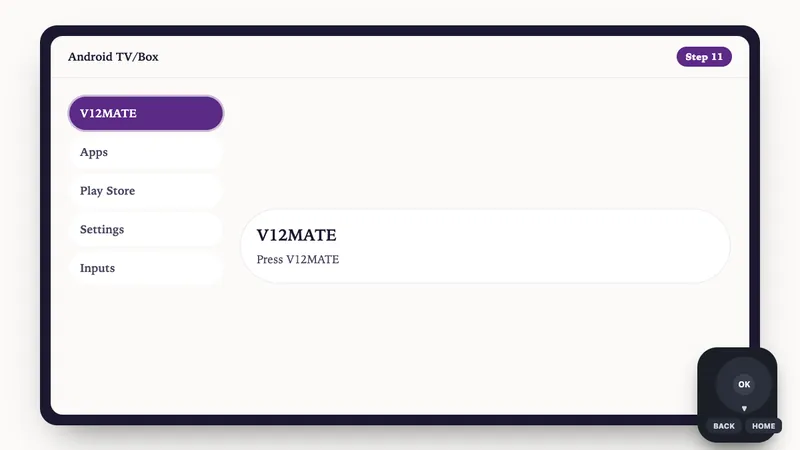
  10. Press V12MATE
    Illustration: Android TV/Box setup, step 11: Press V12MATE
  11. Enter your Credentials - (If the app asks for a server URL, use the one in your login message.)
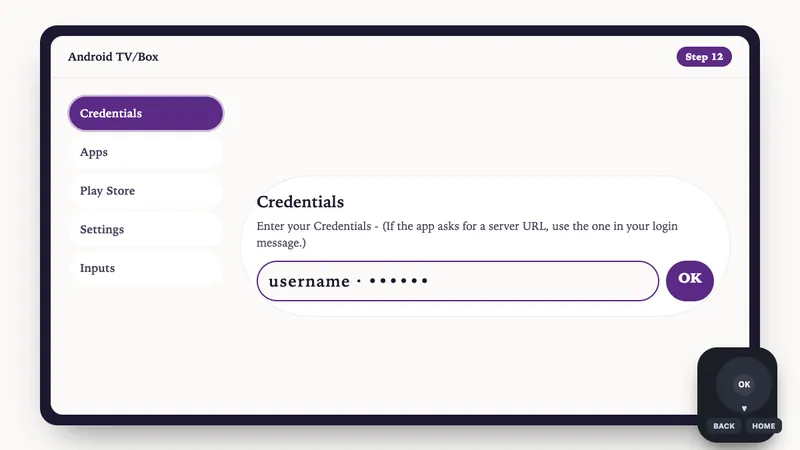
    Illustration: Android TV/Box setup, step 12: Enter your Credentials - (If the app asks for a server URL, use the one in your login message.)
  12. Press Next, Make sure to keep VOD and TV channels selected
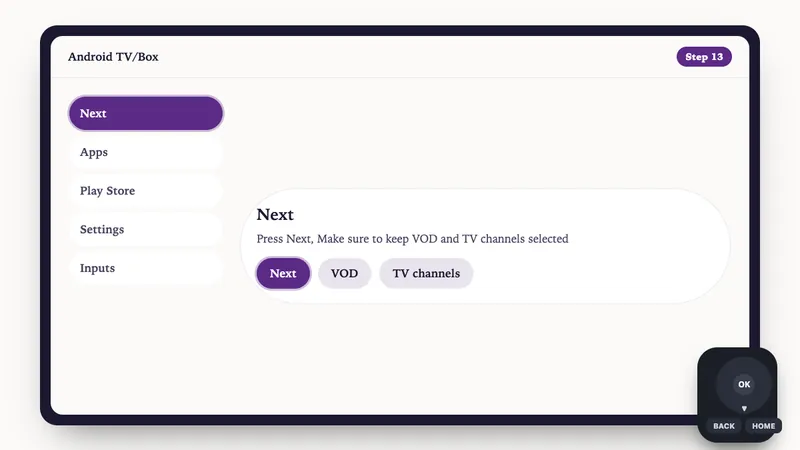
    Illustration: Android TV/Box setup, step 13: Press Next, Make sure to keep VOD and TV channels selected
  13. Wait for it to process, (about 1 minute)
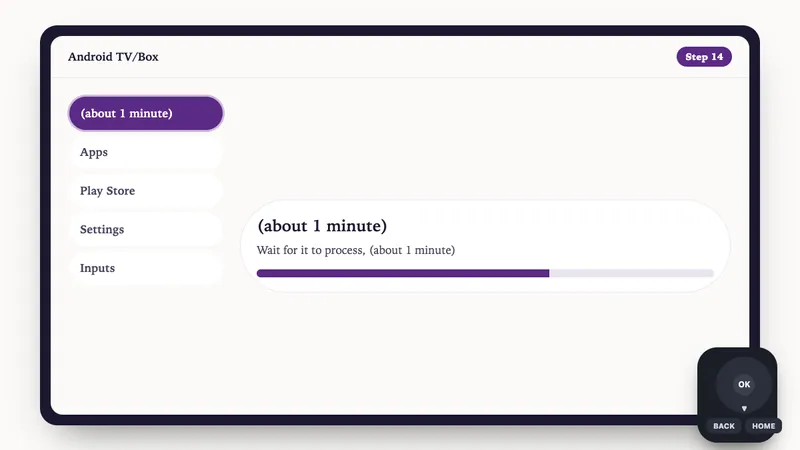
    Illustration: Android TV/Box setup, step 14: Wait for it to process, (about 1 minute)
  14. Press Done, wait few seconds. You're ready to watch!
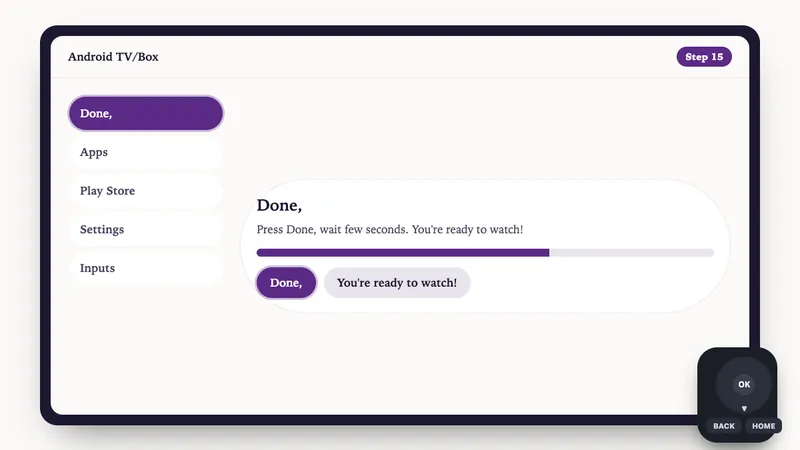
    Illustration: Android TV/Box setup, step 15: Press Done, wait few seconds. You're ready to watch!

  1. Open Google Play Store on your Android TV
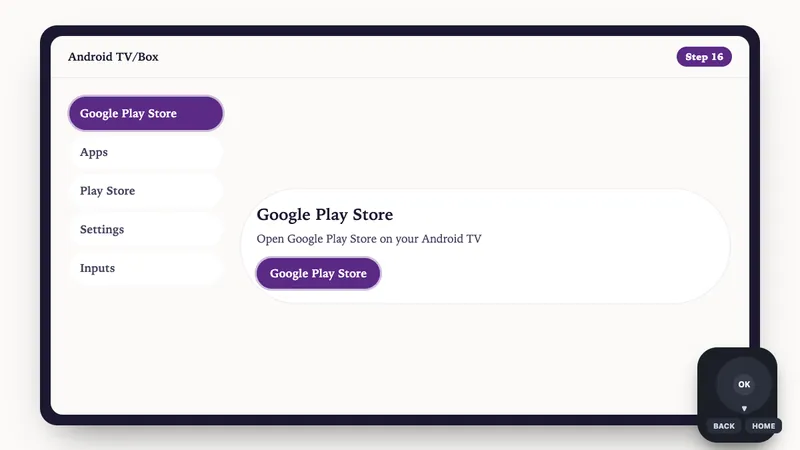
    Illustration: Android TV/Box setup, step 16: Open Google Play Store on your Android TV
  2. Search for TiviMate IPTV Player and click Install
  3. Open TiviMate, select Add Playlist, choose Xtream Codes
  4. Enter your IPTVV credentials (Server URL, Username, Password)

  1. Download iMPlayer - IPTV Player from App Store:
    Download from App Store
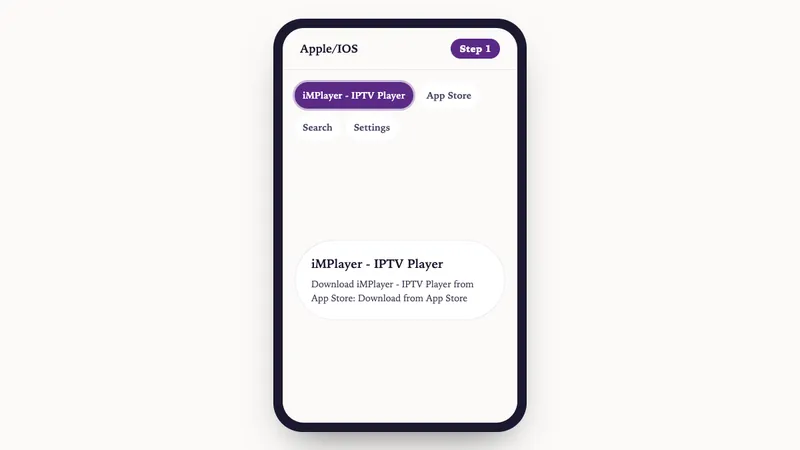
    Illustration: Apple/IOS setup, step 1: Download iMPlayer - IPTV Player from App Store: Download from App Store
  2. Open the app and click on "Add a Playlist"
  3. Select playlist type "XC API"
  4. Fill in your details:
    • Playlist Name: Choose any name you want
    • Portal URL: Enter the server URL we sent you by email
    • Username & Password: Use the credentials provided in the email
  5. Click "Add Playlist" wait until contents finish downloading and enjoy streaming!

  1. Open app and tap Add User, select Login with Xtream Codes API
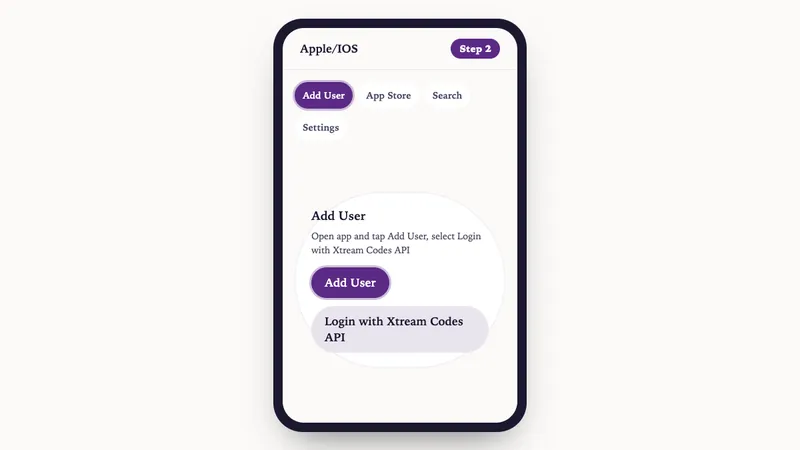
    Illustration: Apple/IOS setup, step 2: Open app and tap Add User, select Login with Xtream Codes API
  2. Use the login details provided to you after subscribing. Then click on "ADD USER" to continue
  3. Wait a few seconds for the app to process your details
  4. Tap the "Live TV" icon to start watching
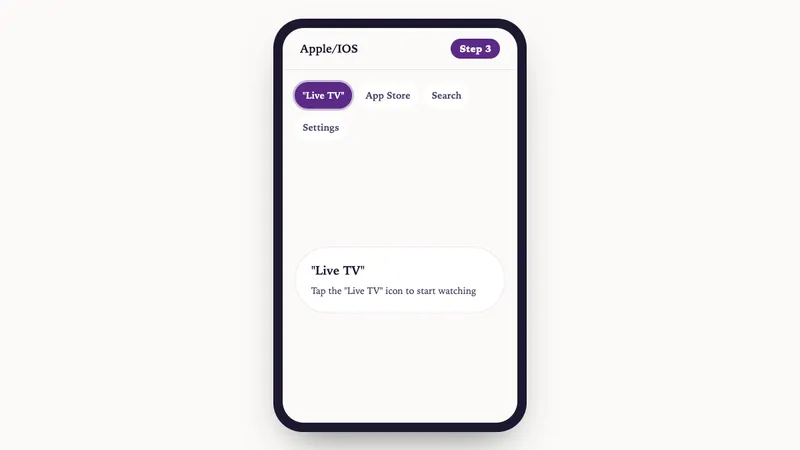
    Illustration: Apple/IOS setup, step 3: Tap the "Live TV" icon to start watching
  5. Select the channel category you want to browse and tap a channel name to play it

  1. Open a browser and type "IPTV Smarters Pro" into the search bar
  2. Go to the official website: https://www.iptvsmarters.com
  3. Click on the "Downloads" section in the website menu
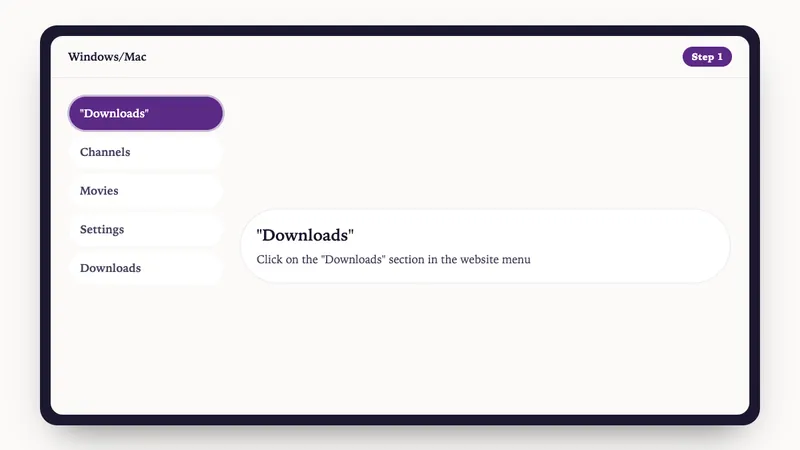
    Illustration: Windows/Mac setup, step 1: Click on the "Downloads" section in the website menu
  4. Download the Windows or Mac version of IPTV Smarters Pro
    Illustration: Windows/Mac setup, step 2: Download the Windows or Mac version of IPTV Smarters Pro
  5. Once the download completes, open the installer by clicking on the downloaded file
  6. If Windows asks for permission, click "Yes" to allow the app to install
  7. The installation will now begin. It typically takes under 2 minutes
  8. Once installed, launch the IPTV Smarters app. Click Add New User, then choose "Login with Xtream Codes API"
  9. Enter your IPTV account details: Username, Password, and Portal URL
  10. That's it! You're ready to start streaming with IPTV Smarters Pro

  1. Go to the Settings tab, then click on "Add new playlist and EPG source"
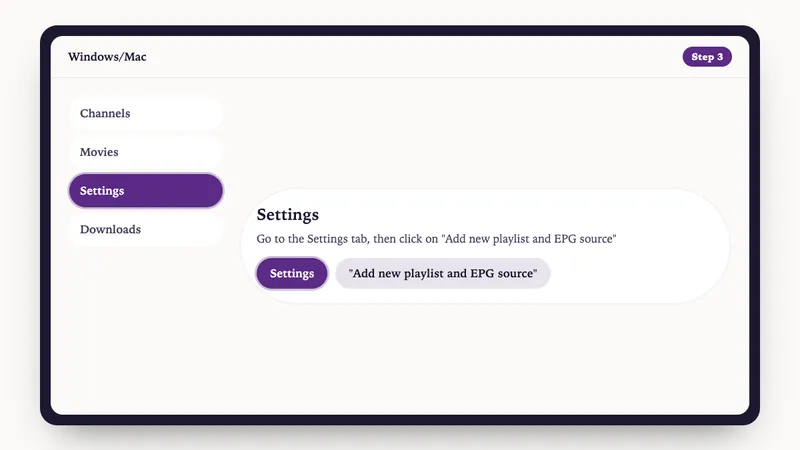
    Illustration: Windows/Mac setup, step 3: Go to the Settings tab, then click on "Add new playlist and EPG source"
  2. Add your M3U playlist:
    • Name: Give your playlist a name (e.g. "IPTVV")
    • URL: Paste the M3U link you received from your IPTV provider
    • Click on Add remote list
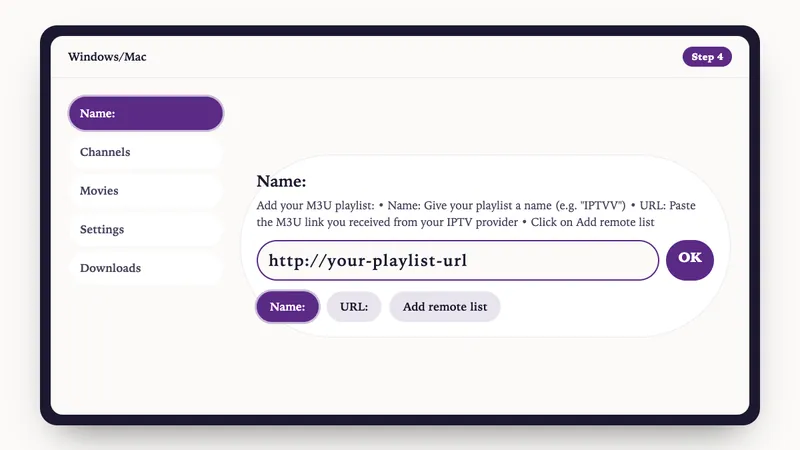
    Illustration: Windows/Mac setup, step 4: Add your M3U playlist: • Name: Give your playlist a name (e.g. "IPTVV") • URL: Paste the M3U link you received
  3. Go back to Settings and choose your playlist from the Select Channel Playlist dropdown
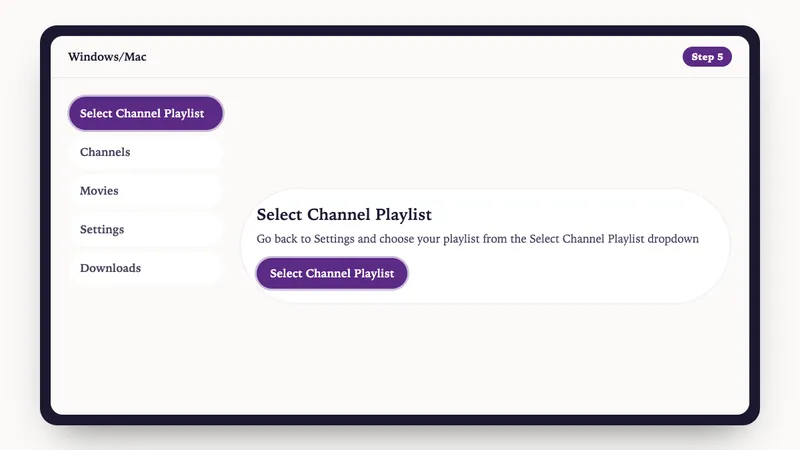
    Illustration: Windows/Mac setup, step 5: Go back to Settings and choose your playlist from the Select Channel Playlist dropdown
  4. Done! Go to the Channels tab, choose your country, and start watching your favorite TV and VOD content
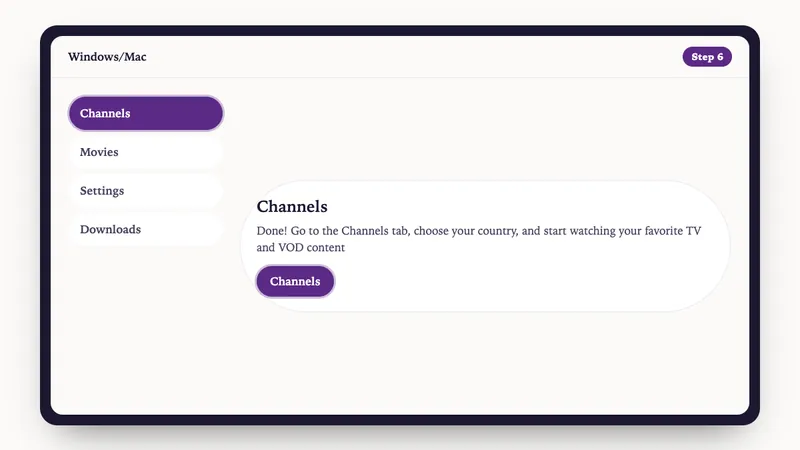
    Illustration: Windows/Mac setup, step 6: Done! Go to the Channels tab, choose your country, and start watching your favorite TV and VOD content

  1. Download iMPlayer - IPTV Player from Google Play Store:
    Download from Google Play Store
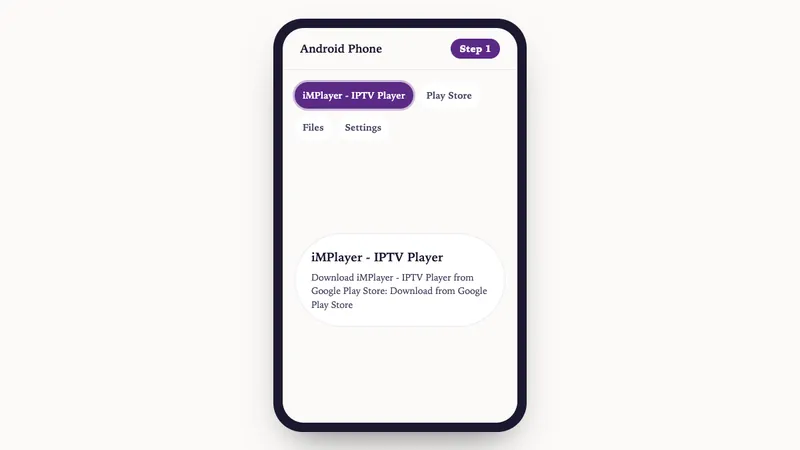
    Illustration: Android Phone setup, step 1: Download iMPlayer - IPTV Player from Google Play Store: Download from Google Play Store
  2. Open the app and click on "Add a Playlist"
  3. Select playlist type "XC API"
  4. Fill in your details:
    • Playlist Name: Choose any name you want
    • Portal URL: Enter the server URL we sent you by email
    • Username & Password: Use the credentials provided in the email
  5. Click "Add Playlist" wait until contents finish downloading and enjoy streaming!

  1. Open Google Play Store and search for TiviMate IPTV Player
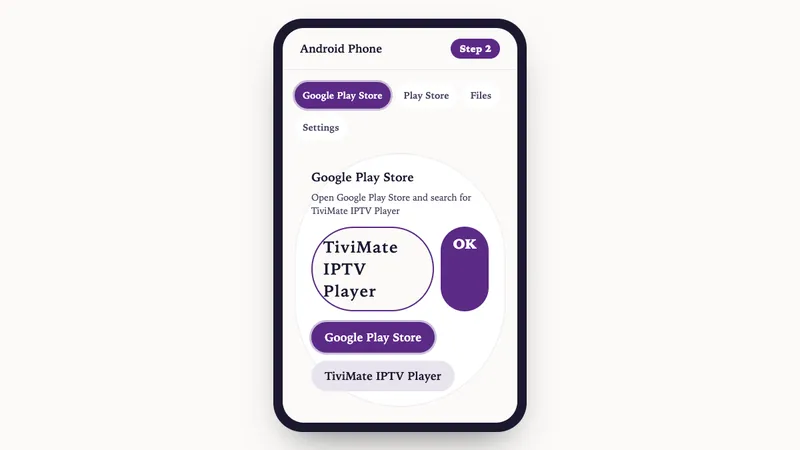
    Illustration: Android Phone setup, step 2: Open Google Play Store and search for TiviMate IPTV Player
  2. Tap Install and wait for completion
  3. Open TiviMate, tap Add Playlist
  4. Select Xtream Codes or M3U Playlist based on what your provider gave you
  5. Enter IPTVV credentials:
    • Server: Your provider's server URL
    • Username: Your username
    • Password: Your password
    Then tap Next
  6. Wait for channels to load, then start watching!

  1. Go to the official site: tivimate.com and download the APK
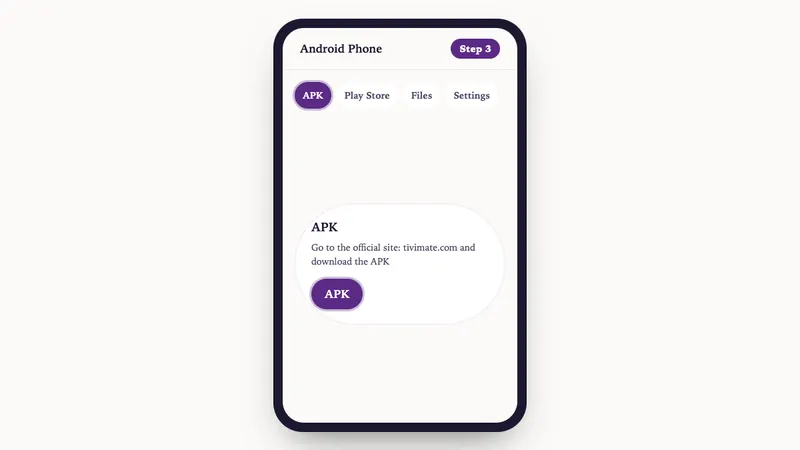
    Illustration: Android Phone setup, step 3: Go to the official site: tivimate.com and download the APK
  2. Allow installs from unknown sources if prompted (Settings > Security)
  3. Open the file to install TiviMate, then launch the app
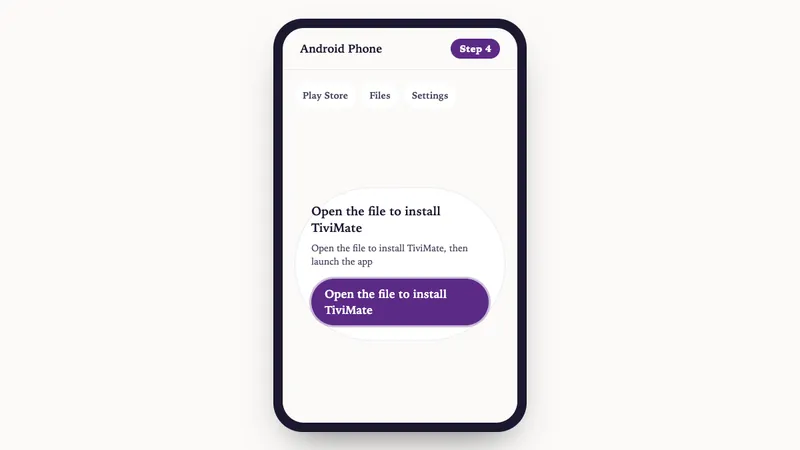
    Illustration: Android Phone setup, step 4: Open the file to install TiviMate, then launch the app
  4. Follow the same steps as above to add your IPTV playlist

  1. On your Roku device, open the Roku Channel Store
  2. In the search bar, type "Hot IPTV" or "Hot Player"
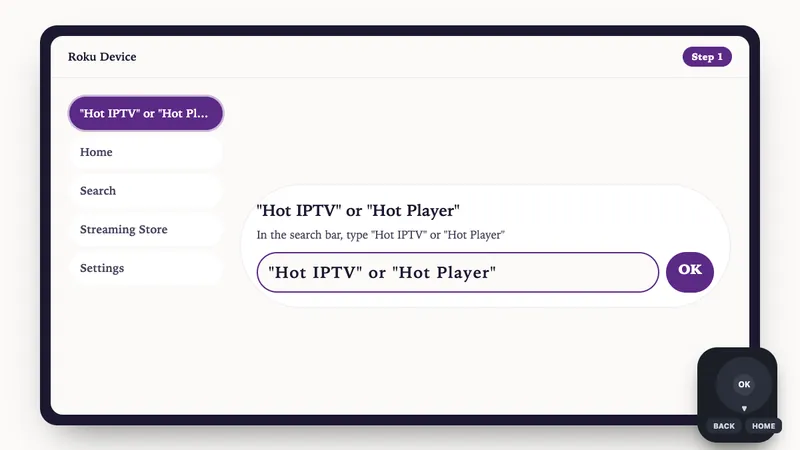
    Illustration: Roku Device setup, step 1: In the search bar, type "Hot IPTV" or "Hot Player"
  3. Select Hot Player from the search results
  4. Click "Add Channel" to install the app on your Roku device

  1. Open the Hot Player app on your Roku device
  2. You will see your MAC Address displayed on the screen. Write this down or take a photo - you'll need it for the next step
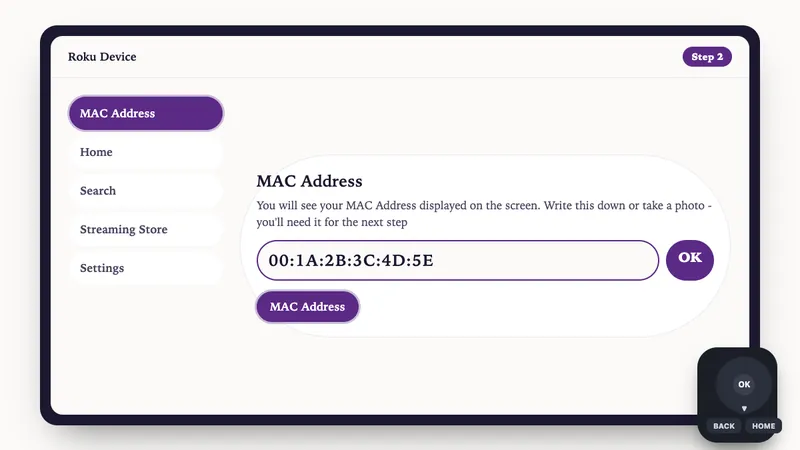
    Illustration: Roku Device setup, step 2: You will see your MAC Address displayed on the screen. Write this down or take a photo - you'll need it for th

  1. Hot Player needs a one-time activation for your device. Get your 1-year license from us — quick and secure.

  1. On your phone, tablet, or computer, visit: https://hotplayer.app
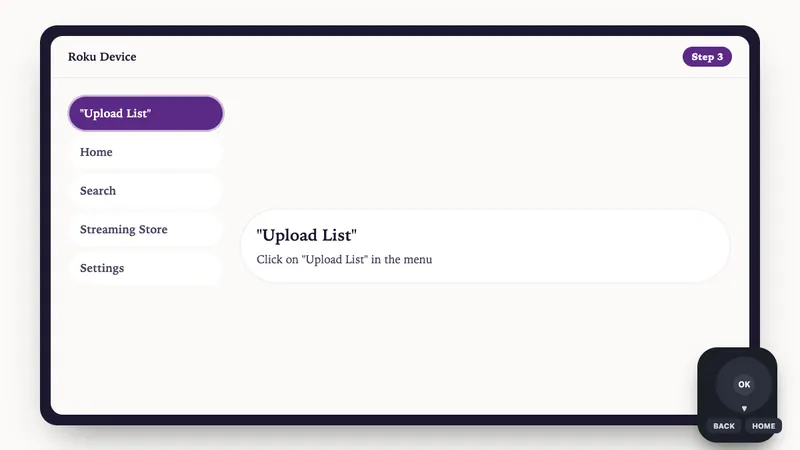
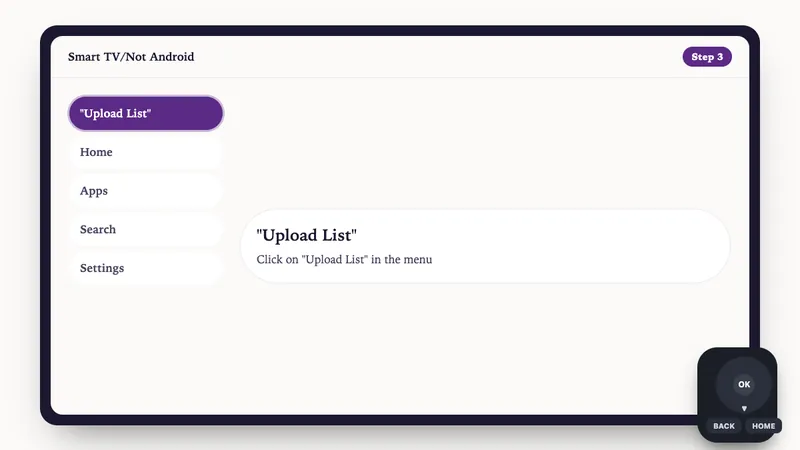
  2. Click on "Upload List" in the menu
    Illustration: Roku Device setup, step 3: Click on "Upload List" in the menu
  3. Enter the MAC Address from your Roku device, then click "Next"
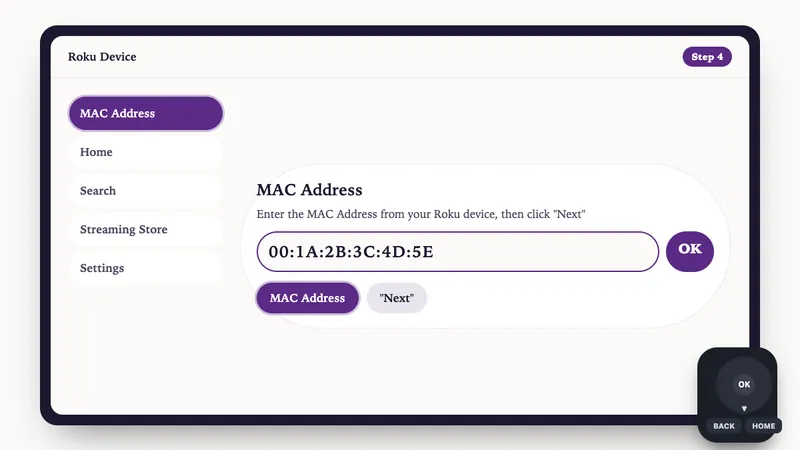
    Illustration: Roku Device setup, step 4: Enter the MAC Address from your Roku device, then click "Next"
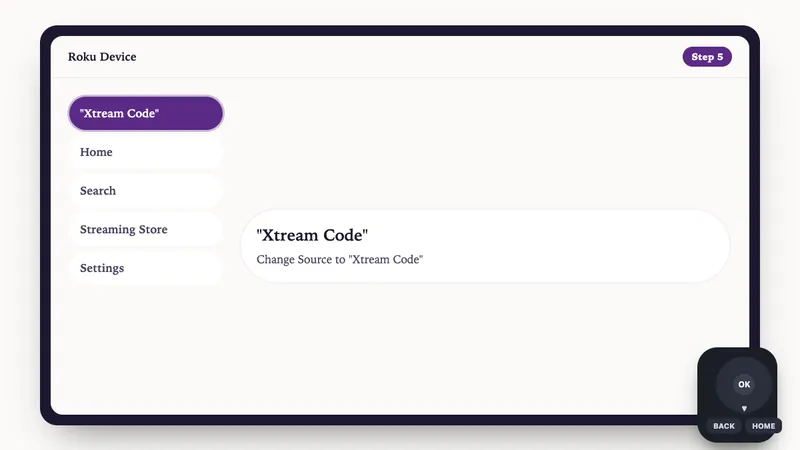
  4. Change Source to "Xtream Code"
    Illustration: Roku Device setup, step 5: Change Source to "Xtream Code"
  5. Fill in your IPTV playlist details:

    • Playlist Name: Enter any name you want (e.g., "My IPTV")
    • Host: Your Server Address
    • Username: Your IPTV username
    • Password: Your IPTV password

    Then click "Save"
  6. Return to your Roku device click Refresh or restart the Hot Player app
  7. Your IPTV channels should now load. You're ready to start watching!

  1. On your Smart TV, open your App Store (LG Content Store, Samsung Apps, etc.)
  2. In the search bar, type "Hot IPTV" or "Hot Player"
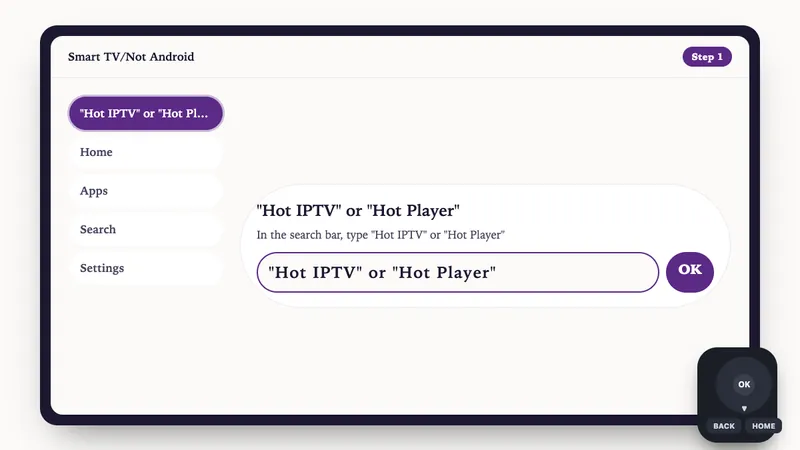
    Illustration: Smart TV/Not Android setup, step 1: In the search bar, type "Hot IPTV" or "Hot Player"
  3. Select Hot Player from the search results
  4. Click "Install" or "Download" to install the app on your Smart TV

  1. Open the Hot Player app on your Smart TV
  2. You will see your MAC Address displayed on the screen. Write this down or take a photo - you'll need it for the next step
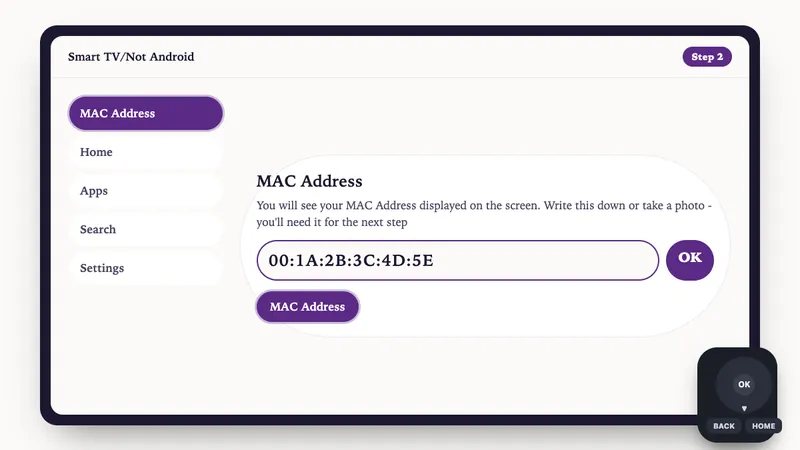
    Illustration: Smart TV/Not Android setup, step 2: You will see your MAC Address displayed on the screen. Write this down or take a photo - you'll need it for th

  1. Hot Player needs a one-time activation for your device. Get your 1-year license from us — quick and secure.

  1. On your phone, tablet, or computer, visit: https://hotplayer.app
  2. Click on "Upload List" in the menu
    Illustration: Smart TV/Not Android setup, step 3: Click on "Upload List" in the menu
  3. Enter the MAC Address from your Smart TV, then click "Next"
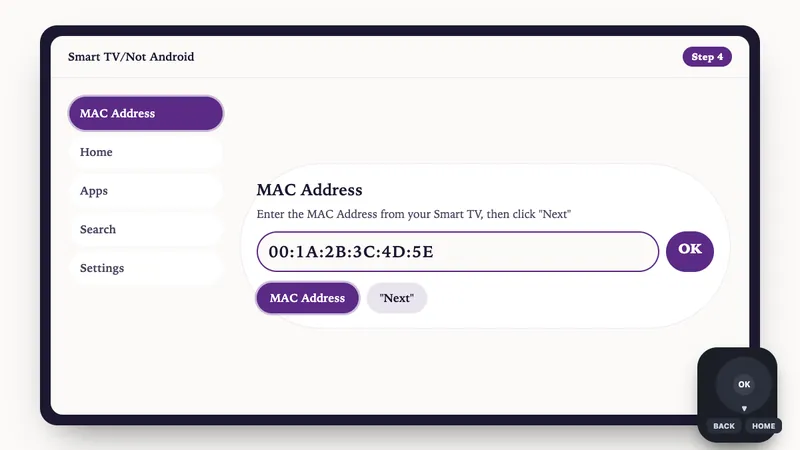
    Illustration: Smart TV/Not Android setup, step 4: Enter the MAC Address from your Smart TV, then click "Next"
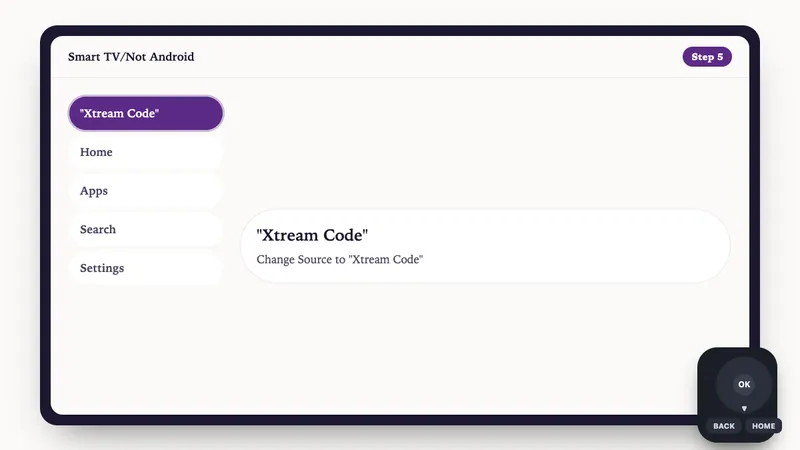
  4. Change Source to "Xtream Code"
    Illustration: Smart TV/Not Android setup, step 5: Change Source to "Xtream Code"
  5. Fill in your IPTV playlist details:

    • Playlist Name: Enter any name you want (e.g., "My IPTV")
    • Host: Your Server Address
    • Username: Your IPTV username
    • Password: Your IPTV password

    Then click "Save"
  6. Return to your Smart TV click Refresh or restart the Hot Player app
  7. Your IPTV channels should now load. You're ready to start watching!

  1. From your BuzzTV home screen, navigate to Server Settings
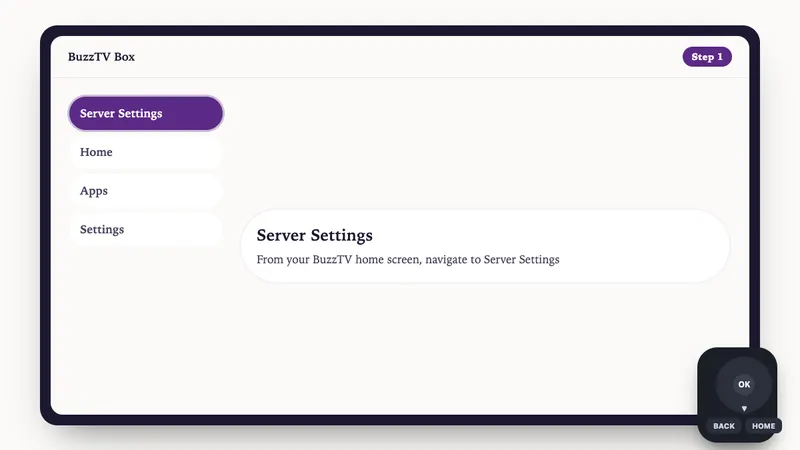
    Illustration: BuzzTV Box setup, step 1: From your BuzzTV home screen, navigate to Server Settings
  2. Select XC API Login → Add XC API Login
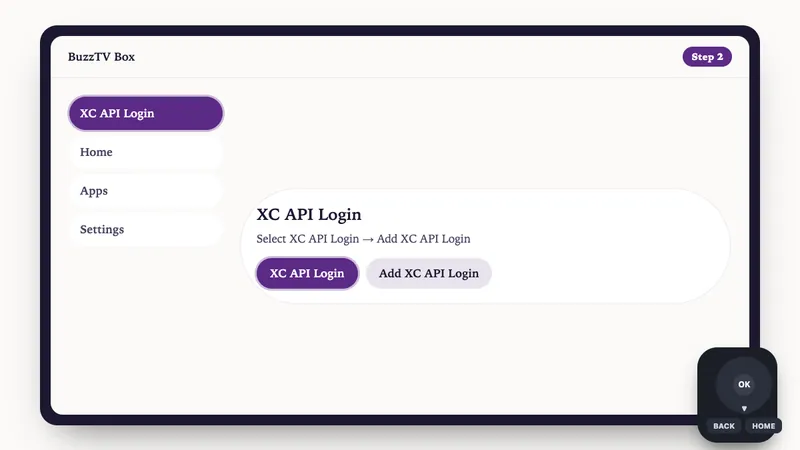
    Illustration: BuzzTV Box setup, step 2: Select XC API Login → Add XC API Login
  3. Configure your Xtream Codes connection:
    • Portal Name: Enter any name (e.g., "My IPTV")
    • Portal URL: Enter your server URL
    • User name: Enter your IPTV username
    • Password: Enter your IPTV password
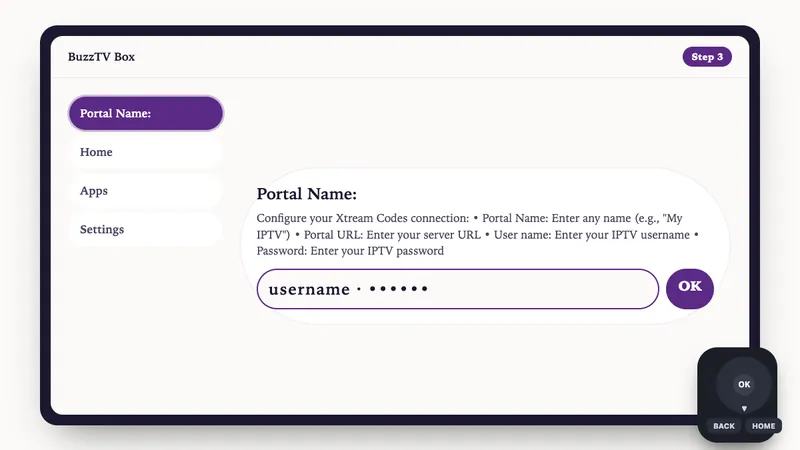
    Illustration: BuzzTV Box setup, step 3: Configure your Xtream Codes connection: • Portal Name: Enter any name (e.g., "My IPTV") • Portal URL: Enter yo
  4. Press "Connect" or "Save" to establish the connection
  5. Return to home screen and select Live TV to start watching!

  1. Open MyTVOnline 2 or 3 from your Formuler home screen
  2. Navigate to Menu → Connections → Add Portal
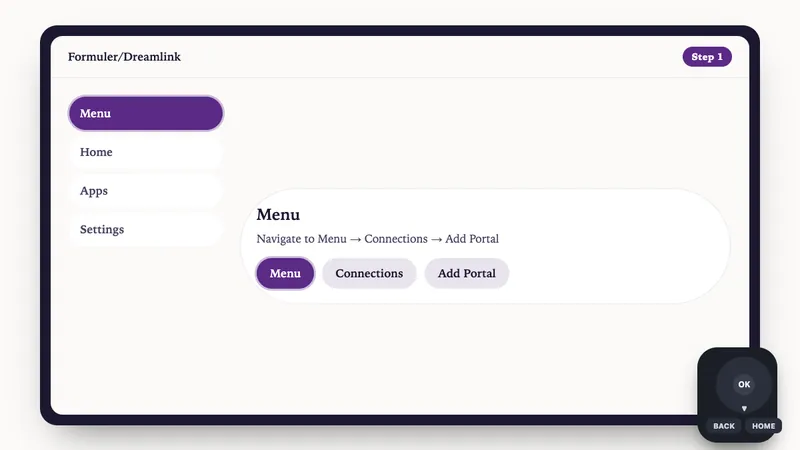
    Illustration: Formuler/Dreamlink setup, step 1: Navigate to Menu → Connections → Add Portal
  3. Configure your Xtream Codes connection:
    • Portal Name: Enter any name (e.g., "My IPTV")
    • Portal URL: Enter your server URL
    • Login Required: Enable this option
    • Username: Enter your IPTV username
    • Password: Enter your IPTV password
  4. Press "Connect" to establish the connection
  5. Your channels should now load and you're ready to watch!

  1. Open DOL2 App from your Dreamlink home screen
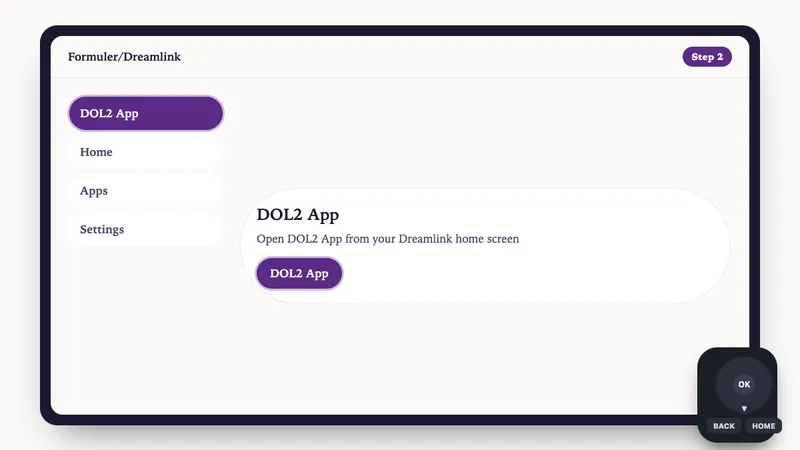
    Illustration: Formuler/Dreamlink setup, step 2: Open DOL2 App from your Dreamlink home screen
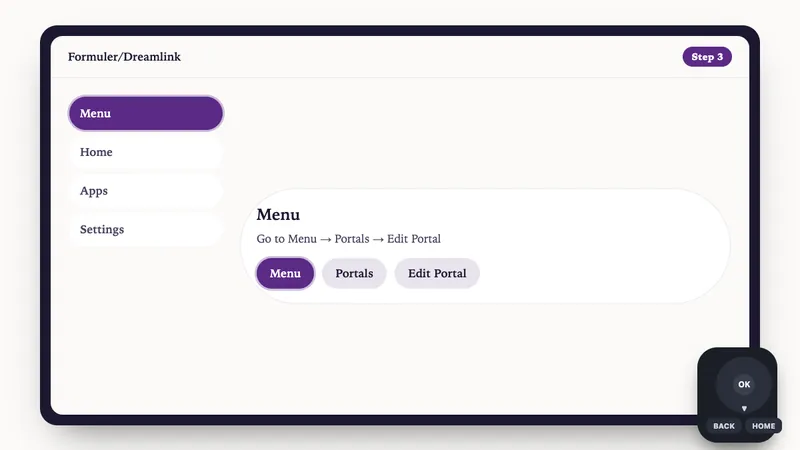
  2. Go to Menu → Portals → Edit Portal
    Illustration: Formuler/Dreamlink setup, step 3: Go to Menu → Portals → Edit Portal
  3. Enter your portal configuration:
    • Portal Title: Any name you prefer
    • Portal URL: Your IPTV server URL
    • Login Required: Yes, activate this
    • Username: Your credentials
    • Password: Your credentials
  4. Save the configuration and restart the app to connect

How to Setup IPTV on MAG Box Devices

We support all MAG Box models (MAG 322, MAG 254, etc.) via MAC address activation.

MAG Box Configuration

  1. Find the MAC Address of your MAG Box. This is printed on a sticker underneath the device and usually starts with 00:1A:79...
  2. Send this MAC address to our support team via WhatsApp or Email after purchasing your subscription.
  3. Once we confirm your MAC address is activated on our server, turn on your MAG Box.
  4. Go to Settings -> System Settings.
  5. Select Servers -> Portals.
  6. In Portal 1 Name type "IPTV".
  7. In Portal 1 URL type the exact Portal URL we provided you.
  8. Press OK to save the settings. Return to the main menu and reboot your device to load the channels.

Still having trouble setting up your device?

Get Live Setup Help

New buying guides by email

We write when a guide is updated for UK or Canada. Unsubscribe anytime.