

The Complete IPTV Subscription Guide: How to Choose, Set Up, and Save

You've cut the cord, you're done paying $150 a month for cable channels you never watch, and now you want a reliable IPTV subscription that actually works — no freezing, no buffering mid-game, no channels that just disappear. The problem is, between shady providers, confusing M3U playlists, and apps that feel like they were designed by someone who hates users, getting set up properly feels like a part-time job. This guide cuts through all of that. Whether you're loading your first playlist on a Firestick, configuring TiviMate on an Android TV box, or just trying to figure out why your streams keep dropping, you're about to get the exact roadmap to a smooth, stable IPTV experience from day one.
Without getting the technical side right, even a premium IPTV subscription will disappoint you. ISP throttling, incorrect playlist formats, and weak Wi-Fi signals are the three biggest killers of the IPTV experience — and all three are completely fixable once you understand what you're dealing with.
Core Concepts & Need-To-Know Info
- M3U Playlist / M3U URL: This is a text-based file or web link that contains all your channel and VOD information. Your IPTV provider gives you this URL after purchase.
- Xtream Codes API: An alternative to M3U — instead of a URL, you get a server URL, username, and password. Most modern IPTV apps support both formats.
- EPG (Electronic Program Guide): The on-screen TV guide that shows what's currently on and what's coming up. A good provider includes an EPG URL with your subscription.
- VOD (Video on Demand): Your provider's on-demand movie and TV show library, separate from live channels — think of it as their built-in Netflix equivalent.
- ISP Throttling: When your internet service provider detects high-bandwidth streaming traffic and intentionally slows it down. This is one of the leading causes of buffering even on fast connections.
- Buffer/Cache Size: The amount of data your player pre-loads before playback. A higher buffer setting prevents skipping on slightly unstable connections.
- Server Location: The physical location of your IPTV provider's servers affects your stream quality. Closer servers generally mean lower latency and fewer drops.
Step-by-Step Guide
- Step 1: Purchase a Reputable IPTV Subscription:
- Research providers that offer a trial period — 24 to 48 hours is standard. Look for providers with 99.9% uptime guarantees, a large channel count (10,000+), and VOD libraries. Once you subscribe, you'll receive login credentials: either an M3U URL or Xtream Codes details (server, username, password) via email.
- Step 2: Enable Downloader on Your Firestick (Firestick Users Only):
- Navigate to Settings, then My Fire TV, then Developer Options, and turn on Apps from Unknown Sources and ADB Debugging. This unlocks the ability to install third-party IPTV apps that aren't in the Amazon App Store.
- Step 3: Install Your IPTV Player App:
- For Firestick, search the Amazon App Store for TiviMate or IPTV Smarters Pro. For Android TV boxes, open Google Play and install either app directly. For Smart TVs, check your TV's app store for Smart IPTV or use the Downloader app to sideload your preferred player.
- Step 4: Open the App and Add Your Playlist:
- Launch TiviMate, tap Add Playlist, and select M3U Playlist or Xtream Codes depending on what your provider gave you. If using M3U, paste your full M3U URL exactly as provided. If using Xtream Codes, enter the server URL, your username, and your password into the three separate fields.
- Step 5: Import Your EPG (TV Guide):
- Inside TiviMate, go to Settings, then EPG, and paste the EPG URL provided by your IPTV subscription service. Set the update schedule to Every 24 hours so your guide stays current without manual refreshing.
- Step 6: Organize Your Channels Into Groups:
- After your playlist loads (this can take 1 to 3 minutes for large playlists), go into your channel groups and hide categories you don't need. This dramatically speeds up navigation and keeps your interface clean.
- Step 7: Connect a VPN Before Streaming:
- Before you hit play on anything, connect to a VPN server in your home country or near your IPTV provider's server location. This bypasses ISP throttling from the very first stream. ExpressVPN and NordVPN both have Fire TV apps you can install directly from the Amazon App Store.
- Step 8: Test Your Streams and Adjust Buffer Settings:
- Play a live sports channel or HD movie. If you experience buffering, go into your player's settings and increase the buffer size to 10MB or higher. In TiviMate, this is found under Settings, then Player, then Buffer Size.
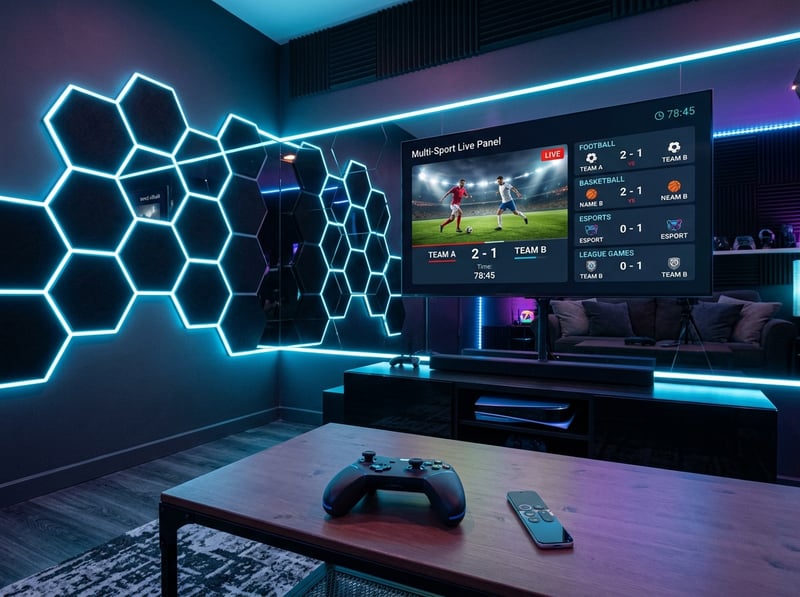
Here's a real-world scenario that plays out constantly: someone buys an IPTV subscription, the channels load fine but within 20 minutes everything starts buffering. They blame the provider, cancel, and buy from someone else. The exact same thing happens again. The actual culprit is their ISP identifying the streaming traffic and throttling it down to 2–3 Mbps, making even a rock-solid IPTV service look terrible. A VPN solves this in under two minutes. Another incredibly common situation is a user who types their M3U URL with a space or a missing character, then spends three hours troubleshooting what is literally a copy-paste problem.
Recommended Apps: TiviMate vs IPTV Smarters Pro
Both apps support M3U playlists and Xtream Codes, but they serve slightly different users. TiviMate is widely considered the gold standard for Firestick and Android TV. The free version covers the basics, but TiviMate Premium ($4.99/year) unlocks multiple playlists, recording functionality, catch-up TV support, and customizable EPG layouts. The interface is clean, the buffer controls are accessible, and it handles large playlists with 20,000+ channels without slowing down. IPTV Smarters Pro is the better choice for beginners or users who want a more traditional TV-like interface. It's free, supports parental controls, and works seamlessly on both Android and iOS — making it ideal if you want the same app across your phone, tablet, and TV box. GSE Smart IPTV is a solid third option for iOS users and those who want advanced M3U management with multiple remote playlists and strong EPG support.
Network Requirements for 4K Streaming
- SD channels: Minimum 5 Mbps — almost any broadband connection handles this.
- HD channels (720p/1080p): 10–15 Mbps stable — this is the sweet spot most users operate at.
- 4K UHD streams: 25 Mbps minimum, with 40+ Mbps recommended for consistent 4K without drops.
- Wired Ethernet connection: A CAT6 cable from your router to your streaming device eliminates the signal fluctuation that Wi-Fi introduces, especially in apartments with dozens of competing networks.
- Router placement: If you must use Wi-Fi, position your router within line-of-sight of your streaming device and prioritize your streaming device in your router's QoS (Quality of Service) settings.
- Dual-band routers: Use the 5GHz band rather than 2.4GHz for your streaming device — it's faster and less congested, even though the range is slightly shorter.
Common Setup Mistakes & How to Fix Them
- Playlist Not Loading:
- This almost always comes down to an incorrect M3U URL. Open the URL in a browser first — if it shows a wall of text (channel data), the URL is valid. If you get an error page, contact your provider for a fresh link.
- Channels Showing But Not Playing:
- This is typically a server-side issue during peak hours (evenings and weekends) or a VPN routing problem. Try switching your VPN to a different server location and retry.
- EPG Not Working:
- Go into your app's EPG settings and manually trigger a refresh. If your guide remains blank after 10 minutes, your provider's EPG URL may have changed — check their website or support channel for an updated link.
- App Crashing on Firestick:
- Clear the app cache by going to Settings, then Applications, then Manage Installed Applications, then select your app and choose Clear Cache, and restart your Firestick. If crashes persist, your Firestick may need a full restart or the app may need reinstalling.
Best VPNs to Stop ISP Throttling
- ExpressVPN: Best overall for speed and reliability. Has a dedicated Fire TV app, consistently delivers 80–90% of your base internet speed, and its Lightway protocol keeps latency minimal for live sports.
- NordVPN: Best value for the money. NordLynx protocol is blazing fast, and the 6-device simultaneous connection policy covers your whole household.
- Surfshark: Best budget option with unlimited simultaneous connections. Performance has improved dramatically and it's become a legitimate choice for IPTV households with multiple devices.
A great IPTV subscription paired with the right setup isn't just a cable replacement — it's a genuine upgrade. You get more channels, more flexibility, VOD libraries that rival the biggest streaming platforms, and the freedom to watch on any screen in your house. The difference between a frustrating experience and a flawless one almost always comes down to the small technical details covered in this guide: the right app, a solid VPN, correct playlist configuration, and a stable network connection. Get those four things right, and explore our full channel list and pricing plans to find the subscription that fits your needs perfectly.
Frequently Asked Questions
Ready to get started?
Try our service risk-free with a 24-hour free trial.
Related Articles

Discover the Best Free IPTV for Firestick in 2026
Uncover the best free IPTV options for your Firestick.
Discover the Best IPTV for Firestick: Your 2026 Guide
Unlock the best IPTV options for Firestick streaming.

Discover the Best IPTV UK Providers for 2026: A Complete Guide
Uncover the best IPTV UK providers for seamless streaming.