

Unlocking UK IPTV Subscriptions: Your Ultimate 2026 Guide

Tired of paying sky-high cable bills only to miss live Premier League matches because your stream keeps freezing at the worst possible moment? A UK IPTV subscription is the answer millions of cord-cutters have already discovered, delivering thousands of live channels, VOD libraries, and catch-up TV at a fraction of what traditional broadcasters charge. But here's the thing: getting it right from the start is what separates a buttery-smooth viewing experience from a frustrating night of buffering circles and broken playlists. This guide walks you through everything, from picking the right service to dialing in your settings so your streams never skip a beat.
Solving your IPTV setup properly matters because a poorly configured connection, wrong DNS, ISP throttling, or a mistyped M3U URL, will destroy picture quality even on a fast broadband line. Getting the foundation right once means you almost never have to touch it again.
Core Concepts & Need-To-Know Info
- M3U Playlist URL: A web address your IPTV app uses to load your channel list. It looks like http://provider.com:8080/get.php?username=USER&password=PASS&type=m3u_plus. One wrong character breaks the entire list.
- Xtream Codes API: An alternative login method using a Server URL, Username, and Password. Most premium UK IPTV providers support this, it's more stable than raw M3U links.
- EPG (Electronic Programme Guide): The on-screen TV guide that shows what's on now and next. Your provider supplies a separate EPG URL.
- VOD (Video on Demand): The movies and series section of your subscription, separate from live channels.
- ISP Throttling: UK internet providers like BT, Sky, and Virgin Media can detect and slow down IPTV traffic, causing buffering even on fast connections. A VPN fixes this.
- Buffer Size: A setting inside apps like TiviMate that pre-loads a few seconds of video to smooth over minor connection hiccups.
- Connection speed: For HD streams you need at least 10 Mbps dedicated. For 4K, aim for 25 Mbps minimum with a stable ping below 50ms.
Step-by-Step Guide
- Step 1: Choose and Purchase Your UK IPTV Subscription:
- Research providers that specifically offer UK channels, look for BBC One, ITV, Channel 4, Sky Sports, and BT Sport in their channel lists. Once you've signed up, your provider will email you a Server URL (or M3U URL), a Username, and a Password. Save these somewhere safe, you'll need them in every app you configure.
- Step 2: Enable Downloader on Your Firestick:
- On your Amazon Firestick, go to Settings, then My Fire TV, then Developer Options, and toggle Apps from Unknown Sources to ON. Then navigate back to Settings, then Device, and confirm ADB Debugging is also enabled. This allows you to install third-party IPTV players like TiviMate.
- Step 3: Install TiviMate or IPTV Smarters Pro:
- Open the Firestick search bar and search Downloader. Install it, then open it and type the URL for TiviMate's APK (available from TiviMate's official site) or search the Amazon App Store directly for IPTV Smarters Pro, which is listed there officially. For Android TV boxes, go to the Google Play Store and search either app name directly.
- Step 4: Add Your UK IPTV Subscription via Xtream Codes:
- Open TiviMate and tap the + icon to add a playlist. Select Xtream Codes API. Enter your Server URL exactly as provided (e.g., http://yourprovider.com:8080), then type your Username and Password. Tap Next and TiviMate will automatically load all your channels, VOD content, and EPG data. This usually takes 30 to 90 seconds depending on your connection.
- Step 5: Configure Your EPG:
- Inside TiviMate, go to Settings, then EPG, and paste in the EPG URL your provider supplied. Set the refresh interval to every 24 hours. If your provider didn't supply a separate EPG URL, it's often automatically pulled through the Xtream Codes connection, check your guide by pressing the EPG button on your remote after the initial load.
- Step 6: Organise Your Favourites:
- Browse to your most-watched channels (BBC One, Sky Sports Main Event, ITV2, etc.) and press and hold to add them to a Favourites playlist. This means your UK IPTV subscription's most-used channels are always one click away without scrolling through thousands of entries.
- Step 7: Connect a VPN Before Streaming:
- Install a reputable VPN (ExpressVPN or NordVPN work best on Firestick, both have dedicated Fire TV apps). Connect to a UK server, then launch TiviMate. This prevents ISP throttling and keeps your connection stable during peak viewing hours like Saturday afternoon kick-offs.
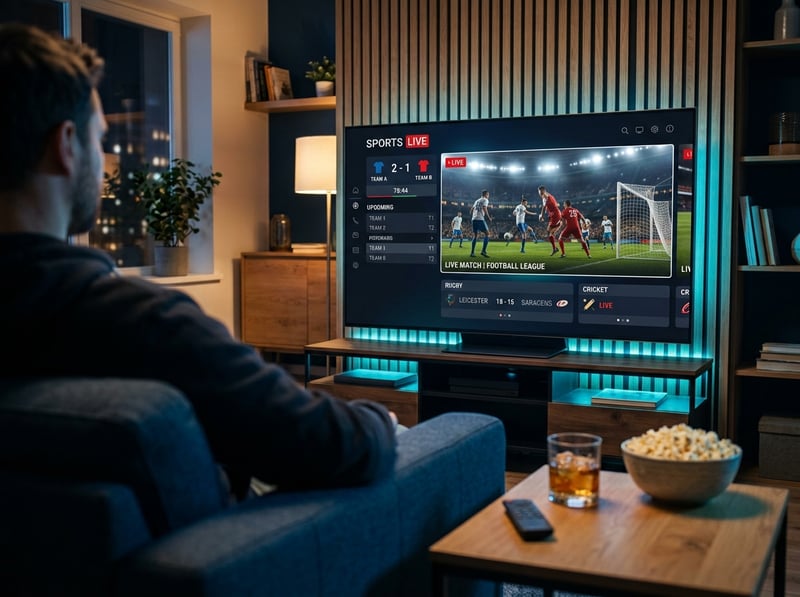
Imagine settling in for a Champions League final only to have your stream drop to a pixelated mess at kick-off because your ISP detected the traffic spike. Or worse, your M3U link was one character wrong and you spent 45 minutes on hold with customer support. These aren't edge cases, they're the most common complaints in IPTV forums across the UK. Getting these warnings right the first time saves your viewing night.
Best VPNs to Stop ISP Throttling on Your UK IPTV Subscription
ISP throttling is the silent destroyer of IPTV quality. A VPN encrypts your traffic so your provider can't see you're streaming and can't selectively slow you down. ExpressVPN is the gold standard for Firestick. It has a native Fire TV app, consistently delivers 200+ Mbps on UK servers, and its Lightway protocol keeps latency low enough for live sports. NordVPN offers an excellent split tunneling feature that lets you route only your IPTV app through the VPN while everything else uses your normal connection, reducing speed overhead significantly. Surfshark is a budget-friendly option, often under 2 pounds per month on long plans, with unlimited simultaneous connections, useful if you're running IPTV on multiple TVs at once. Always connect to a UK server when watching UK-specific content to keep stream routing efficient and latency minimal. Test with and without VPN by running a speed test on Fast.com both ways during peak hours (7 to 9 PM) to measure whether your ISP is actually throttling. A 40% speed drop with VPN off is a dead giveaway.
Common Setup Mistakes and How to Fix Them
Even experienced users make these errors when configuring a new UK IPTV subscription. Using an HTTP URL when the provider requires HTTPS means if channels load but immediately crash, you should check whether your server URL should start with https:// instead of http:// and ask your provider directly. A wrong port number is another common issue since IPTV servers commonly run on ports 8080, 8088, or 25461, so if your URL is right but nothing loads, confirm the port with your provider and update accordingly in your app settings. Not refreshing the playlist after provider updates causes channels to disappear, so in TiviMate go to Settings, then Playlist, and tap Update Now to force a fresh pull. Skipping the EPG setup leaves you flying blind through thousands of channels, so always set it up during initial configuration. Ignoring buffer settings is also a mistake since TiviMate's default buffer is often too low for UK broadband peak-hour fluctuations, so go to Settings, then Player, then Buffer Size and set it to at least 10MB for HD content.
TiviMate vs IPTV Smarters Pro: Which Is Right for You?
Both apps support UK IPTV subscriptions via M3U and Xtream Codes, but they serve different users. TiviMate is the premium choice, its EPG layout mimics a real TV guide, channel switching is near-instant, and the Companion app lets you manage everything from your phone. The premium version costs around 4 pounds per year and is absolutely worth it for the multiple playlist support and advanced player settings. IPTV Smarters Pro is great for beginners, it has a more straightforward interface, supports both M3U and Xtream Codes, and is free on the Amazon App Store. VOD navigation is actually slightly better organised than TiviMate. GSE Smart IPTV is a strong alternative for Smart TVs (Samsung, LG) that don't support the other two natively. For Firestick users who watch a lot of live sports, TiviMate wins due to its superior EPG and recording features with external USB storage.
Network Requirements for 4K Streaming
Your UK IPTV subscription might include 4K channels, but your network has to be ready for them. The minimum speed for 4K IPTV is 25 Mbps dedicated, meaning that speed just for your streaming device, not shared with phones, laptops, and smart home devices simultaneously. Use a wired Ethernet connection wherever possible since a direct Cat6 cable from your router to your Firestick via an Ethernet adapter eliminates Wi-Fi interference completely and is the single biggest upgrade most users can make. If wired isn't an option, connect your streaming device to your router's 5GHz network since it's faster and far less congested in most homes. Check your router QoS settings since Quality of Service settings on modern routers let you prioritise streaming device traffic, so look for it under your router's advanced settings and assign your TV or Firestick highest priority. Restart your router weekly since ISPs push firmware updates and routers accumulate connection tables that slow things down.
Troubleshooting Playlist Errors on Your UK IPTV Subscription
When your playlist throws errors or channels simply won't load, work through this checklist. An Authentication Failed error means your username or password is wrong, so go back to your welcome email and copy-paste credentials fresh, checking for capital letters since IPTV logins are case-sensitive. An Unable to Connect to Server error means your provider's server may be temporarily down, or your VPN is routing to a blocked IP, so switch VPN server location or temporarily disable the VPN to isolate the issue. If channels load but freeze after 10 to 30 seconds, this is almost always ISP throttling or insufficient buffer, so enable your VPN and increase your buffer size in app settings simultaneously. If the EPG is showing wrong times, check your device's timezone settings since your Firestick or Android TV box timezone must be set to GMT/BST to match UK channel schedules correctly. If VOD content is not appearing, some providers separate VOD into a different playlist, so ask your provider for a dedicated VOD M3U URL and add it as a second playlist in TiviMate.
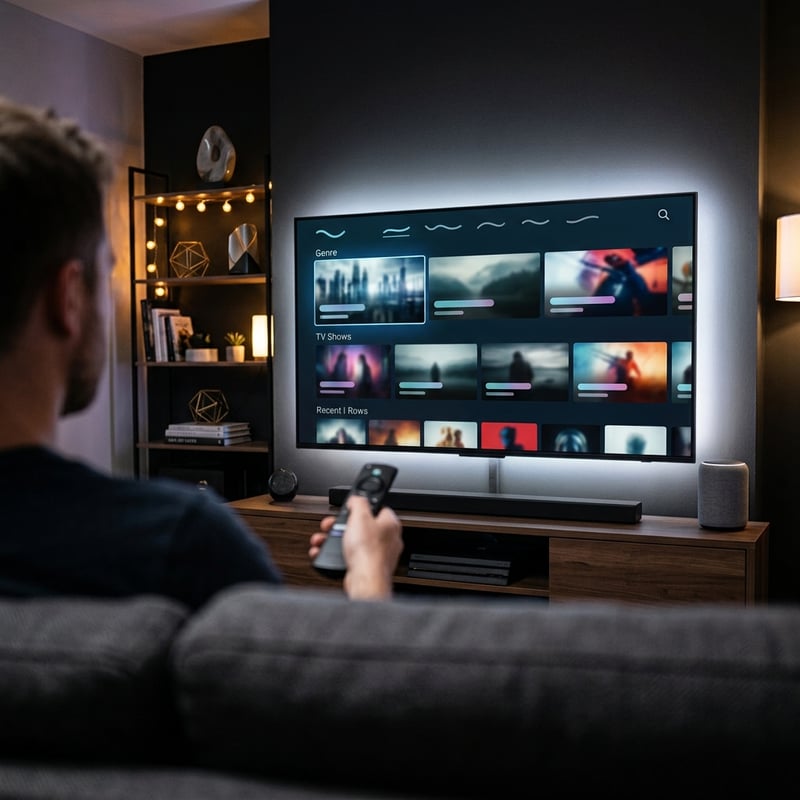
A solid UK IPTV subscription, properly configured with a good VPN, the right app, and a stable network setup, genuinely replaces traditional pay TV for most households. The one-time effort of setting it up correctly pays off every single night, so check out our full channel list and pricing plans to find the package that suits your viewing habits perfectly.
Frequently Asked Questions
Ready to get started?
Try our service risk-free with a 24-hour free trial.
Related Articles

Discover the Best IPTV Options on Reddit: A Comprehensive Guide
Uncover top IPTV subscriptions and tips from Reddit.

Discover the Best UK IPTV Services for 2026: A Comprehensive Guide
Uncover top IPTV services in the UK for seamless streaming.

How to Enjoy IPTV in 4K: A Comprehensive Guide for Streaming Lovers
Maximize your IPTV experience in 4K with our essential guide.