

Discover the Best IPTV Options for 2026: Ultimate Guide

You've probably spent more time than you'd like to admit watching a pixelated screen freeze right in the middle of a championship match or your favorite show's season finale. Bad IPTV service ruins everything and the frustrating part is that most people don't know what separates a rock-solid streaming experience from a laggy, buffering nightmare. Finding the best IPTV service isn't just about picking the cheapest subscription you find on a forum; it's about knowing exactly what to look for, how to set it up correctly, and how to squeeze every bit of performance out of your hardware and network. This guide covers everything from decoding the technical jargon to installing your service on a Firestick or Smart TV, to fixing the issues that drive streamers crazy at 9 PM on a Friday night.
Getting your IPTV setup right is absolutely crucial because a poorly configured service, even from a premium provider, will buffer, freeze, and drop channels constantly. Understanding the full picture, from your M3U playlist to your router settings, is what transforms a frustrating experience into a flawless one.
Core Concepts & Need-To-Know Info
- M3U Playlist / M3U URL: This is the link your IPTV provider gives you. It contains all your channel and VOD data. You paste this URL into apps like TiviMate or IPTV Smarters Pro to load your content.
- Xtream Codes API: A popular login format where you get a server URL, username, and password instead of a single M3U link. It's more stable and easier to manage across multiple devices.
- EPG (Electronic Program Guide): The on-screen TV guide that shows what's currently airing and what's coming up. A good IPTV service includes a reliable EPG URL.
- Server uptime and panel quality: The best IPTV providers run on dedicated servers with 99.9% uptime guarantees, not shared or overloaded VPS hosting.
- Concurrent connections: Most plans allow 1 or 2 simultaneous streams. If you try to watch on more devices than allowed, streams will cut out.
- ISP throttling: Your Internet Service Provider may intentionally slow down streaming traffic. This is one of the leading causes of IPTV buffering, and it has nothing to do with your provider's server quality.
- Minimum recommended speed: HD streaming requires at least 10 Mbps per stream; 4K requires 25+ Mbps. Always run a speed test before troubleshooting your app or service.
Step-by-Step Guide: Setting Up the Best IPTV on Your Firestick or Smart TV
- Step 1: Enable Downloader on Firestick:
- Go to your Firestick's Settings, then My Fire TV, then Developer Options and toggle on Apps from Unknown Sources. This allows you to sideload IPTV apps that aren't in the Amazon App Store.
- Step 2: Install the Downloader App:
- Open the Amazon App Store, search for Downloader, and install it. This free app lets you download APK files directly onto your Firestick using a URL.
- Step 3: Download TiviMate or IPTV Smarters Pro:
- Open Downloader and type in the APK URL for TiviMate. For Firestick, TiviMate is directly available in the Amazon App Store so search and install it from there.
- Step 4: Launch TiviMate and Add Your Playlist:
- Open TiviMate and tap Add Playlist. Choose between M3U URL or Xtream Codes. If your provider gave you a URL ending in .m3u or .m3u8, select M3U URL and paste it in. If they gave you a portal address, username, and password, choose Xtream Codes and enter those credentials.
- Step 5: Add Your EPG Source:
- After the playlist loads, navigate to Settings then EPG within TiviMate and paste in the EPG URL your provider supplied. Set the refresh interval to every 24 hours to keep your guide accurate.
- Step 6: Organize Your Channels:
- Use TiviMate's Groups feature to hide channels you don't watch. This dramatically speeds up app performance and makes browsing cleaner. Favorite your top channels for one-click access.
- Step 7: Test Playback on Multiple Channel Types:
- Play a live news channel, a live sports channel, and a VOD title. Check that all three load in under 5 seconds without buffering. If one category buffers but others don't, the issue is often server-side on specific streams, not your connection.
- Step 8: Set the Right Player:
- In TiviMate, go to Settings then Player and switch between the internal player and ExoPlayer. Some streams perform significantly better with one versus the other. Test both and set your default accordingly.

Imagine settling in for a pay-per-view fight night, only to have your stream drop every 30 seconds. Nine times out of ten, this comes down to ISP throttling kicking in during peak hours, or someone else using your connection at the same time. These aren't app glitches but configuration and network issues that are 100% fixable when you know what to look for.
Best VPNs to Stop ISP Throttling for IPTV
ISP throttling is the silent killer of otherwise great IPTV setups. When your ISP detects heavy streaming traffic, it intentionally reduces your bandwidth. A quality VPN encrypts that traffic, making throttling impossible. ExpressVPN is consistently the fastest option for streaming, with servers optimized for high-bandwidth video, and it works seamlessly on Firestick with a dedicated app. NordVPN is excellent for IPTV thanks to its obfuscated servers that hide VPN usage from ISPs that try to block VPN traffic itself. Surfshark is the best budget-friendly option, with unlimited device connections making it ideal for households running IPTV on multiple TVs simultaneously. Always connect to a server close to your IPTV provider's server location for the lowest latency, and use the WireGuard protocol inside your VPN app for the fastest speeds.
Common Setup Mistakes & How to Fix Them
Even with the best IPTV subscription in hand, setup errors cause most of the frustration new users experience. Loading too many channels at once on an older Firestick causes TiviMate to lag badly, so filter groups during playlist import and only load categories you actually use. Skipping the EPG setup leaves you without a program guide, making it nearly impossible to browse live TV comfortably, so always request your EPG link from your provider upfront. WiFi interference from neighboring networks causes packet loss that looks exactly like buffering, so switch to a 5GHz band or use a wired ethernet connection. Finally, TiviMate and Smarters accumulate cache data that slows performance over time, so clear the app cache from Settings, then Applications, then TiviMate, then Clear Cache every few weeks.
TiviMate vs. IPTV Smarters Pro: Which Is Better?
TiviMate is the gold standard for a cable TV-like experience. Its EPG, catch-up support, and customizable interface are unmatched, and the premium version at roughly $5 per year unlocks multi-account support and advanced recording features. IPTV Smarters Pro is better for users who want a simpler interface or who primarily watch VOD content, and it handles Xtream Codes login extremely well. For Firestick users, TiviMate is the clear winner in terms of performance and remote-control-friendly navigation, while IPTV Smarters Pro's mobile-optimized layout gives it an edge on Android phones and tablets. Use TiviMate for your main TV setup and IPTV Smarters as a secondary app on your phone when you're traveling.
Network Requirements for 4K IPTV Streaming
Streaming 4K content through IPTV is incredible when your network can handle it. You need a minimum of 25 Mbps per 4K stream, and realistically you should aim for 50+ Mbps to account for other devices on your network. Use a router with QoS (Quality of Service) settings to prioritize IPTV traffic over other devices, preventing a family member downloading files from killing your stream mid-game. A wired connection is non-negotiable for 4K because WiFi introduces latency and packet loss that 4K streams cannot tolerate, so use an ethernet adapter on your Firestick 4K Max or connect your Android TV box directly to the router. Also switch from your ISP's default DNS to Google DNS (8.8.8.8 / 8.8.4.4) or Cloudflare DNS (1.1.1.1) to speed up channel loading times noticeably, especially for large M3U playlists.
Troubleshooting: Fixing Playlist and Buffering Errors
When something goes wrong with the best IPTV setups, a systematic approach fixes it faster than random trial and error. A playlist failed to load error almost always means your M3U URL has expired or been typed incorrectly, so contact your provider for a fresh URL and copy-paste it carefully. If channels load but immediately buffer, run a speed test and if your speed is fine, connect a VPN and test again since a VPN fix confirms ISP throttling. If some channels work but others don't, this points to a server-side issue with specific streams, and quality services fix reported dead channels within hours. If your app freezes or crashes, uninstall and reinstall it and clear your device cache, and on Firestick restart from Settings, then My Fire TV, then Restart before reinstalling. If your EPG is not showing correctly, delete and re-add your EPG URL in TiviMate settings, force a manual refresh, and make sure your device's time zone is set correctly since EPG times are zone-dependent.
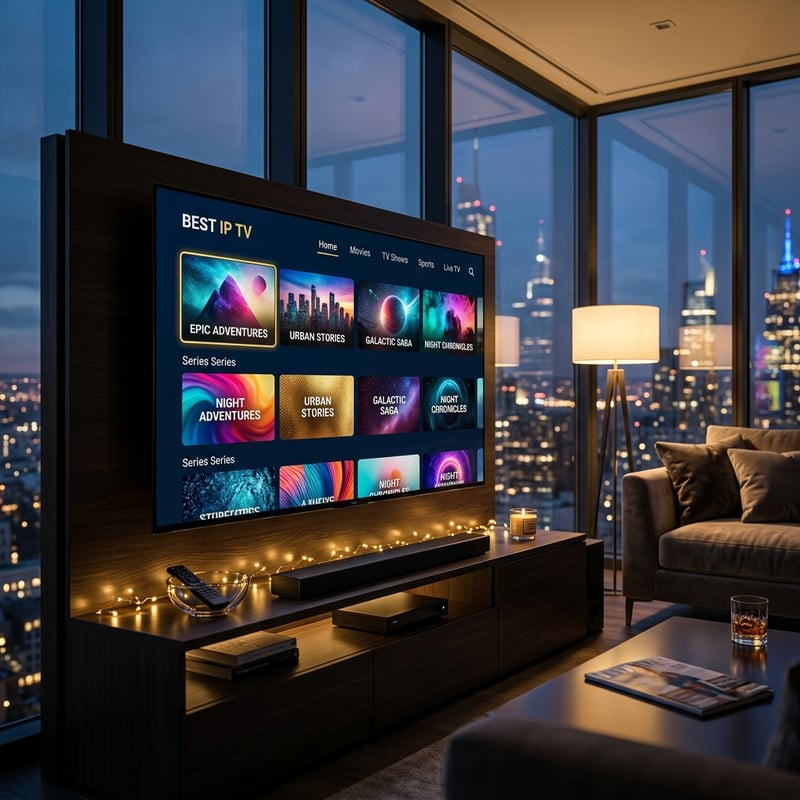
Finding the best IPTV service is only half the battle because setting it up correctly on the right hardware, with the right network configuration and apps, is what actually delivers on the promise of cutting your cable bill and never missing a game. Use this guide as your complete reference point, revisit the troubleshooting section whenever something breaks, and explore our full channel list and pricing plans to find the perfect subscription for your needs.
Frequently Asked Questions
Ready to get started?
Try our service risk-free with a 24-hour free trial.
Related Articles

The Complete IPTV Subscription Guide: How to Choose, Set Up, and Save
Find the best IPTV subscription options for seamless streaming.

Discover the Best Free IPTV for Firestick in 2026
Uncover the best free IPTV options for your Firestick.
Discover the Best IPTV for Firestick: Your 2026 Guide
Unlock the best IPTV options for Firestick streaming.