
Discover the Best IPTV App for Apple TV: Top Picks for 2026

David
Online Safety & Encryption Expert
You just subscribed to an IPTV service, you're sitting in front of your Apple TV, and you have absolutely no idea which app to use or how to get your M3U playlist loaded. Sound familiar? Apple TV is one of the cleanest, most powerful streaming devices on the market but it's notoriously picky about IPTV apps compared to a Firestick or Android TV box. The good news? Once you know exactly which app to install and how to configure it properly, your Apple TV becomes an absolute powerhouse for live TV, sports, and VOD content. This guide cuts through all the confusion and shows you exactly what to do.
Choosing the wrong IPTV app doesn't just make things inconvenient, it actively degrades your streaming experience with freezing, playlist errors, and crashes that make you want to throw your remote at the wall. Getting this right from day one means uninterrupted live sports, crisp 4K streams, and a setup that just works every single time you turn on your TV.
Core Concepts & Need-To-Know Info
- M3U Playlist URL: This is a link your IPTV provider gives you. It contains all your channel data. You paste this into your app to load your channels. Never share this link publicly, it's tied to your subscription.
- Xtream Codes API: An alternative login method using a server URL, username, and password. Many providers offer this alongside or instead of an M3U link. It generally provides better channel organization and EPG (Electronic Program Guide) support.
- EPG (Electronic Program Guide): The TV guide that shows what's on each channel. A good app fetches this automatically from your provider's EPG URL.
- Apple TV App Store restrictions: Unlike a Firestick, you cannot sideload apps on Apple TV. Every app must come directly from the App Store, which limits your choices but also ensures more stable, optimized apps.
- tvOS compatibility: You need an Apple TV HD (4th gen) or Apple TV 4K running tvOS 15 or later to run modern IPTV apps smoothly.
- Internet speed requirements: Minimum 25 Mbps for HD streams, 50 Mbps or higher for stable 4K IPTV content. Wired Ethernet connection via the Apple TV 4K's USB-C to Ethernet adapter is always preferred over Wi-Fi.
- VPN necessity: If your ISP throttles streaming traffic, you'll experience buffering regardless of your internet speed. A VPN routes your traffic around throttling.
Step-by-Step Guide
- Step 1: Open the App Store on Your Apple TV:
- From your Apple TV home screen, navigate to the App Store icon and press the touchpad to open it. Use the search function and type IPTV Smarters Pro. Select the app from results and click the download/get button. Wait for installation to complete, this typically takes under 60 seconds on a standard connection.
- Step 2: Launch IPTV Smarters Pro:
- Once installed, open the app from your home screen. You'll be greeted with a login screen offering two setup options: Login With Xtream Codes API or Load Your Playlist or File/URL. Choose the method your IPTV provider gave you.
- Step 3: Enter Your Xtream Codes Credentials (Recommended Method):
- If your provider gave you a server URL, username, and password, select Login With Xtream Codes API. Enter your full server URL (including http:// and port number), then your username and password exactly as provided. Press the Login button. The app will connect and begin loading your full channel list, VOD library, and series content.
- Step 4: Enter Your M3U Playlist URL (Alternative Method):
- If you only have an M3U link, select Load Your Playlist or File/URL. Choose Add URL and carefully paste or type your complete M3U URL into the field provided. Give your playlist a name (anything you like), then press Add. The app will parse the playlist and organize your channels automatically.
- Step 5: Configure Your EPG:
- After your playlist loads, go to Settings within the app and find the EPG/XMLTV URL section. Paste the EPG URL provided by your IPTV service. Set the EPG refresh interval to every 24 hours. This populates your TV guide with accurate program information for all channels.
- Step 6: Adjust Buffer and Stream Settings:
- Navigate to app Settings and look for Player Settings. Set your preferred media player (the built-in player works well on Apple TV 4K). If you experience any initial buffering, increase the buffer size setting if available. Enable hardware decoding for smoother 4K playback.
- Step 7: Browse and Test Your Channels:
- Return to the main menu. You'll see categories including Live TV, Movies, and Series. Enter Live TV, pick a channel you recognize, and let it play for 30 seconds. If it loads cleanly without buffering, your setup is complete. If you see buffering, check Step 6 and verify your internet speed before troubleshooting further.
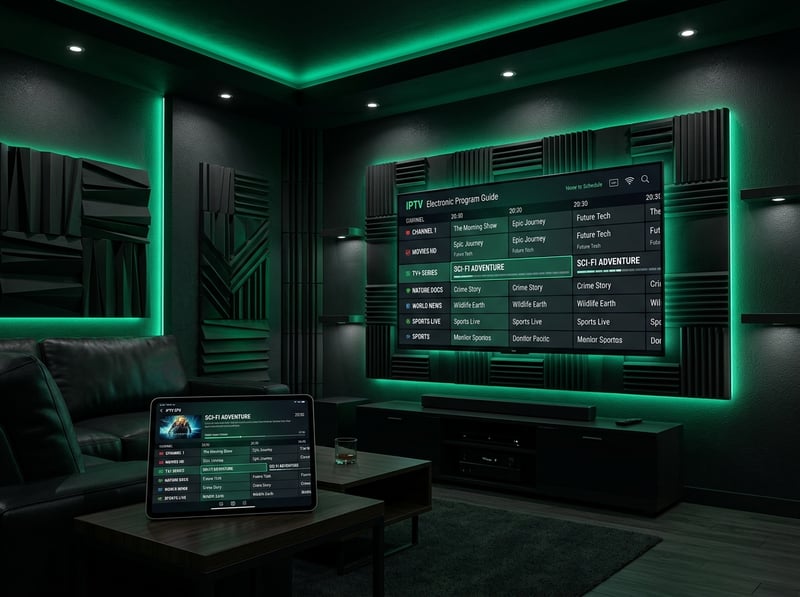
ISP throttling is probably the single most misdiagnosed problem in IPTV. People blame their IPTV provider, switch services repeatedly, and waste money when the real culprit is their internet provider silently choking their streaming traffic. Running a speed test during buffering reveals normal speeds, which is the dead giveaway that throttling, not server issues, is causing the problem. A properly configured VPN on your router solves this entirely.
Best IPTV Apps for Apple TV: Top Alternatives Compared
While IPTV Smarters Pro is the top pick, there are other strong options worth knowing. GSE Smart IPTV offers excellent M3U support, is very customizable, and handles large playlists with thousands of channels without slowing down, with great EPG integration and support for multiple playlist profiles, perfect if you manage more than one IPTV subscription. Flex IPTV is a clean, lightweight option specifically built for Apple TV, supports M3U playlists and XMLTV EPG, and is slightly less feature-rich than Smarters but extremely stable and fast to navigate. OTT Navigator is available via the App Store and widely praised for its Netflix-style VOD browsing interface, handles Xtream Codes beautifully, and has excellent catch-up TV support if your provider offers it. TiviMate, the gold standard on Android TV and Firestick, is not available on Apple TV due to App Store restrictions. If TiviMate is important to you, consider pairing an NVIDIA Shield or Amazon Firestick 4K Max alongside your Apple TV for the best of both worlds.
Best VPNs to Stop ISP Throttling on Apple TV
Since you can't install a VPN app directly on Apple TV, you have two effective approaches. Installing a VPN on your router is the gold-standard method, meaning every device on your network including your Apple TV gets VPN protection automatically. ExpressVPN and NordVPN both offer router firmware and step-by-step router setup guides. You can also use Smart DNS or VPN through your router's DNS settings, configured directly in your Apple TV's network settings under Settings > Network > Wi-Fi > Configure DNS. ExpressVPN delivers the fastest servers for streaming and offers a MediaStreamer Smart DNS specifically designed for Apple TV. NordVPN provides strong speeds, a massive server network, and SmartPlay technology that works seamlessly alongside IPTV apps. Surfshark is the best value option with unlimited simultaneous connections, meaning one subscription covers every device you own.
Network Requirements for Smooth IPTV on Apple TV
HD (1080p) live TV requires a stable 15 to 25 Mbps connection, while 4K IPTV streams need 50 Mbps or higher with low latency and a Wi-Fi 6 or wired Ethernet connection strongly recommended. Apple TV 4K (3rd gen) supports Ethernet via a USB-C to Ethernet adapter sold separately, and the stability improvement over Wi-Fi is noticeable especially during high-traffic events like live sports. Router placement matters too, your Apple TV should ideally have line-of-sight to your router with no walls or appliances in between. Switching from your ISP's default DNS to Cloudflare (1.1.1.1) or Google DNS (8.8.8.8) in your Apple TV network settings reduces buffering caused by slow DNS resolution.
Common Setup Mistakes & How to Fix Them
A playlist not loading or an Invalid URL error is almost always caused by a typo in the M3U URL or an expired subscription, so double-check the URL character by character, confirm your subscription is active, and verify the port number is included if using Xtream Codes. Channels showing but not playing typically means your IPTV provider's server is experiencing load issues or the specific channel stream is temporarily down, so try a different channel in the same category to confirm. If your EPG is not populating with a blank TV guide, your EPG URL may be incorrect or the data hasn't loaded yet, so give it 10 to 15 minutes after first setup and reload the EPG URL manually if still blank. If the app crashes when loading large playlists containing 10,000 or more channels, use your provider's filtered playlist URL for categories or regions only rather than the full master playlist.

Apple TV doesn't make IPTV as plug-and-play as a Firestick does, but with the right app, IPTV Smarters Pro being the clear frontrunner, and the setup process outlined above, it becomes one of the most enjoyable ways to watch live TV and VOD content anywhere in your home. Get the setup right once and you won't look back, so head over to our channel list and pricing plans to find the subscription that pairs perfectly with your new Apple TV setup.
Frequently Asked Questions
Ready to get started?
Try our service risk-free with a 24-hour free trial.
Related Articles

Discover the Best IPTV Subscriptions for 2026: Your Ultimate Guide
Uncover the best IPTV subscriptions and tips for 2026.
Discover the Best IPTV TV Providers: Your 2026 Guide
A complete guide to the best IPTV TV providers in 2026.
Exploring One IPTV: Your Complete Guide for 2026 Streaming
Unlock the potential of One IPTV with our in-depth review.