

Discover the Best IPTV Service in the UK: 2026 Insights

Paying £60 or more every month for a Sky or Virgin Media package — only to find half the channels you actually want are locked behind yet another add-on — is one of the most frustrating experiences in modern home entertainment. If you have landed here, you already know there is a better way, and the best IPTV service UK viewers are switching to right now can deliver thousands of live channels, full VOD libraries, and crystal-clear 4K sports streams for a fraction of that cost. The problem is that the UK IPTV market is flooded with dodgy providers, unreliable streams, and setups that leave you staring at a buffering wheel instead of watching the match. This guide cuts through all of that noise and gives you everything you need — the right service, the correct setup, and the expert fixes — so your streams actually work.
Choosing the right IPTV service in the UK is not just about price — it is about stream stability, server uptime, and channel count. A poorly chosen provider will ruin live sports moments with buffering, deliver dead EPG data, and disappear overnight, taking your subscription money with them. Getting this right from day one saves you money, frustration, and wasted weekends troubleshooting a broken setup.
Core Concepts & Need-To-Know Info
- M3U Playlist / M3U URL: This is a text file containing all your channel links. Your provider gives you this URL, and you paste it into your IPTV app. Without a valid M3U URL, nothing works.
- Xtream Codes API: An alternative login method. Instead of an M3U URL, you receive a server URL, username, and password. More stable for large channel lists and widely supported by TiviMate and IPTV Smarters.
- EPG (Electronic Programme Guide): The on-screen TV guide showing what is on now and next. A quality UK IPTV provider supplies an EPG URL alongside your M3U link.
- VOD (Video On Demand): The catch-up and movie library section of your IPTV service. Quality varies enormously between providers — always check VOD depth before subscribing.
- ISP Throttling: UK internet providers including BT, Sky, and Virgin actively throttle IPTV traffic. This is the number one cause of buffering even on fast connections. A VPN solves this immediately.
- Server Location Matters: UK-based IPTV servers deliver lower latency for British content. Look for providers with UK data centres for the best live sports performance.
- Simultaneous Connections: Most providers offer 1 to 4 simultaneous connections. If multiple TVs in your household will stream at once, confirm this before purchasing.
Step-by-Step Guide: Setting Up the Best IPTV Service UK on Your Firestick
- Step 1: Enable Developer Options on Your Firestick:
- Go to Settings, then My Fire TV, then Developer Options, and toggle Apps from Unknown Sources to ON. This allows you to install apps outside the Amazon App Store, which is essential for TiviMate or IPTV Smarters Pro.
- Step 2: Install the Downloader App:
- From your Firestick home screen, go to the Search icon and type Downloader. Install the free Downloader app by AFTVnews. Open it and enable browser mode in its settings if prompted.
- Step 3: Download TiviMate or IPTV Smarters Pro:
- Inside Downloader, enter the URL for the TiviMate APK (available from the TiviMate official site) or search for IPTV Smarters Pro. Download and install your chosen app. TiviMate is widely considered the best IPTV player for Firestick due to its slick EPG interface and catch-up support.
- Step 4: Get Your M3U URL or Xtream Codes from Your Provider:
- After purchasing a subscription from your chosen best IPTV service UK provider, you will receive login credentials via email. These will be either an M3U URL or an Xtream Codes server address with a username and password. Copy these carefully — a single character error breaks the entire connection.
- Step 5: Add Your Playlist in TiviMate:
- Open TiviMate, tap Add Playlist, and select Xtream Codes or M3U Playlist depending on what your provider sent. Enter your credentials exactly as provided. Tap Next and allow TiviMate to load your channels. This can take 60 to 120 seconds depending on channel count.
- Step 6: Configure Your EPG:
- Inside TiviMate settings, navigate to EPG and enter the EPG URL provided by your IPTV service. Set the EPG refresh interval to every 24 hours. This populates your channel guide with accurate UK scheduling data including BBC, ITV, Sky Sports, and BT Sport listings.
- Step 7: Enable a VPN Before Streaming:
- Before you press play on anything, activate your VPN app and connect to a UK server. This bypasses ISP throttling from providers like BT, Virgin, and Sky — the single most common cause of buffering on otherwise fast broadband connections.
- Step 8: Test Your Streams:
- Navigate to a live sports channel or a popular channel like Sky Sports Main Event. If it loads instantly in HD or 4K with no buffering, your setup is complete. If you experience issues, refer to the troubleshooting section below.
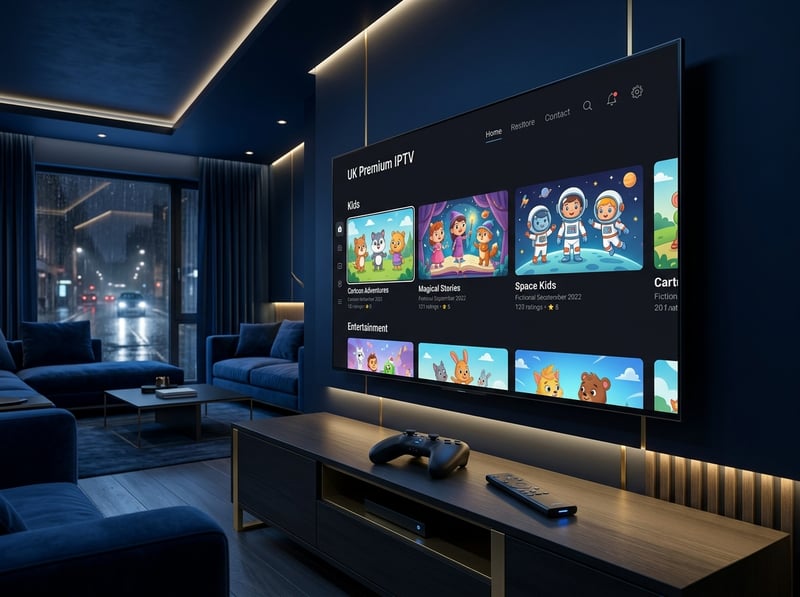
Picture this: it is Saturday at 3pm, four Premier League matches are kicking off simultaneously, and millions of IPTV users in the UK are hitting the same servers. Cheap providers buckle under this kind of load, and you will find yourself watching a frozen screen right when the goal goes in. Quality providers invest in server load balancing and multiple CDN nodes specifically to handle peak sports traffic. Additionally, if your ISP detects heavy video streaming traffic without a VPN, they will throttle your connection — making a 500Mbps fibre connection perform worse than a 50Mbps line for IPTV purposes.
Best VPNs to Stop ISP Throttling in the UK
- ExpressVPN: Fastest speeds in independent tests, dedicated UK servers, and a MediaStreamer DNS feature that improves Smart TV compatibility without installing an app. The best overall pick for IPTV users.
- NordVPN: Excellent UK server network, double-hop encryption for privacy, and the Meshnet feature allows you to route all home devices through a single VPN connection. Great value on long-term plans.
- Surfshark: The best option if you need unlimited simultaneous connections across multiple TVs and devices. Affordable pricing and solid UK server performance for live sports.
- Always connect to a UK-based VPN server when accessing UK IPTV content. Connecting to a US or European server may improve privacy but increases latency and causes buffering on live streams.
- Test your connection with and without the VPN using a speed test tool. If your speeds are significantly higher with the VPN active, your ISP was definitively throttling your IPTV traffic.
TiviMate vs IPTV Smarters Pro: Which App Is Right for You?
- TiviMate is the gold standard for Firestick and Android TV users. Its EPG interface mirrors a traditional TV guide, catch-up support is built in, and the premium version (around £4/year) unlocks multiple playlists, recording functionality, and parental controls. If you are serious about IPTV, TiviMate is non-negotiable.
- IPTV Smarters Pro is the better choice for beginners because its interface is more intuitive and it handles Xtream Codes logins particularly well. It also displays your subscription expiry date clearly, so you never accidentally lose service mid-match.
- GSE Smart IPTV is worth considering for iOS and macOS users since TiviMate is Android-only. It supports M3U playlists and Xtream Codes and handles large channel lists without crashing.
- For Samsung and LG Smart TVs, look at Smart IPTV (SIPTV) or OTT Navigator, both of which support M3U URLs without requiring a sideloaded APK.
Network Requirements for 4K IPTV Streaming
- HD (1080p) streams: Minimum 10 Mbps per stream, ideally 15 to 20 Mbps with headroom for other devices on the network.
- 4K Ultra HD streams: Minimum 25 Mbps per stream. With multiple 4K devices running simultaneously, you need at least 100 Mbps fibre broadband.
- Wired Ethernet over Wi-Fi: For Firestick or Android TV boxes connected via an Ethernet adapter, a wired connection reduces latency by 30 to 50% compared to 5GHz Wi-Fi. This single change eliminates intermittent buffering for most users.
- Router placement: Keep your streaming device within 5 metres of your router if using Wi-Fi, and ensure no walls or appliances obstruct the signal. Interference from microwaves and cordless phones operates on the 2.4GHz band — switch your streaming device to 5GHz.
- DNS settings: Changing your device DNS to 1.1.1.1 (Cloudflare) or 8.8.8.8 (Google) instead of your ISP's default DNS can significantly improve stream load times and reduce buffering start events.
Common Setup Mistakes & How to Fix Them
- Wrong playlist format selected: If you enter Xtream Codes credentials into the M3U field, you will get an error. Always confirm with your provider which login method they use before opening the app.
- EPG not loading: This is almost always caused by entering the EPG URL with an extra space before or after the link. Delete the EPG URL completely and re-paste it carefully. Also confirm the EPG URL is separate from your M3U URL — they are different links.
- Channels load but freeze after 30 seconds: This is a classic ISP throttling symptom. Activate your VPN, change the VPN server to a different UK location, and retry. If streams then play flawlessly, your ISP was the problem.
- App crashes on large channel lists: Some providers deliver lists of 20,000+ channels. In TiviMate, go to Settings, then Playlist, and enable Load channels in background to prevent the app from crashing during the initial import.
- Audio but no video: This is a codec issue. In TiviMate settings, switch the video player from the internal player to an external one like MX Player. This resolves incompatible H.265 stream issues on older Firestick devices.
Troubleshooting: Fixing Playlist Errors on UK IPTV
- Playlist failed to load error: Confirm your subscription is active by logging into your provider's portal. Check the M3U URL has not expired — some providers issue temporary trial URLs that expire within 24 hours. Contact provider support with your username to get a refreshed link.
- Channels show in list but play as black screen: Your provider's server may be experiencing downtime. Check their Telegram support channel or status page. If only certain channels black-screen, those specific streams may be temporarily offline — try the same channel on a backup stream if your provider offers SD/HD/FHD options per channel.
- EPG shows wrong times: UK IPTV EPG timing errors are almost always a timezone configuration problem. In TiviMate, go to EPG settings and set the timezone offset to GMT+0 (or GMT+1 during British Summer Time). This corrects all scheduling data instantly.
- Sudden mid-stream buffering during peak hours (7 to 10pm): This is server load, not your broadband. Switch to your provider's backup server URL if one is provided, or contact support to request an alternative server address. Quality providers maintain multiple server nodes for exactly this reason.

Finding the best IPTV service UK viewers can actually rely on comes down to three things: a provider with genuine server infrastructure, the right app for your device, and a VPN that keeps ISP throttling out of the equation. Set it up correctly once, optimise your network settings, and you will never miss a goal, a race finish, or a season premiere to buffering again — explore our full channel list and pricing plans to get started today.
Frequently Asked Questions
Ready to get started?
Try our service risk-free with a 24-hour free trial.
Related Articles

Discover the Best UK IPTV Reviews for 2026: What to Choose
Uncover the best UK IPTV reviews for 2026 and make an informed choice.

Discover the Best IPTV App for Apple TV: Top Picks for 2026
Uncover the best IPTV app options for your Apple TV.

Discover the Best IPTV Services for 2026: Top Picks Revealed
Uncover the top IPTV services for 2026 and enhance your streaming experience.