
Discover the Best IPTV Subscription Options for 2026

Tired of paying a fortune for cable TV only to miss half your favorite shows because the schedule doesn't work for you? Or maybe you've already jumped into IPTV but you're drowning in buffering wheels, broken playlists, and apps that refuse to cooperate. Finding the best IPTV subscription shouldn't feel like defusing a bomb — but for most people, it absolutely does. This guide cuts through the noise and gives you everything you need: how to pick a reliable provider, how to set it up correctly on any device, and how to keep your streams running silently in the background while you actually enjoy watching TV.
Solving this the right way matters because a poorly chosen provider will leave you buffering during the biggest game of the year or staring at a frozen screen during a season finale. The technical setup is equally critical: even a great IPTV service will perform badly if your device, app, or internet connection isn't configured properly.
Core Concepts & Need-To-Know Info
- M3U Playlist / M3U URL: This is the file or web link your IPTV provider gives you. It contains all your channel data. It's the backbone of your subscription and must be entered exactly as provided: one wrong character breaks everything.
- Xtream Codes API: An alternative login format using a server URL, username, and password. Many premium apps like TiviMate and IPTV Smarters Pro support this format natively, and it tends to be more stable than raw M3U links.
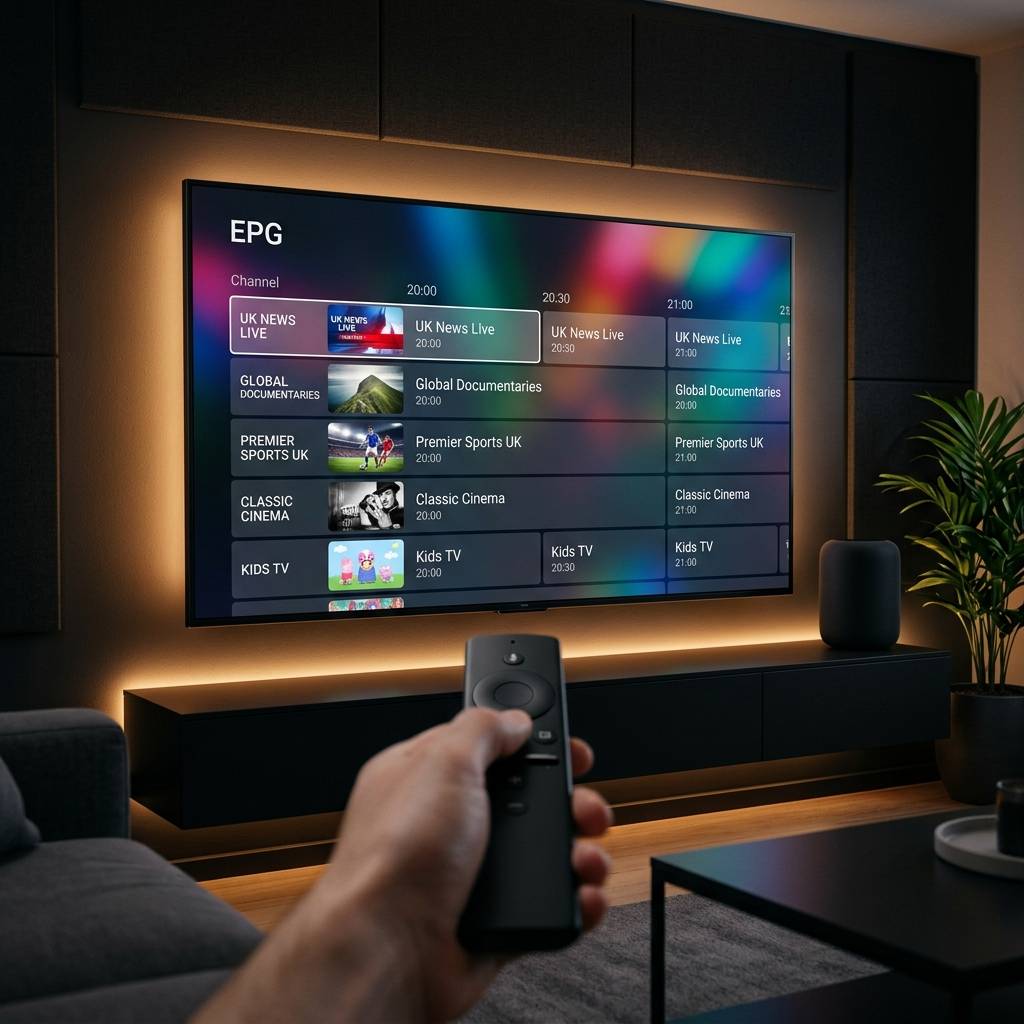
- EPG (Electronic Program Guide): The on-screen channel guide that shows what's on now and what's coming next. A good IPTV provider includes a reliable EPG URL.
- VOD (Video on Demand): The movie and TV series library section of your subscription: separate from live channels.
- ISP Throttling: Your internet provider can detect and deliberately slow down IPTV traffic, causing buffering even when your speed test looks fine. A VPN solves this.
- Internet Speed Requirements: You need at least 25 Mbps for stable HD streaming. For 4K content, aim for 50 Mbps or more with a wired Ethernet connection whenever possible.
- Reseller vs. Direct Provider: Some IPTV sellers are resellers of larger server networks. Direct providers often have better uptime and support, but quality resellers can be equally reliable: check reviews carefully.
Step-by-Step Guide
- Step 1: Enable Apps from Unknown Sources:
- Go to your Firestick Home screen, navigate to Settings, then My Fire TV, then Developer Options, then toggle on Apps from Unknown Sources. This allows you to install apps outside the Amazon App Store. Without this step, nothing else works.
- Step 2: Install the Downloader App:
- Go back to the Firestick Home screen and use the search function to find Downloader by AFTVnews. Install it: it's free and available directly in the Amazon App Store. This app lets you sideload TiviMate onto your device.
- Step 3: Download and Install TiviMate:
- Open the Downloader app and type in the TiviMate Companion APK URL (available from the official TiviMate website). Once downloaded, hit Install and then Open. TiviMate is your IPTV player: it handles M3U playlists, Xtream Codes logins, and your EPG all in one polished interface.
- Step 4: Add Your IPTV Subscription:
- Inside TiviMate, tap Add Playlist. You'll be given two options: M3U URL or Xtream Codes. If your provider gave you a long link ending in .m3u or .m3u8, choose M3U URL and paste it in exactly. If they gave you a server address, username, and password, choose Xtream Codes and fill in each field carefully. Tap Next and let TiviMate load your channels.
- Step 5: Set Up Your EPG (Program Guide):
- During the playlist setup, TiviMate will ask for an EPG URL. Paste in the EPG link your IPTV provider gave you: this populates your on-screen guide with real program data. If they didn't provide one, ask their support team specifically for the EPG URL.
- Step 6: Organize Your Channels:
- Once loaded, go to Settings, then Channels and create Favorites groups for Sports, Movies, News, or whatever you watch most. This turns a list of 10,000 channels into a clean, manageable interface you'll actually enjoy using.
- Step 7: Enable a VPN Before Streaming:
- Before you hit play on anything, connect to a VPN. Install your VPN app from the Amazon App Store, connect to a server in your country, and then launch TiviMate. This one step prevents ISP throttling and protects your privacy.

Real-world example: You subscribe to what looks like a great provider, everything loads fine during your trial, but during the Super Bowl or Champions League final, the stream freezes every two minutes. This is almost always ISP throttling kicking in under heavy load: and it's completely preventable with a VPN activated before you start watching. Another common scenario is a user entering their M3U URL with an extra space at the end, spending two hours troubleshooting what appears to be a dead subscription, when the fix takes three seconds.
Best VPNs to Stop ISP Throttling With Your IPTV Subscription
ISP throttling is the number one silent killer of IPTV streams. Your provider's servers might be perfectly healthy while your ISP quietly chokes your connection the moment it detects video streaming traffic. ExpressVPN is the gold standard for IPTV users: fast servers, a dedicated Fire TV app, and a proven no-logs policy. It's the most consistent performer for live sports streaming where latency matters. NordVPN offers excellent speeds and a large server network. Its Meshnet feature and dedicated IP options make it especially useful for IPTV users who need consistent connection behavior from their provider. Surfshark is the best budget option: it allows unlimited simultaneous device connections, which means you can cover every TV in your home under one subscription for around $2-3/month. Always connect to a VPN server in your own country first. Connecting to a distant server introduces unnecessary latency. Only switch to another region if you're trying to access geo-restricted content. Look for VPNs with a kill switch feature: this cuts your internet if the VPN drops, preventing your unprotected traffic from being exposed to your ISP.
TiviMate vs. IPTV Smarters Pro: Which App Is Right for You?
Your IPTV player app matters almost as much as the subscription itself. Both TiviMate and IPTV Smarters are top-tier options, but they serve different users. TiviMate is the premium choice. The free version is functional, but the $5/year Premium unlock is absolutely worth it: it adds multi-stream viewing (watch four channels simultaneously), a catch-up and recording feature, and deep customization of the EPG and channel layout. It's the smoothest, most TV-like experience available on Firestick and Android TV. IPTV Smarters Pro is free and excellent for users just starting out or those whose providers give them pre-configured Smarters links. It supports both M3U and Xtream Codes and handles VOD libraries very well, with a dedicated Movies and Series section that feels like a proper streaming app. GSE Smart IPTV is worth mentioning for iOS and macOS users: it's the most capable IPTV player on Apple devices and supports advanced EPG configuration. For pure beginners: start with IPTV Smarters Pro since it's zero cost to try. Once you're comfortable, upgrade to TiviMate Premium for a noticeably better daily experience. Both apps support multiple playlists, meaning you can add more than one IPTV subscription and switch between them, which is useful if you're testing providers side by side.
Common Setup Mistakes and How to Fix Them
Even with the best IPTV subscription in the world, these setup errors will ruin your experience. Here's how to fix the most frequent ones fast. If you see no channels loading after adding your playlist, this is almost always an M3U URL or Xtream Codes credential error: double-check every character, delete the playlist from TiviMate, and re-add it from scratch. Also confirm your subscription is active by logging into your provider's portal. If your EPG shows no data or wrong times, your EPG URL may be wrong, or your device's time zone setting doesn't match your provider's EPG data: go to your Firestick's system settings, set the correct time zone, then force a manual EPG refresh in TiviMate under Settings, then EPG. If specific channels buffer while others work fine, the buffering channel is likely on an overloaded server stream: try switching to the backup stream in TiviMate by long-pressing the channel and selecting an alternate source. If your app crashes or freezes on Firestick, clear TiviMate's cache by going to Firestick Settings, then Applications, then Manage Installed Applications, then TiviMate, then Clear Cache. Do this monthly. If you see a black screen with audio only, this is a codec mismatch: in TiviMate settings, change the video player from the default to ExoPlayer or MX Player and test again.
Network Requirements for 4K IPTV Streaming
Chasing 4K IPTV streams without the right network setup is setting yourself up for frustration. You need a minimum of 50 Mbps dedicated to your streaming device for stable 4K: run a speed test directly on your Firestick using the Internet Speed Test app, not on your phone, because your TV's connection speed is what actually matters. Wired Ethernet is non-negotiable for 4K: use an Ethernet adapter for your Firestick (the official Amazon Ethernet Adapter for Fire TV costs under $15) and run a cable directly from your router to the adapter. This eliminates Wi-Fi packet loss entirely. If you must use Wi-Fi, connect only to your router's 5GHz band, not 2.4GHz: the 5GHz band is faster and less congested. Keep your Firestick within 15-20 feet of the router with minimal walls between them. QoS (Quality of Service) settings on your router can prioritize your streaming device's traffic over other devices on your network: log into your router admin panel (usually 192.168.1.1) and look for QoS or Traffic Prioritization settings, then add your streaming device's IP address to the priority list.

Finding the best IPTV subscription isn't just about picking a provider with the longest channel list: it's about building a complete setup where every piece works together. The right provider delivers stable streams, the right app presents them cleanly, and the right network configuration and VPN keep everything running smoothly even when your ISP tries to interfere. Follow this guide step by step, take the warnings seriously, and you'll have a streaming setup that outperforms cable TV at a fraction of the cost: check out our channel list and pricing plans to get started today.
Frequently Asked Questions
Ready to get started?
Try our service risk-free with a 24-hour free trial.
Related Articles

Discover the Best IPTV for Firestick: Top Picks for 2026
Find the best IPTV options for your Firestick today!
Discover the Best IPTV Service: Your Complete 2026 Guide
Find the best IPTV service and enhance your streaming.

Discover the Best IPTV Providers for 2026: Expert Picks
Learn about the best IPTV providers for 2026 and more.