
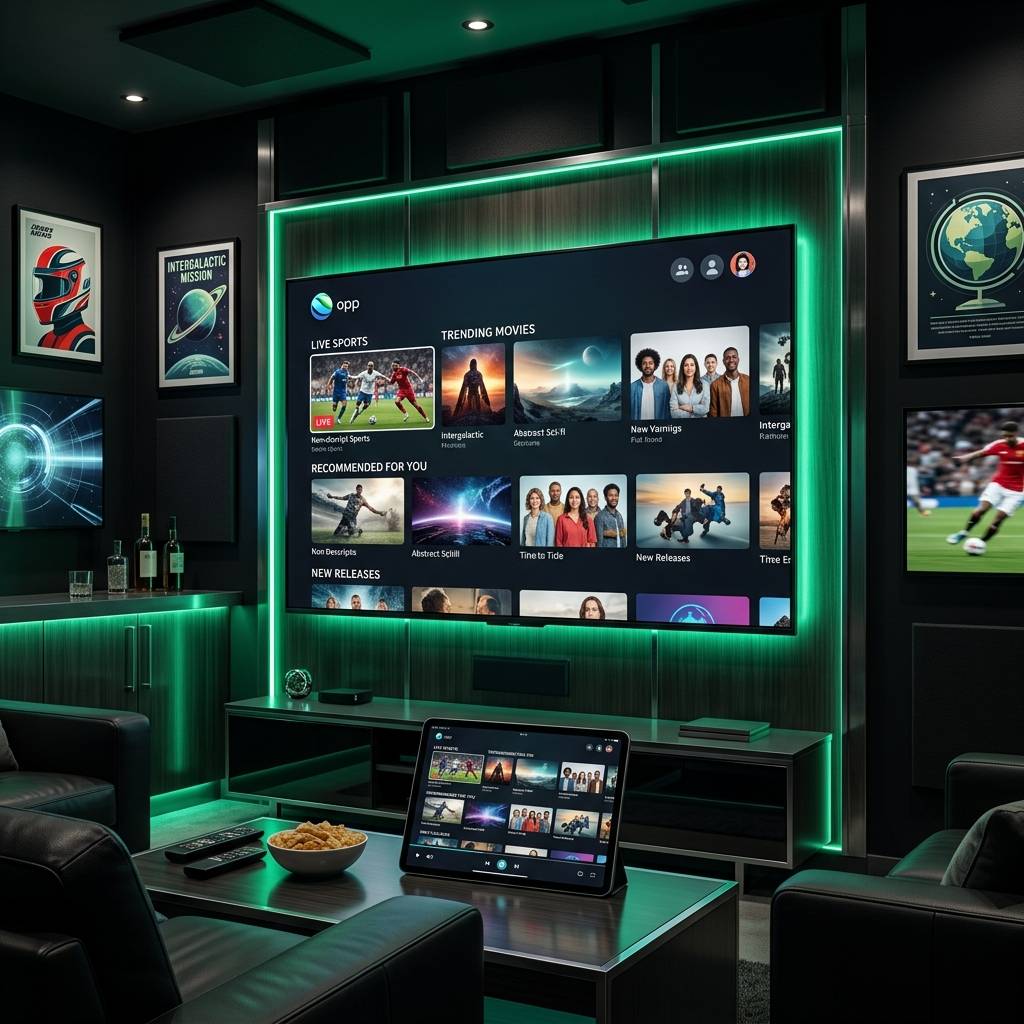
Discover the Best IPTV Subscriptions and Devices for 2026

Tired of jumping between five different apps trying to find one that actually loads your M3U playlist without freezing every ten minutes? You're not alone. Most IPTV subscribers spend more time troubleshooting their player than actually watching TV — and that's a problem nobody talks about when you sign up for a subscription. The good news? Choosing the right IPTV player is the single fastest fix for buffering, broken EPG guides, and channels that refuse to load. This guide cuts through the noise and tells you exactly which apps work, which ones waste your time, and how to get everything running smoothly on your Firestick, Android TV, or Smart TV today.
Picking the wrong IPTV player is like putting cheap tires on a sports car — your provider might be delivering a perfect stream, but a poorly optimized app will choke it into buffering chaos. Solving this at the player level is the fastest, completely free upgrade you can make to your entire streaming setup.
Core Concepts & Need-To-Know Info
- M3U Playlist: a text-based file or URL containing a list of all your IPTV channels; most players accept this as a direct link from your provider
- Xtream Codes API: a login method using a server URL, username, and password; it loads channels, VOD, and series more efficiently than a raw M3U file
- EPG (Electronic Program Guide): the TV guide overlay showing what's on now and what's coming next; requires a separate XMLTV URL or auto-population from your provider
- ExoPlayer vs. VLC Player: these are the two main decoder engines inside IPTV apps; ExoPlayer handles H.264/H.265 streams smoothly, while VLC is better for unusual codec formats
- Buffering vs. Freezing: buffering is a network/speed issue, freezing is usually a player or hardware decoding issue; knowing the difference points you toward the right fix
- Hardware Decoding: offloads video processing to your device's GPU instead of the CPU; essential for 4K streams and prevents overheating on Firestick devices
- ISP Throttling: your internet provider can detect and slow down IPTV traffic; a VPN encrypts this traffic and bypasses the restriction entirely
- Multiscreen Support: some Xtream Codes subscriptions allow 2-4 simultaneous connections; your player needs to support profile switching to use them
Step-by-Step Guide
- Step 1: Enable Sideloading on Your Firestick:
- Go to Settings, My Fire TV, Developer Options and toggle on Apps from Unknown Sources. This unlocks the ability to install any IPTV app that isn't listed in the Amazon App Store, which covers most of the best options available.
- Step 2: Install the Downloader App:
- From the Firestick home screen, search for Downloader in the app store and install it. This is your gateway to downloading APK files directly onto your device. Open it, go to the URL bar, and you're ready to pull any IPTV player file from the web.
- Step 3: Download Your Chosen IPTV Player APK:
- In Downloader's URL bar, type the direct APK download link for your chosen player — TiviMate, IPTV Smarters Pro, or GSE Smart IPTV are the top three starting points. Confirm the install when prompted and wait for it to complete before launching.
- Step 4: Add Your IPTV Subscription via Xtream Codes:
- Open the app and select Add Playlist or Add Account. Choose the Xtream Codes option, then enter your Server URL, Username, and Password exactly as provided by your IPTV provider. Double-check every character — a single wrong digit here will block access to your entire channel list.
- Step 5: Add an M3U Playlist (Alternative Method):
- If your provider gives you an M3U URL instead, select M3U URL in the add playlist menu and paste the link. Avoid manually typing it — copy it from an email or message to prevent typos that cause a blank channel list.
- Step 6: Load Your EPG Guide:
- Navigate to the player's settings and find the EPG or Guide section. Paste in the XMLTV URL provided by your IPTV service. Set it to auto-refresh every 24 hours so your program guide stays current without manual updates.
- Step 7: Configure Playback Settings for Your Device:
- Go to Player Settings and switch the decoder to Hardware Decoding. Set the player engine to ExoPlayer for standard streams and keep VLC as a backup option for any channel that fails to load with the default setting. This alone eliminates most freezing issues on Firestick 4K devices.
- Step 8: Organize Your Channels into Groups:
- Most premium players let you create custom channel groups. Move your most-watched sports, news, and entertainment channels into a favorites list so you're not scrolling through thousands of entries every time you turn on the TV.
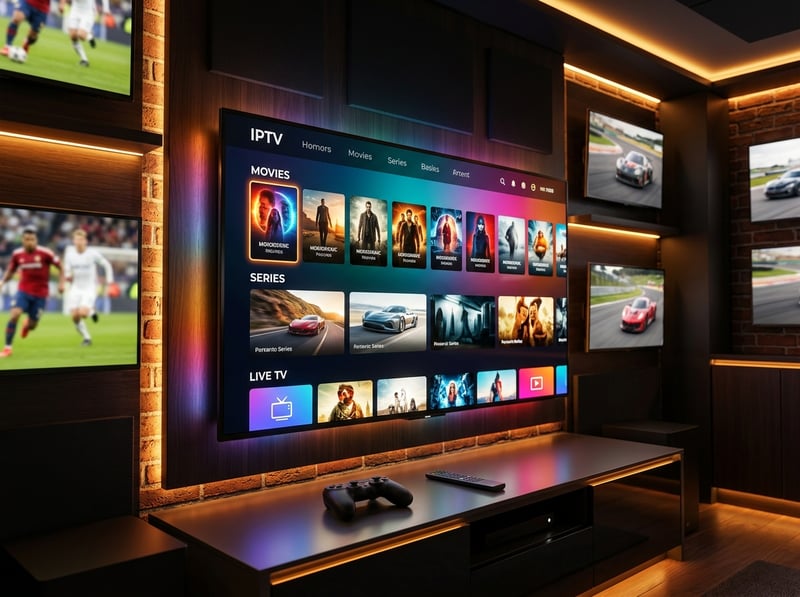
Picture this: it's the Champions League final, you're 20 minutes in, and your stream drops because your ISP identified and throttled the traffic — that's a real scenario that happens to thousands of subscribers every week without a VPN in place. Similarly, a single mistyped character in an Xtream Codes server URL means you spend the entire first half on the phone with support instead of watching the match. These aren't edge cases — they're the most common reasons people think their IPTV service is bad when the real culprit is a setup error.
TiviMate vs. IPTV Smarters Pro: Which Player Wins?
TiviMate is the gold standard for Android and Firestick users who want a polished, TV-friendly interface that feels like a real cable package. The free version works, but the Premium version (around $4.99/year) unlocks multiple playlists, recording functionality, and advanced EPG features that make it worth every cent. IPTV Smarters Pro is the better starting point for beginners because it's free, straightforward, and available across more platforms including iOS. It handles Xtream Codes connections exceptionally well and loads VOD libraries cleanly. The interface isn't as sleek as TiviMate, but the reliability is solid.
- TiviMate: Best for Firestick and Android TV users who want a premium experience with catch-up TV and multi-playlist management
- IPTV Smarters Pro: Best for new users, iOS devices, and anyone who wants a no-cost setup that works right out of the box
- GSE Smart IPTV: Best for power users who need granular control over stream settings, custom EPG mapping, and unusual codec support
Best VPNs to Stop ISP Throttling
ISP throttling is one of the most frustrating and invisible problems in IPTV streaming. Your speeds look fine on a speed test, but your provider is selectively slowing down video streaming traffic — and without a VPN, there's nothing you can do about it.
- ExpressVPN: consistently the fastest option for IPTV; their MediaStreamer DNS feature adds an extra layer of unblocking without impacting speed noticeably
- NordVPN: excellent for Firestick because it has a native app in the Amazon App Store; NordLynx protocol delivers the lowest latency for live sports streams
- Surfshark: best value for households with multiple devices since it allows unlimited simultaneous connections on one subscription
- CyberGhost: offers dedicated streaming-optimized servers that are specifically tuned to handle high-bandwidth IPTV traffic
Always connect to a VPN server geographically close to your IPTV provider's server location. Connecting to a server on the other side of the world adds unnecessary latency and can introduce the exact buffering you're trying to avoid.
Network Requirements for Smooth IPTV Streaming
Your internet connection is the foundation everything else sits on. Even the best IPTV player in the world can't compensate for an undersized or poorly configured network.
- HD streams (1080p): Minimum 10 Mbps dedicated to streaming; 25 Mbps recommended if others are using the same network
- 4K/UHD streams: At minimum 25 Mbps per stream; 50 Mbps or higher if you're running multiple screens simultaneously
- Wired Ethernet vs. Wi-Fi: A direct ethernet connection to your Firestick via an ethernet adapter eliminates 80% of random buffering issues caused by Wi-Fi interference
- Router placement matters: if you must use Wi-Fi, the 5GHz band delivers faster speeds over short distances; the 2.4GHz band is better through walls but slower
- DNS settings: switching from your ISP's default DNS to Google (8.8.8.8) or Cloudflare (1.1.1.1) can reduce channel-loading times significantly
Common Setup Mistakes and How to Fix Them
Even experienced users make these errors when switching providers or setting up on a new device.
- Wrong player engine for the stream type: if a channel loads as a black screen with audio only, switch the player engine from ExoPlayer to VLC in that channel's individual settings
- EPG not loading: this is almost always a URL format issue; make sure the XMLTV URL starts with http:// or https:// and doesn't have trailing spaces copied from your email
- Channels disappearing after a day: your M3U URL may have an expiration token built in; contact your provider for a permanent link or switch to Xtream Codes login instead
- App crashing on Firestick: clear the app's cache (Settings, Applications, Manage Installed Applications, your player, Clear Cache) and restart the device before reinstalling
- Buffering only on sports channels: high-bitrate live sports streams demand more bandwidth than standard channels; enable hardware decoding and reduce the stream quality one step in the player settings during busy periods

The right IPTV player transforms a frustrating, glitchy experience into something genuinely better than traditional cable — smoother, cheaper, and packed with more content than any satellite package can match. Whether you go with TiviMate for its premium feel, IPTV Smarters for its simplicity, or GSE for its raw power, the setup steps above get you from installation to watching live TV in under fifteen minutes — check out our full channel list and pricing plans to find the subscription that pairs perfectly with your new setup.
Frequently Asked Questions
Ready to get started?
Try our service risk-free with a 24-hour free trial.
Related Articles
Discover the Best IPTV Apps for Firestick in 2026
Uncover the top IPTV apps for your Firestick in 2026.
Discover the Best IPTV App for Firestick: Enhance Your Streaming Experience!
Find the top IPTV app for Firestick to elevate your viewing experience.
Apple TV Best Shows and the Top Original Series Worth Watching in 2026
A comprehensive ranked guide to the most critically acclaimed and viewer-beloved original series available on the premium streaming platform in 2026. Covers top-rated dramas, comedies, science fiction, thrillers, and limited series with genre-specific recommendations.