Discover the Best IPTV App for Firestick: Enhance Your Streaming Experience!

Sarah
Infrastructure Engineer & Connectivity Specialist
You've got your Amazon Firestick plugged in, you've heard the buzz about IPTV, and now you're staring at a home screen wondering exactly which app is going to give you 1,000+ live channels, crystal-clear VOD libraries, and zero buffering headaches. The problem is, every forum thread points you in a different direction, half the apps crash on launch, and the ones that work seem to stop working the moment the big game kicks off. This guide cuts through all of that noise. You'll learn exactly which is the best IPTV app for Firestick right now, how to install it in under ten minutes, and how to keep it running smoothly 24/7 — even if your ISP is actively throttling your connection.
Solving the app-selection problem is crucial because a poorly chosen player crashes under load, scrambles your EPG (Electronic Programme Guide), and turns a relaxing evening into a tech-support session. Getting the right app from the start means your M3U playlist loads instantly, your Xtream Codes credentials authenticate on the first try, and buffering becomes something that happens to other people.
Core Concepts & Need-To-Know Info
- M3U Playlist URL: A text file hosted on your IPTV provider's server that contains every channel link. You paste this URL into your chosen app to populate your channel list.
- Xtream Codes API: An alternative login method using a server URL, username, and password. More stable than raw M3U links because the server manages authentication dynamically.
- EPG (Electronic Programme Guide): The on-screen TV guide showing what's airing now and next. A good IPTV app pulls this from an XMLTV source automatically.
- VOD (Video On Demand): Movies and series your provider hosts separately from live channels. The best apps present VOD in a Netflix-style grid.
- ISP Throttling: Your internet service provider intentionally slowing down streaming traffic. A VPN encrypts your data so your ISP can't identify and throttle it.
- Minimum Speed Requirements: 10 Mbps for HD streaming, 25 Mbps for 4K. Run a speed test before blaming the app for buffering.
- Sideloading: Installing apps not found in the Amazon App Store. This is completely legal and required for most top-tier IPTV players.
Step-by-Step Guide: Installing the Best IPTV App for Firestick
- Step 1: Enable Apps from Unknown Sources:
- Go to your Firestick home screen and open Settings, then My Fire TV, then Developer Options. Toggle Apps from Unknown Sources to ON. If you see a warning popup, select Turn On to confirm. This one-time change allows sideloaded apps to run.
- Step 2: Install the Downloader App:
- From the Firestick home screen, use the search bar and type Downloader. Select the orange-and-white Downloader app by AFTVnews and click Download. Once installed, open Downloader and grant it storage permissions when prompted.
- Step 3: Download Your Chosen IPTV App:
- Inside Downloader, tap the URL bar and type the direct APK address for your IPTV player. For TiviMate, type the current APK URL from the official TiviMate site. For IPTV Smarters Pro, search the Amazon App Store directly — it's listed there officially. For GSE Smart IPTV, use the App Store search. Click Go and wait for the download to complete, usually under 60 seconds on a decent connection.
- Step 4: Install the APK:
- Once Downloader finishes downloading, it automatically prompts you to install. Click Install and wait approximately 20 seconds. When complete, you'll see an App Installed confirmation screen. Click Open to launch immediately, or Done to return to Downloader and delete the APK file to free up storage.
- Step 5: Enter Your IPTV Provider Credentials:
- Inside your chosen app, navigate to Add Playlist or Add New Playlist. Select either M3U URL or Xtream Codes depending on what your IPTV provider gave you. Paste your M3U link or enter your server URL, username, and password exactly as provided — one wrong character breaks authentication entirely. Tap Add or OK.
- Step 6: Load Your EPG:
- In the app settings, find the EPG/Guide section and paste your XMLTV URL, also supplied by your provider. Set the EPG refresh interval to every 24 hours. This populates the programme guide automatically so you always know what's on.
- Step 7: Organize Your Channels:
- Use the app's Group or Category filter to separate Sports, News, Movies, and Kids channels. In TiviMate, you can create a Favorites list by long-pressing any channel. This step alone cuts channel-surfing time in half.
A user in the middle of a Champions League final notices every channel freezing at exactly 720p but mobile data streams at 1080p without a hitch — that's ISP throttling in action, and it ruins the experience in the most infuriating way possible. Another common scenario involves someone entering an Xtream Codes URL with http when their provider uses https, spending 45 minutes convinced the app is broken when the credential field is the only issue.
TiviMate vs IPTV Smarters Pro: Which Is Right for You?
TiviMate is the gold standard for UI quality. The EPG grid looks and feels like a professional cable TV guide, catch-up TV works flawlessly, and the paid Premium tier (around $5.99/year) unlocks multiple playlists, parental controls, and automatic recording. If you're serious about IPTV long-term, TiviMate is the obvious choice. IPTV Smarters Pro is free on the Amazon App Store, supports both M3U and Xtream Codes out of the box, and has an intuitive panel-style interface — it's the fastest app to get set up, ideal for first-timers or anyone testing a new provider before committing. GSE Smart IPTV sits in the middle with excellent M3U parsing, strong EPG support, and a customizable interface, best for users who want fine-grained control over stream preferences. The right choice depends on your budget and how many providers you want to run simultaneously. Power users stack TiviMate Premium with multiple Xtream Codes logins across different devices.
Best VPNs to Stop ISP Throttling on Firestick
ISP throttling is the silent stream killer, and a quality VPN is your most important tool outside of the app itself. ExpressVPN is consistently the fastest option for Firestick — the native Fire TV app installs directly from the Amazon App Store, connects in under three seconds, and its Lightway protocol handles 4K streams without speed loss. NordVPN offers an excellent server network with specific servers optimized for streaming, and its NordLynx protocol delivers impressive speeds. Surfshark is the best value option, offering unlimited device connections under one subscription so every Firestick, Android TV box, and phone in your house is protected simultaneously. IPVanish is particularly popular in the IPTV community because it doesn't log traffic and offers strong US server coverage, useful for accessing geo-restricted sports packages. Always connect your VPN before launching your IPTV app — connecting after a stream starts often forces a re-authentication that drops the current channel.
Network Requirements for 4K Streaming on Firestick
Your internet connection is the foundation everything else is built on. The minimum for HD (1080p) is 10 Mbps download speed, ideally with under 40ms ping to your IPTV provider's server. For 4K HDR, you need 25 Mbps sustained, not just peak — run a speed test at fast.com directly on your Firestick using the Silk browser to test the actual device connection. A Firestick connected via the Amazon Ethernet Adapter eliminates WiFi interference entirely, and this single $15 adapter fix works better than any app setting for rooms far from your router. Keep your Firestick within 20 feet of your router if using WiFi, on the 5GHz band for speed or 2.4GHz for range. Switching your router's DNS to 1.1.1.1 (Cloudflare) or 8.8.8.8 (Google) also reduces latency that accumulates into visible buffering on live streams.
Common Setup Mistakes and How to Fix Them
Playlist fails to load — double-check your M3U URL for trailing spaces, which are invisible but break the request. Paste your URL into a browser on your phone first to confirm it returns data before adding it to the app. If your EPG shows No Data, your XMLTV URL might be on a 48-hour update cycle — force a manual refresh inside the app's EPG settings. If channels appear but won't play, this is almost always a stream protocol mismatch — in TiviMate, go to Settings, then Player, then Video Player and switch between the internal player and ExoPlayer. App crashes on channel load are usually caused by low storage — go to Settings, then Applications, then Manage Installed Applications, find your IPTV app, and tap Clear Cache. If your remote becomes unresponsive during playback, that's a Firestick sleep-mode conflict — go to Settings, then Display and Sounds, then Display Sleep, and set it to Never while you're streaming.
Troubleshooting Playlist Errors and Authentication Failures
When your Xtream Codes or M3U credentials stop working, test them in a browser first by pasting your Xtream Codes URL in the format http://yourserver.com:port/get.php?username=X&password=Y&type=m3u_plus — if a channel list downloads, your subscription is active and the issue is app-side. Re-enter credentials manually since copy-paste errors from PDF emails are common, and a lowercase l can easily be mistaken for the number 1 in a password. Log into your provider's customer panel to check your subscription status, expiry date, and how many simultaneous streams are active. Most IPTV providers cap subscriptions at 1 or 2 concurrent streams, so if someone else is watching on the same credentials, one of you gets an authentication error. Follow your IPTV provider on Telegram — most reputable providers post server maintenance notices there before they happen.
Finding the best IPTV app for Firestick isn't about picking randomly and hoping for the best — it's about matching the right player to your habits, your provider's protocol, and your network setup. Pair TiviMate or IPTV Smarters Pro with a paid VPN, a solid connection, and the pro tips above, and you'll have a setup that outperforms most cable subscriptions at a fraction of the price — check out our full channel list and pricing plans to get started today.
Frequently Asked Questions
Ready to get started?
Try our service risk-free with a 24-hour free trial.
Related Articles

Unlocking British IPTV: Your Comprehensive 2026 Guide
Explore British IPTV subscriptions and troubleshooting tips.
Discover the Top Rated IPTV Services for 2026: A Comprehensive Guide
Uncover the best top rated IPTV services and apps.
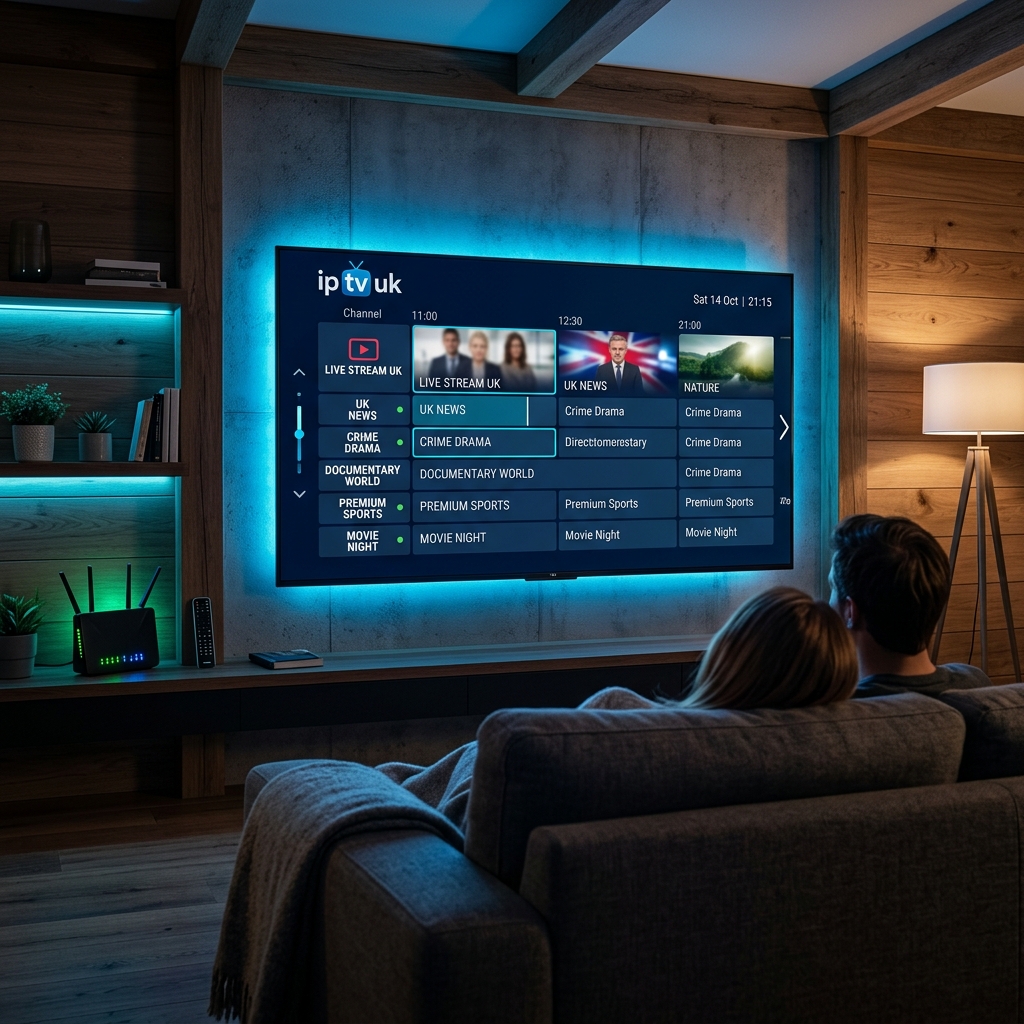
Discover the Best IPTV UK Options for 2026: Complete Guide
Uncover the top IPTV UK options for streaming in 2026.