
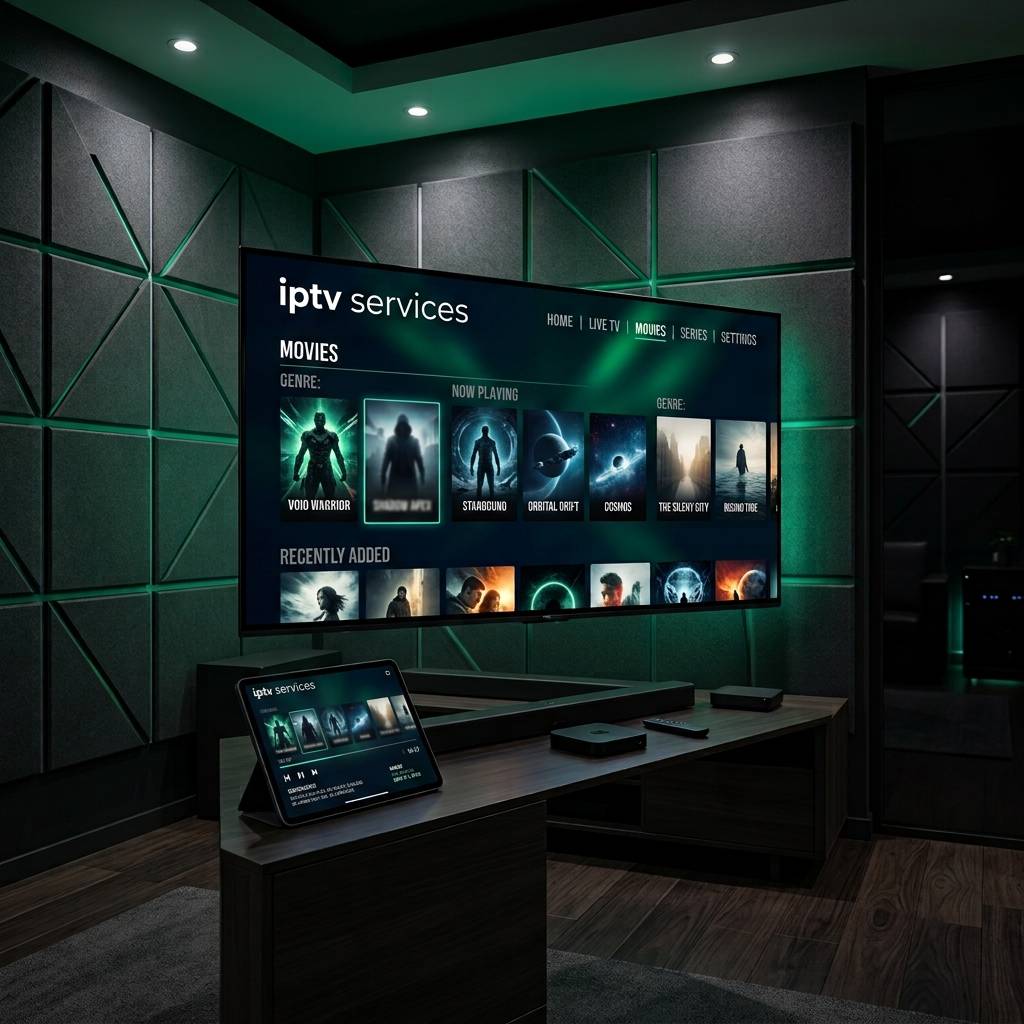
Unlock the Best IPTV Services: Your Ultimate 2026 Guide

Paying hundreds of dollars a year for a cable subscription while still missing half the channels you actually want is a frustrating reality for millions of households. Whether you're dealing with constant buffering, an overcomplicated app that won't load your M3U playlist, or a provider that keeps throttling your stream right before kickoff, you're in exactly the right place. This guide walks you through everything you need to know to get IPTV running smoothly on your Firestick, Android TV, Smart TV, or any other device, without the guesswork.
A poorly configured IPTV setup leads to constant interruptions, missed live events, and a frustrating experience that makes you question why you switched in the first place. Getting it right from the beginning means you spend your evenings watching content, not troubleshooting it.
Core Concepts & Need-To-Know Info
- M3U Playlist: A text-based file or URL that contains all your IPTV channel links. Your provider will give you this URL when you subscribe, and you'll paste it directly into your player app
- Xtream Codes API: An alternative login method (username, password, and server URL) used by most premium IPTV providers. Many apps like TiviMate and IPTV Smarters support this format natively
- VOD (Video on Demand): Your on-demand movie and TV show library included with most IPTV subscriptions, think of it as a built-in Netflix alternative
- ISP Throttling: When your internet provider deliberately slows down streaming traffic, usually after detecting high-bandwidth usage. This is one of the most common causes of unexpected buffering
- Buffer Size: A setting inside most IPTV player apps that controls how much content is pre-loaded before playback. Increasing this can smooth out minor connection hiccups
- EPG (Electronic Program Guide): The on-screen TV guide showing what's currently airing and what's coming up next. Requires a separate EPG URL from your provider or a service like XEPG
- VPN: A Virtual Private Network that encrypts your connection and hides streaming activity from your ISP, preventing throttling and protecting your privacy
Step-by-Step Guide: Setting Up IPTV on a Firestick Using TiviMate
- Step 1: Enable Apps from Unknown Sources:
- On your Firestick home screen, go to Settings, then My Fire TV, then Developer Options. Toggle on both ADB Debugging and Apps from Unknown Sources. This allows you to install apps that aren't listed in the Amazon App Store, which is necessary for sideloading TiviMate.
- Step 2: Install the Downloader App:
- Go back to the home screen and search for Downloader in the Amazon App Store. Install the official Downloader app by AFTVnews. This app acts as a browser and download manager, letting you grab APK files directly onto your Firestick.
- Step 3: Download and Install TiviMate:
- Open Downloader and type the following URL in the address bar: https://tivimate.com. Navigate to the download section and grab the latest APK file. Once downloaded, tap Install when prompted. After installation, select Open to launch TiviMate immediately.
- Step 4: Add Your IPTV Playlist:
- On the TiviMate welcome screen, tap Add Playlist. Choose either M3U Playlist (and paste your M3U URL) or Xtream Codes (enter your server URL, username, and password provided by your IPTV service). Tap Next and give your playlist a name, then tap Finish to begin loading channels.
- Step 5: Add Your EPG Source:
- Once your playlist loads, go to Settings, then Playlists, then tap your playlist name, then EPG URL. Enter the EPG URL supplied by your IPTV provider. If they didn't provide one, many providers support the XEPG format through a Dispatcharr or Threadfin server. Allow up to 15 minutes for the guide data to fully populate.
- Step 6: Adjust Buffer and Playback Settings:
- Navigate to Settings, then Playback. Set the Buffer Size to at least 10 seconds (or higher if you experience occasional drops). Enable hardware acceleration if your Firestick supports it, and set your preferred video player to ExoPlayer for the best compatibility with most streams.
- Step 7: Organize Your Channel List:
- Head to Settings, then Channels and use the grouping and sorting features to organize channels by category. You can hide unwanted groups (like adult content or foreign language packages you don't use) to clean up your guide and make navigation faster.

Imagine sitting down to watch a major boxing match you've been looking forward to all week, only to have the stream freeze in round three because your ISP throttled the connection and you're running on a free VPN with a 500MB limit. These aren't hypothetical scenarios, they happen to people every single day. A little preparation here goes a long way.
Best VPNs to Stop ISP Throttling on IPTV
ISP throttling is the silent killer of IPTV streams. The moment your provider detects heavy streaming traffic, they quietly reduce your bandwidth, and unless you're running a speed test, you might not even realize what's happening. ExpressVPN is consistently the top recommendation for IPTV users because of its MediaStreamer feature, lightweight app, and fast servers optimized for video streaming. NordVPN offers excellent speeds and has dedicated streaming servers. Surfshark is the best budget option as it allows unlimited simultaneous connections so your entire household can stream protected for a single monthly fee. When choosing a server, always connect to one physically close to your IPTV provider's server location to reduce latency and keep speeds high. Enable the VPN's kill switch so that if the connection drops unexpectedly, your real IP address isn't exposed to your ISP.
TiviMate vs IPTV Smarters: Which App Should You Use?
Both apps support M3U playlists and Xtream Codes, but they serve slightly different users. TiviMate is hands-down the better option for users who want a polished, TV-friendly interface that feels like a real cable guide. The Premium version (a one-time purchase) unlocks multiple playlists, recording, and panel customization, and it performs exceptionally well on Firestick and Android TV boxes. IPTV Smarters Pro is a solid free alternative that works across more platforms including iOS, making it a good starting point if you're testing a new IPTV provider before committing to a long subscription. GSE Smart IPTV is worth considering for users on Apple devices where TiviMate isn't available, as it supports M3U, Xtream, and external players. If your provider offers an Xtream Codes login, always use it over the M3U URL method, since Xtream Codes connections tend to be more stable, load faster, and handle EPG data more reliably.
Network Requirements for Smooth IPTV Streaming
Your IPTV stream is only as good as the internet connection feeding it. SD channels require a minimum of 5 Mbps download per stream, HD channels at 1080p need 15 to 25 Mbps per stream, and 4K or UHD streams require 50 to 100 Mbps minimum with low latency and consistent speeds. If multiple devices are streaming simultaneously, multiply these numbers accordingly since a household of four streaming in HD needs at least 60 to 100 Mbps of stable bandwidth. Use a wired Ethernet connection on your primary streaming device, and if Wi-Fi is unavoidable, position your router on the same floor away from microwave interference and use the 5GHz band. Run a speed test from within your network using a tool like Fast.com or Speedtest by Ookla to confirm what speeds your streaming device is actually receiving.
Troubleshooting: Fixing Common Playlist and Playback Errors
Even a well-configured setup hits snags, and knowing how to diagnose them quickly saves a lot of frustration. A Playlist Failed to Load error usually means there's a typo in your M3U URL or Xtream Codes credentials, so check each character and confirm with your provider that the subscription is active. If channels load but show a black screen, switch your video player inside TiviMate from ExoPlayer to VLC or vice versa, since some streams use codecs that one player handles better than the other. EPG not showing program info can often be fixed by deleting and re-adding your EPG URL and giving the app 10 to 15 minutes to re-download the guide data. Random freezing every few minutes typically points to ISP throttling, so increase your buffer size and connect through a VPN to test again. Audio but no video is almost always a codec incompatibility, which you can fix by switching to a hardware-decoded player or routing streams through an external player like MX Player.
Common Setup Mistakes and How to Fix Them
These are the errors that trip up new IPTV users the most often, and almost all of them are avoidable. Skipping the Developer Options step on Firestick means you can't install TiviMate or any other sideloaded app, so always enable unknown sources before trying to install anything. Using an outdated version of TiviMate can cause playlist parsing errors or EPG failures, so check for updates regularly through the Downloader app. Choosing the wrong time zone in EPG settings will shift all your program guide times by hours, making the guide useless even when it technically loads correctly. Not restarting the Firestick after installing a VPN can cause the VPN to not route traffic correctly, so a full restart ensures the VPN's network adapter is properly initialized.
Setting up IPTV properly takes about 20 to 30 minutes the first time, but once it's done right, it runs almost completely hands-off. Follow this guide top to bottom, invest in a reliable VPN, and choose a quality IPTV subscription from a provider with redundant servers, and you'll have a streaming setup that outperforms most traditional cable packages in both content volume and reliability. Check out our full channel list and pricing plans to find the subscription that fits your household perfectly.
Frequently Asked Questions
Ready to get started?
Try our service risk-free with a 24-hour free trial.
Related Articles

How to Choose the Best IPTV Subscriptions for Streaming Devices
Explore top IPTV subscriptions and streaming tips.

Unlocking the IPTVUK Free Trial: What You Need to Know
Learn how to make the most of your IPTVUK free trial.

How to Buy IPTV Subscriptions: Your Complete 2026 Guide
Learn the best ways to buy IPTV subscriptions and enhance your streaming.