

The Ultimate Guide to Choosing the Best IPTV Subscription for You

IPTVBestStream Editorial Team
IPTV Buying Guides for the UK & Canada
You finally pulled the trigger on an IPTV subscription, and now you're staring at a blank screen, a confusing app interface, or worst of all the dreaded buffering wheel spinning endlessly through the big game. Sound familiar? You're not alone. Thousands of people sign up for IPTV services every single day and never unlock even half of what they're paying for, simply because nobody walked them through the setup properly. This guide fixes that. Whether you're using a Firestick, Android TV box, Smart TV, or TiviMate on your phone, you're about to get a crystal-clear, step-by-step breakdown that gets your streams running smooth, stable, and buffer-free starting right now.
Solving the setup problem isn't just about convenience, it's the difference between loving your IPTV subscription and canceling it within the first week thinking it doesn't work. The technical foundation you build today determines every single streaming session you have going forward.
Core Concepts & Need-To-Know Info
- M3U Playlist / M3U URL: This is the file or web link your IPTV provider gives you. It contains all your channel data. Think of it as the master list your app reads to find every channel.
- Xtream Codes: An alternative login method (username, password, server URL) that many premium IPTV services use. It's often more stable than M3U for large channel lists.
- EPG (Electronic Program Guide): The TV guide built into your app that shows what's on now and what's coming up. Requires a separate EPG URL from your provider.
- VOD (Video on Demand): The movie and TV series library inside your IPTV subscription, separate from live channels.
- ISP Throttling: Your internet provider detecting and deliberately slowing down streaming traffic. This is one of the biggest causes of buffering that has nothing to do with your IPTV service.
- VPN: A Virtual Private Network that masks your traffic from your ISP, preventing throttling and protecting your privacy.
- Buffering vs. Connection Speed: You need at least 25 Mbps for reliable HD streaming, and 50+ Mbps for 4K. However, even fast connections can buffer if ISP throttling or DNS issues are present.
- TiviMate / IPTV Smarters: The two most popular IPTV player apps. TiviMate is generally considered the gold standard for Android and Firestick users.
Step-by-Step Guide
- Step 1: Enable Apps from Unknown Sources:
- Go to your Firestick Home screen, click the Settings gear icon (top right), then select My Fire TV, followed by Developer Options. Toggle Apps from Unknown Sources to ON. This allows you to install IPTV apps that aren't in the Amazon App Store. Without this, nothing else in this guide works.
- Step 2: Install the Downloader App:
- Go back to the Home screen, navigate to the Search icon, and type Downloader. Install the official Downloader app by AFTVnews, it's free and appears in the Amazon App Store. Open it and allow any permissions it requests. This app is your gateway to installing TiviMate or IPTV Smarters.
- Step 3: Download TiviMate or IPTV Smarters:
- Open Downloader and type the direct APK URL for TiviMate (available from TiviMate's official site) or IPTV Smarters Pro into the URL bar. Hit Go, wait for the download to complete, then click Install when prompted. Once installed, select Done (not Open) and then Delete the APK file to free up space.
- Step 4: Open Your IPTV App and Choose Your Connection Method:
- Launch TiviMate from your apps list. On the welcome screen, tap Add Playlist. You'll see two options: M3U URL or Xtream Codes. If your provider gave you a long URL ending in .m3u or .m3u8, choose M3U URL. If they gave you a username, password, and server address, choose Xtream Codes. Enter your credentials exactly as provided, one wrong character breaks the entire connection.
- Step 5: Load Your EPG (Program Guide):
- After your playlist loads, go to TiviMate Settings > Playlists > select your playlist > EPG URL. Enter the EPG link your provider gave you. If they didn't provide one, ask them directly, most providers have one. Set the EPG update interval to every 24 hours. This gives you a full program guide so you can see what's playing on every channel.
- Step 6: Organize Your Channels and Test Streams:
- Once everything loads, go to your channel list and browse to a popular live channel (like a major sports network or news channel). Hit play and give it 10-15 seconds to buffer initially. If it plays cleanly, you're set. If it buffers repeatedly, skip to the Troubleshooting section below before adjusting anything else.
- Step 7: Set Your Video Player to Optimize Playback:
- In TiviMate, go to Settings > Player. Change the player from the default to External Player and select MX Player or VLC if you have them installed. Alternatively, stay on TiviMate's internal player but enable hardware decoding under Settings > Player > Hardware Decoding. This reduces buffering dramatically on Firestick devices by offloading video processing to the device's GPU.

Imagine you're halfway through a UFC main event pay-per-view, your stream freezes at the exact moment of the knockout, and you can't recover it because your M3U URL was entered incorrectly three weeks ago during setup and your app has been working off a corrupted playlist ever since. Or picture your ISP throttling your connection every Friday night just as the Premier League matches kick off, not because your IPTV service is bad, but because you've been running unprotected traffic that your ISP identifies and slows down. These aren't hypotheticals. They happen to people every single week.
Best VPNs to Stop ISP Throttling on Your IPTV Subscription
ISP throttling is the silent killer of IPTV streaming quality, and a quality VPN is the most effective weapon against it. ExpressVPN is consistently the fastest VPN for streaming, with servers optimized specifically for video, and works seamlessly on Firestick via its dedicated app. NordVPN is excellent for IPTV users who also want robust privacy protection, with their NordLynx protocol delivering speeds close to your raw connection speed, making it ideal for 4K IPTV streams. Surfshark is the best budget option, offering unlimited simultaneous device connections, great if you're running IPTV on multiple TVs. Always connect your VPN before launching your IPTV app, and connect to a VPN server in the same country as your IPTV provider's servers for the lowest latency.
Common IPTV Setup Mistakes and How to Fix Them
Even after following every step perfectly, issues can still pop up. A playlist failed to load error almost always means your M3U URL or Xtream Codes credentials are wrong, so go back to your provider's welcome email, copy the URL fresh, and re-enter it. If channels show in the list but won't play, your IP address may have been blocked due to too many connection attempts, so restart the app, wait 60 seconds, and try again. If your EPG isn't showing any program data, request a fresh EPG link from your provider and force-refresh the EPG data manually. If your app crashes on startup after an update, clear the app's cache and data under Settings > Applications > Manage Installed Applications > TiviMate > Clear Cache and Clear Data, then relaunch.
TiviMate vs. IPTV Smarters: Which App Is Right for Your Setup?
TiviMate is the superior choice for Firestick and Android TV users who want a polished, cable-TV-like experience. Its interface is clean, channel switching is fast, and the premium version at $4.99/year unlocks EPG recording, multiple playlists, and parental controls. IPTV Smarters Pro is better suited for mobile users and people who prefer a simpler interface, supporting both M3U and Xtream Codes out of the box with a built-in catch-up feature. GSE Smart IPTV is a strong alternative for iOS and macOS users since TiviMate is Android-exclusive. If you're on Firestick or Android TV, start with TiviMate. If you're on iPhone or iPad, use GSE Smart IPTV. If you want something quick and free to test a new IPTV subscription before committing to a premium app, IPTV Smarters is your best starting point.
Network Requirements for 4K IPTV Streaming
Your IPTV subscription might offer 4K streams, but your network setup needs to actually support them. You need a minimum 50 Mbps download speed dedicated to your streaming device for stable 4K, so run a speed test at fast.com directly on your Firestick or TV to confirm your actual device speed. A wired Ethernet connection from your router to your streaming device eliminates 90% of Wi-Fi-related buffering, and if your Firestick doesn't have an Ethernet port, a $15 adapter solves this instantly. If you can't run Ethernet, use a Wi-Fi 5 (802.11ac) or Wi-Fi 6 router, as older Wi-Fi 4 routers struggle with consistent 4K throughput. Router placement also matters: if your router is two rooms away with walls and appliances in between, a Wi-Fi extender or mesh network node placed closer to your TV resolves buffering even on a 200 Mbps plan.
Troubleshooting: Fixing Playlist and Playback Errors
When your IPTV subscription is active and correctly entered but streams still aren't working, restart everything in order: modem first, wait 30 seconds, then router, wait 30 seconds, then your streaming device. Switch between stream quality options since many IPTV services offer the same channel at multiple bitrates, and if 4K or FHD is buffering, drop to HD temporarily to confirm whether the issue is bandwidth or the specific stream. Test a different channel before concluding one is broken, as a specific stream may be temporarily offline on the provider's side. Also check your subscription status by logging into your provider's portal, and always keep your IPTV app updated to avoid compatibility issues with newer M3U playlist formats.
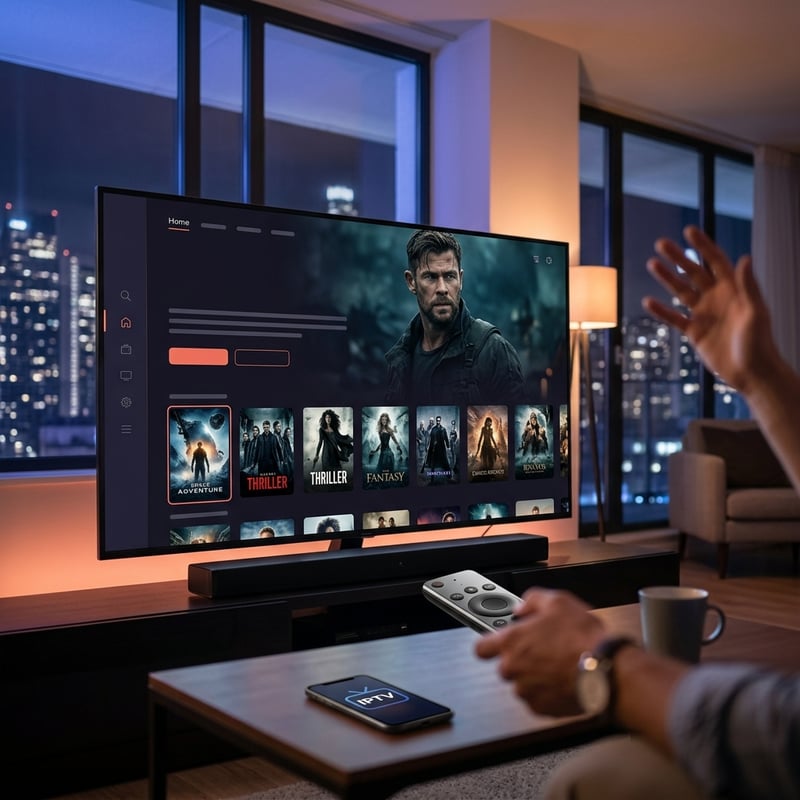
Getting the most out of your IPTV subscription isn't complicated once you understand the moving parts, and now you do. From enabling sideloading on your Firestick and correctly entering your Xtream Codes credentials, to protecting your streams with a VPN and optimizing your network for 4K, every piece of this guide exists to give you the smooth, reliable streaming experience you paid for. Stop fighting your setup and start enjoying it. Check out our full channel list and pricing plans to find the perfect subscription tier for your viewing habits.
Frequently Asked Questions
Ready to get started?
Try our service risk-free with a 24-hour free trial.
Related Articles
How to Choose the Best IPTV Subscriptions in the UK: A Comprehensive Guide
Explore top IPTV subscriptions and tips for UK viewers.

How to Choose the Best IPTV Subscription in the UK: A Comprehensive Guide
Learn to choose the best IPTV subscription in the UK.

Maximize Your IPTV Trial: Tips for Best Viewing Experience
Get the most from your IPTV free trial. Tips on testing channel quality, checking device compatibility, and evaluating providers before you subscribe.