

Maximize Your IPTV Trial: Tips for Best Viewing Experience

Paying for an IPTV subscription blind is one of the fastest ways to waste money on a service that buffers every five minutes, drops channels during the game-winning goal, or simply doesn't carry the content you actually want. The good news? Every legitimate IPTV provider worth your time offers an IPTV trial — a free or low-cost window to test streams, check channel counts, and verify VOD libraries before you commit to a full subscription. The problem is most people have no idea how to request one, set it up correctly, or even know what to look for during those critical 24 to 48 hours. That ends right here.
Solving this before you hand over payment details isn't just about saving a few dollars — it's about protecting yourself from providers who oversell server capacity and under-deliver on stream quality. A proper IPTV trial gives you real-world data on the service so your decision is based on performance, not promises.
Core Concepts & Need-To-Know Info
- M3U URL / M3U Playlist: A link that contains all the channel streams for your subscription. Your provider sends this after approving your trial request. It looks like: http://provider-domain.com:port/get.php?username=xxx&password=xxx&type=m3u
- Xtream Codes API: An alternative login method using a server URL, username, and password — used by apps like TiviMate, IPTV Smarters, and GSE Smart IPTV instead of a raw M3U link
- EPG (Electronic Program Guide): The on-screen TV guide. A good provider supplies an EPG URL so you see what's playing and what's coming up — essential for live sports
- VOD (Video on Demand): The movies and TV series library included in most IPTV subscriptions, separate from live channels
- ISP Throttling: Some internet providers actively slow down IPTV streams once they detect the traffic type — this can cause buffering even on fast connections and is a crucial variable to test during a trial
- Concurrent Connections: Most trials offer 1 connection. This means only one device can stream at a time — verify how many connections come with a paid plan before committing
- Panel / Portal: Some providers offer a web-based panel where you manage your account, see your expiry date, and generate M3U links
Step-by-Step Guide
- Step 1: Request Your Trial Credentials
- Contact your chosen IPTV provider via their website, Telegram channel, or reseller page and request a free trial. Legitimate providers typically respond within a few minutes to a few hours. You'll receive either an M3U URL or Xtream Codes credentials (server URL, username, password). Never pay more than a nominal amount (if anything) for a trial — if a provider demands full payment upfront with no trial option, that's a red flag.
- Step 2: Install Your IPTV App on Your Device
- On a Firestick, navigate to Settings -> My Fire TV -> Developer Options and enable Apps from Unknown Sources. Then use the Downloader app (free on the Amazon App Store) to sideload TiviMate or IPTV Smarters Pro. On an Android TV box, enable Unknown Sources in Security Settings and install directly via APK. On a Smart TV, check if your app store carries GSE Smart IPTV or install via the TV's built-in browser method.
- Step 3: Enter Your Trial Credentials
- Open your chosen app. In TiviMate, tap Add Playlist -> select Xtream Codes if you have login credentials, or M3U URL if you received a link. Type your server address, username, and password carefully — a single typo will return a playlist loading failed error. In IPTV Smarters Pro, go to Add User -> Login with Xtream Codes API and enter the same details.
- Step 4: Let the Playlist Load Fully
- Depending on the channel count (some providers carry 20,000+ channels), the initial playlist load can take 30 seconds to 3 minutes. Do not close the app or tap anything during this process. Once loaded, you'll see your channel categories populate — verify that the channels you specifically care about (your sports package, international bouquet, or local networks) are present.
- Step 5: Run Structured Streaming Tests
- Don't just open one channel and call it good. Test systematically: play a live HD sports channel, switch to a 4K stream if available, open a VOD movie, and jump between categories rapidly. Note any buffering (the spinning loading circle), pixelation, or audio sync issues. Test during peak hours — weekday evenings between 7 PM and 10 PM are when server load is highest and problems surface.
- Step 6: Test on a VPN (Optional but Recommended)
- If you experience buffering during your trial, enable a VPN (ExpressVPN or NordVPN) and re-test the same channels. If the buffering disappears with a VPN active, your ISP is throttling IPTV traffic — this is critical information because you'll need a VPN as part of your ongoing setup. If buffering persists with the VPN, the problem is on the provider's server side.
- Step 7: Evaluate and Decide
- After 24 to 48 hours of testing across multiple times of day, you have real performance data. If streams were consistently stable, channels loaded within 2 to 3 seconds, and VOD worked without interruption, you've found a solid provider. If you experienced repeated buffering even on a VPN, move on — the trial just saved you money.
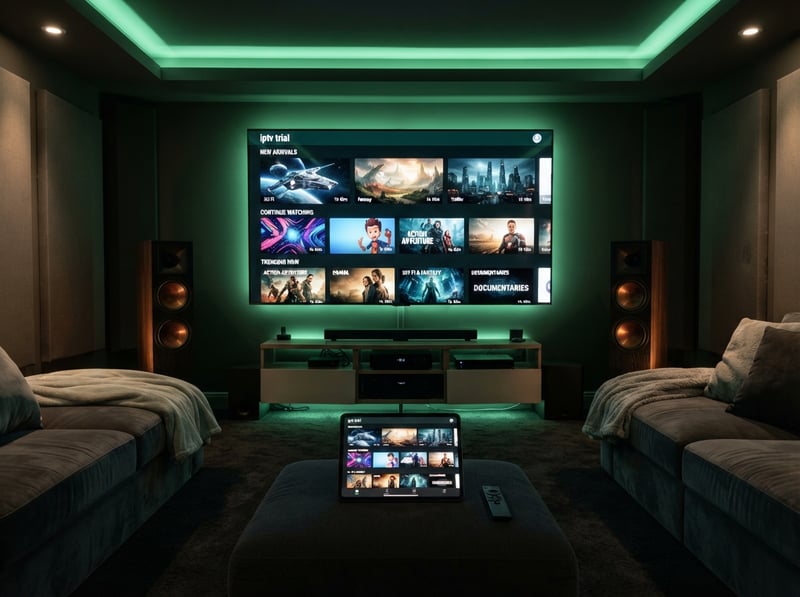
Imagine this scenario: you test an IPTV trial at noon on a Tuesday, everything plays perfectly, so you buy a 12-month subscription — then on Saturday during the Premier League match, half the sports channels are buffering because the server is overwhelmed at peak load. This is exactly why structured, peak-hour testing during your trial period is non-negotiable. Another common disaster: someone receives their trial M3U URL, types it into TiviMate with a subtle error, gets a blank channel list, and assumes the provider is terrible — when in reality, their credentials were never actually entered correctly.
Best VPNs to Stop ISP Throttling During Your IPTV Trial
- ExpressVPN is the gold standard for IPTV use — consistently fast servers, a dedicated Firestick app, and a MediaStreamer DNS feature that works even without running the full VPN tunnel
- NordVPN offers excellent speeds on its NordLynx protocol and has a large server network that lets you find a low-latency connection point close to your IPTV provider's servers
- Surfshark is the best budget option for IPTV users — it allows unlimited simultaneous connections, meaning you can protect every streaming device in your home on a single subscription
- When using a VPN for IPTV, always connect to a server in the same country as your IPTV provider's servers for the lowest latency and best stream quality
- Enable the VPN's kill switch to prevent your real IP from being exposed if the VPN connection drops during a session
TiviMate vs IPTV Smarters Pro: Which App Should You Use for Your Trial?
- TiviMate is the best IPTV player available for Firestick and Android TV — its EPG integration is flawless, channel switching is near-instant, and the UI looks like a professional cable TV interface. The free version works fine for a trial; the Premium unlock ($4.99/year) adds multi-screen and recording features you'll want long-term
- IPTV Smarters Pro is an excellent alternative, especially for users who receive an M3U URL rather than Xtream Codes credentials. It supports multiple playlists simultaneously, making it easy to trial and compare two providers side by side
- GSE Smart IPTV is the best option for Smart TV users (Samsung, LG) since TiviMate isn't natively available on those platforms — it supports both M3U playlists and Xtream Codes API
- Avoid using generic media players like VLC for your trial evaluation — they don't support EPG, lack channel management, and don't represent the real IPTV experience
Network Requirements for Smooth IPTV Streaming
- Minimum speeds: HD streaming requires at least 10 Mbps; Full HD needs 15 to 20 Mbps; 4K streams demand 25 Mbps or more per stream
- Wired is always better: Connecting your Firestick or Android box via Ethernet (using a compatible USB-to-Ethernet adapter) eliminates Wi-Fi interference and is the single most effective way to reduce buffering
- Router placement matters: If you must use Wi-Fi, the 5GHz band offers faster speeds but shorter range; the 2.4GHz band has better range but more interference — keep your streaming device within clear line of sight of your router
- Test your actual speeds using Fast.com or Speedtest.net before blaming the IPTV provider — if you're getting 8 Mbps on a plan advertised as 100 Mbps, the problem is your ISP, not your IPTV service
- Prioritize your streaming device in your router's QoS (Quality of Service) settings to ensure IPTV traffic gets bandwidth priority over other devices on your network
Common Setup Mistakes That Ruin IPTV Trials
- Using the wrong app for their device: Many Firestick users try to use apps designed for Android phones — always use apps built specifically for Android TV (TiviMate, IPTV Smarters for TV)
- Not clearing existing app data: If you previously had another IPTV service, cached data from the old provider can conflict with your new trial credentials — go to Settings -> Applications -> find your IPTV app -> Clear Data and Clear Cache before entering new login details
- Entering the server URL with https when it should be http: Many IPTV providers still use unencrypted connections; using the wrong protocol prefix will cause an immediate connection failure
- Forgetting to set the time zone in TiviMate: If your EPG shows programs offset by several hours, go to TiviMate Settings -> EPG -> Time Offset and adjust to your local timezone
- Testing only free-to-air channels: During an IPTV trial, specifically test the premium content you're paying for — premium sports, pay-per-view events, and 4K channels — these are the streams most likely to expose server quality issues
Your IPTV trial is not just a freebie to binge a few channels — it's a diagnostic tool, and the providers confident enough to offer one without strings attached are almost always the ones with infrastructure strong enough to back it up. Use every hour of that window deliberately, test at peak times, throw a VPN in the mix, and you'll walk into your paid subscription knowing exactly what you're getting — check out our full channel list and pricing plans to find the right fit for you.
Frequently Asked Questions
Ready to get started?
Try our service risk-free with a 24-hour free trial.
Related Articles

Discover the Best IPTV Reddit Tips and Tricks for 2026
Unlock the secrets of IPTV on Reddit with this guide.

Unlocking the Secrets of IPTV Services: Your Ultimate Guide
Master IPTV services with our comprehensive guide on subscriptions and troubleshooting.
Unlock the Best IPTV Services: Your Ultimate 2026 Guide
Find the best IPTV services and troubleshooting tips here.