

Discover the Best IPTV Services in the UK: A Complete Guide

Tired of paying £60+ a month for a Sky or Virgin Media package that still somehow doesn't have the channels you actually want to watch? You're not alone. Thousands of UK viewers are ditching traditional TV subscriptions and switching to IPTV, and once you've made the switch, there's genuinely no going back. The problem is, finding the best IPTV UK service, setting it up correctly, and actually getting it to run without constant buffering is where most people hit a wall. This guide cuts through the noise and gives you everything you need to get live TV, VOD, and sports streaming like a professional, on your Firestick, Smart TV, or Android box.
Getting your IPTV setup right isn't just about convenience, it's the difference between a TV experience that genuinely replaces your cable subscription and one that crashes during the 89th minute of a Premier League match. A properly configured IPTV system with the right app, a reliable provider, and a stable connection turns any screen into a full broadcast studio.
Core Concepts & Need-To-Know Info
- M3U Playlist: A file or URL your IPTV app uses to load all the channels from your provider, it looks like http://provider.com:8080/get.php?username=XXX&password=XXX&type=m3u
- Xtream Codes: An alternative login method using a server URL, username, and password, more stable than M3U for large channel lists
- EPG (Electronic Programme Guide): The on-screen TV guide showing what's airing now and next, your provider should supply an EPG URL
- VOD (Video on Demand): The movie and series section of your IPTV subscription, separate from live channels
- ISP Throttling: UK internet providers like BT, Sky, and Virgin Media actively throttle streaming traffic, this is why many users experience buffering even with fast broadband
- VPN: A Virtual Private Network masks your streaming traffic from your ISP, eliminating throttling and protecting your privacy
- Buffer size: A setting inside your IPTV app that controls how much of the stream is pre-loaded, critical for HD and 4K streams
Step-by-Step Guide
- Step 1: Enable Apps from Unknown Sources:
- On your Firestick, go to Settings, My Fire TV, Developer Options. Toggle Apps from Unknown Sources to ON. Without this, you cannot install third-party IPTV apps. If you see a warning popup, tap Turn On to confirm.
- Step 2: Install the Downloader App:
- Go back to the Firestick home screen and search for Downloader in the search bar. Install the free Downloader app by AFTVnews. Open it and allow storage permissions when prompted. This app lets you sideload any APK onto your Firestick.
- Step 3: Download TiviMate or IPTV Smarters Pro:
- Inside Downloader, type the URL for your chosen app APK. For TiviMate, visit the official site URL. For IPTV Smarters Pro, search for the latest APK link from a verified source. Tap Download, wait for the file to arrive, then tap Install. Once installed, open the app.
- Step 4: Add Your IPTV Subscription (Xtream Codes Method):
- Open TiviMate and tap Add Playlist. Select Xtream Codes from the options. Enter the Portal URL provided by your IPTV supplier, your Username, and your Password exactly as provided, one wrong character and the connection fails. Tap Next and wait for the channel list to load.
- Step 5: Add Your M3U Playlist (Alternative Method):
- If your provider gives you an M3U URL instead, select M3U Playlist in TiviMate's add playlist screen. Paste the full M3U URL carefully. Many providers also offer a direct M3U link that includes the EPG data automatically, ask your provider for the combined URL to simplify setup.
- Step 6: Set Up Your EPG Guide:
- In TiviMate, go to Settings, Playlists, select your playlist, EPG. Paste the EPG URL from your provider. Tap Update EPG and give it 2-5 minutes to populate. Once done, your channel list will show programme titles, start times, and descriptions just like a real TV guide.
- Step 7: Configure Buffer Size for Smooth Playback:
- In TiviMate, go to Settings, Player, Buffer Size. Set this to at least 10 seconds for HD streams and 15-20 seconds for 4K. This pre-loads enough stream data to survive minor connection hiccups without interruption.
- Step 8: Connect a VPN Before Streaming:
- Install ExpressVPN, NordVPN, or IPVanish from the Amazon App Store on your Firestick. Connect to a UK server before opening TiviMate. This prevents your ISP from detecting and throttling your IPTV traffic, the single most impactful change you can make for buffering-free streaming.
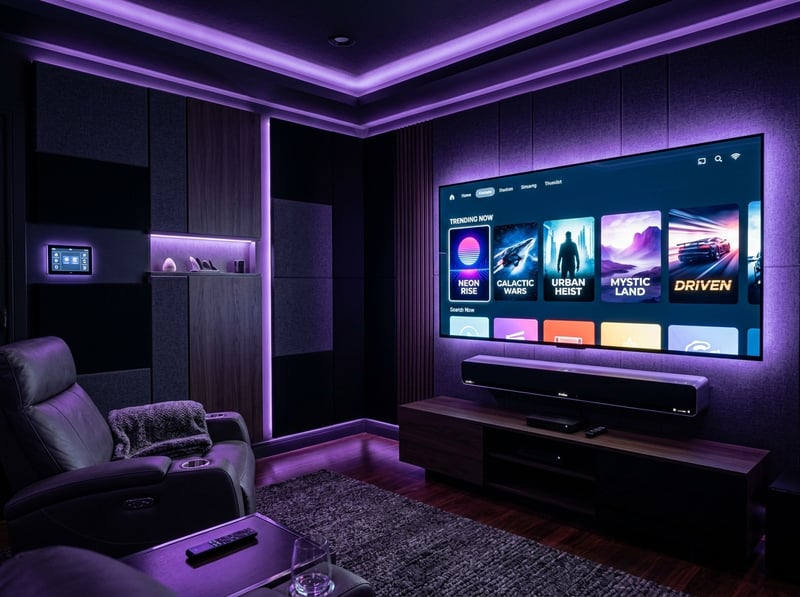
Imagine settling in for the Manchester City vs Arsenal match, snacks ready, only for the stream to freeze every 30 seconds because your ISP has throttled the connection. Or worse, your M3U URL was entered incorrectly, the app throws an authentication error, and you spend 20 minutes troubleshooting instead of watching. These aren't edge cases, they happen to new IPTV users constantly, and every single issue on this list is 100% preventable with the right preparation.
Best VPNs to Stop ISP Throttling for UK IPTV Users
ISP throttling is the number one cause of IPTV buffering in the UK, and a premium VPN is the only reliable fix. ExpressVPN is the fastest VPN tested specifically for IPTV in the UK, with UK server speeds consistently hitting 400-500 Mbps, more than enough for multiple 4K streams, and it's available directly on Firestick from the Amazon App Store. NordVPN is excellent for IPTV with its NordLynx protocol based on WireGuard, and offers a dedicated IP add-on that reduces the chance of your IPTV provider blocking the VPN IP. IPVanish is the best budget option for Firestick users and one of the few VPNs that explicitly allows unlimited simultaneous connections, perfect if you're streaming on multiple devices. Always connect to a UK-based server when streaming UK IPTV content to keep low latency and avoid geo-restrictions on catch-up content, and enable the VPN's split tunneling feature if available so only IPTV traffic routes through the VPN while other apps stay on your regular connection.
TiviMate vs IPTV Smarters Pro: Which App Is Right for You?
Choosing the right app is just as important as choosing the right provider when finding the best IPTV UK setup. TiviMate is the gold standard for Firestick and Android TV users, the interface looks and feels like a proper TV guide, EPG integration is flawless, and the buffer controls are unmatched, with the premium version at £4.99 per year unlocking multiple playlists, recording, and catch-up. IPTV Smarters Pro is better for users who want a simpler interface and have their provider set up on Xtream Codes, it's free, regularly updated, and works well on Smart TVs and phones in addition to Firestick. GSE Smart IPTV is the top pick for iOS and iPad users who want a reliable M3U player with EPG support. If your household has mixed devices including Firestick, Samsung Smart TV, and iPhone, consider using TiviMate on Fire devices and Smarters on everything else with the same subscription credentials.
Network Requirements for HD and 4K IPTV Streaming
Your internet connection determines whether your IPTV experience is flawless or frustrating. You need a minimum of 10 Mbps for SD streams, 25 Mbps dedicated for HD 1080p streams, and 50 Mbps dedicated with low latency under 30ms ping to your VPN server for 4K streams. Use a wired Ethernet connection wherever possible since Wi-Fi introduces instability especially in households with multiple devices, and a £10 Ethernet cable from your router to your TV box is the single cheapest upgrade that makes the biggest difference. If you must use Wi-Fi, position your router within clear line of sight of your streaming device or invest in a Wi-Fi 6 router for dramatically improved stability. Run a speed test through your VPN to verify your VPN isn't cutting speeds below acceptable levels, as a good premium VPN should retain 85-90% of your base speed.
Common Setup Mistakes and How to Fix Them
Even experienced users hit these snags when setting up the best IPTV UK experience. If your playlist is not loading, double-check the M3U URL or Xtream Codes credentials character by character and confirm your subscription is active by asking your provider to verify the account status. If channels show but won't play, this usually indicates a server-side issue with your IPTV provider, so try switching to a backup server URL if your provider offers one or contact support. If the EPG is showing wrong times, UK users must set the EPG timezone to GMT/BST inside TiviMate's settings by going to Settings, General, Time Offset and setting it correctly. If your app is crashing on Firestick, clear the app cache via Firestick Settings, Applications, Manage Installed Applications, select your app, Clear Cache, and also clear data if the crash persists before re-entering your credentials.
Troubleshooting: Fixing Buffering and Playlist Errors
Buffering is the most complained-about IPTV issue in the UK, and it almost always has a fixable cause. Raising the buffer to 15-20 seconds in TiviMate's player settings absorbs connection fluctuations, and if the HD stream still buffers, temporarily switching to the SD version confirms whether it's your connection or the provider's server at fault. Changing your DNS to 1.1.1.1 from Cloudflare or 8.8.8.8 from Google on your Firestick or router can resolve playlist authentication errors caused by DNS hijacking, which some UK ISPs use. If a specific channel always buffers but others play fine, it's a provider-side issue, and good providers fix stream quality problems within hours of being notified.

Finding the best IPTV UK service is really only half the battle, the other half is setting it up properly so it actually works when you need it most. Follow this guide, invest in a quality VPN, use TiviMate on your Firestick, and take the time to configure your buffer and EPG settings correctly, and you'll have a streaming setup that genuinely outperforms anything Sky or Virgin Media can offer at a fraction of the cost. Check out our full channel list and pricing plans to find the right subscription for your household and start streaming today.
Frequently Asked Questions
Ready to get started?
Try our service risk-free with a 24-hour free trial.
Related Articles

Discover the Best IPTV Options in the UK for 2026
Uncover the best IPTV services available in the UK.

Discover the Best IPTV UK Provider for Ultimate Streaming Experience
Find the top IPTV UK provider and enhance your streaming.

Discover the Best IPTV Providers in the UK for 2026
Uncover the top IPTV providers in the UK for seamless streaming.