
Discover the Top Rated IPTV Services for 2026: A Comprehensive Guide

IPTVBestStream Editorial Team
IPTV Buying Guides for the UK & Canada
Tired of paying $150 a month for a cable package you barely use, only to still miss half the live sports and premium channels you actually care about? You're not alone — millions of cord-cutters are making the switch to top rated IPTV services right now, and the ones who know what they're doing are getting 10,000+ channels, full VOD libraries, and crystal-clear 4K streams for a fraction of the cost. The problem is, with so many providers flooding the market, bad setups, and horror stories about buffering mid-game, most people either choose the wrong service or set it up incorrectly and end up frustrated. This guide cuts through all of that noise and gives you a straight, expert breakdown of everything you need — from picking the right provider to getting it running flawlessly on your Firestick, Android TV, or Smart TV.
Choosing the right IPTV service isn't just about getting the cheapest option — it's about finding a provider with stable servers, low buffering rates, and proper support that won't disappear on you after you've paid. A poor choice here doesn't just cost you money; it costs you the experience of actually enjoying your content when it matters most, like during a live championship game or a movie night with the family.
Core Concepts & Need-To-Know Info
- M3U Playlist URL: This is the file link your IPTV provider gives you. It contains all your channels and VOD content. You paste this into apps like TiviMate, IPTV Smarters Pro, or GSE Smart IPTV to load your channels.
- Xtream Codes API: A more advanced connection method where you're given a server URL, username, and password instead of a single M3U URL. Most premium providers offer both formats.
- VOD (Video on Demand): The on-demand movie and TV show section of your IPTV service, separate from live channels.
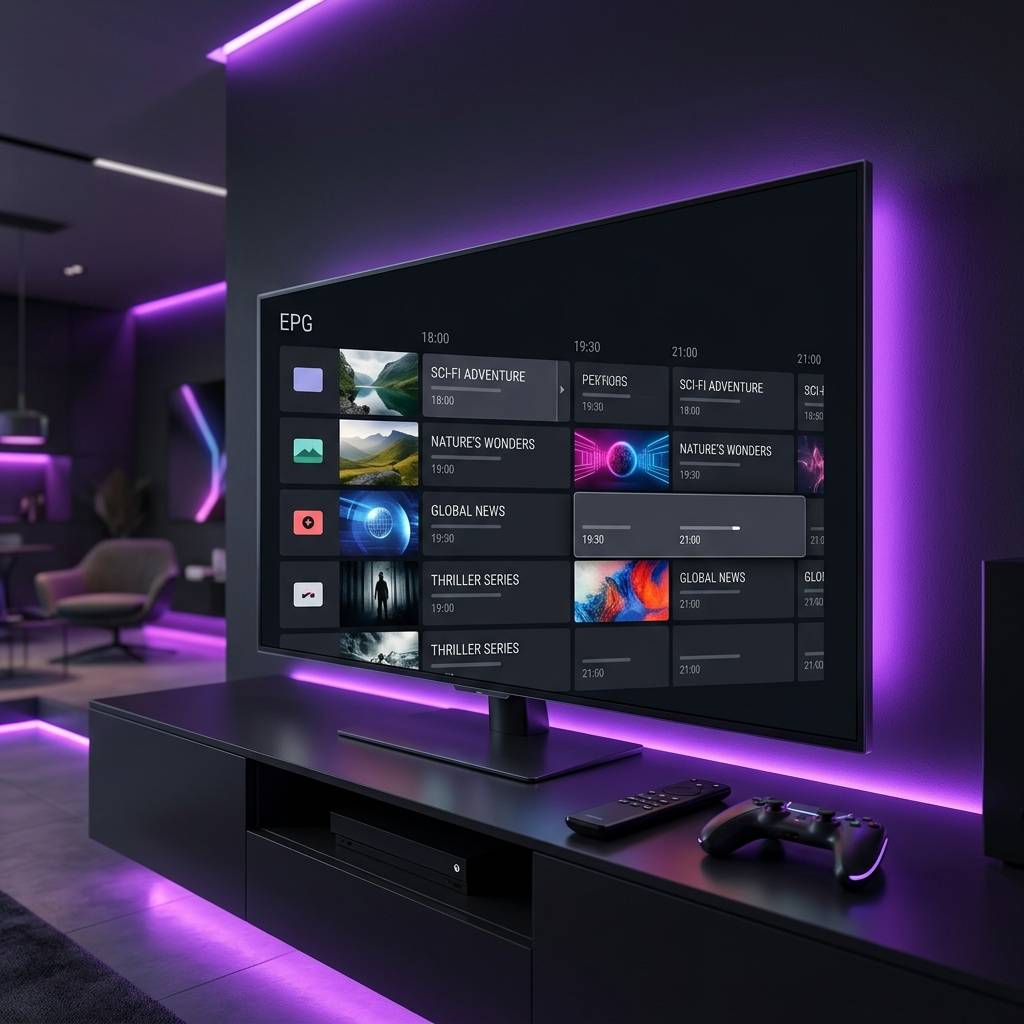
- EPG (Electronic Program Guide): The channel guide that shows what's currently on and what's coming up. Good providers include an EPG URL alongside your M3U link.
- Server uptime and stability: The backbone of any top rated IPTV experience. Look for providers that advertise 99.9% uptime and run redundant server infrastructure.
- ISP Throttling: Your internet service provider can detect and deliberately slow down IPTV streaming traffic. This is one of the most common causes of unexpected buffering even with fast internet speeds.
- Concurrent connections: How many devices can stream simultaneously on one subscription. Most plans offer 1–4 connections.
Step-by-Step Guide
- Step 1: Enable Apps from Unknown Sources:
- Go to your Firestick home screen, navigate to Settings → My Fire TV → Developer Options, and toggle on Apps from Unknown Sources. This allows you to install IPTV apps that aren't in the Amazon App Store.
- Step 2: Install the Downloader App:
- Search for Downloader in the Amazon App Store and install it. This free app lets you sideload APK files directly onto your Firestick. Open it once installed and enable browser mode if prompted.
- Step 3: Download TiviMate or IPTV Smarters Pro:
- Open Downloader and type in the direct APK URL for TiviMate (available from the official TiviMate website) or search IPTV Smarters Pro directly in the Amazon App Store since it's available there natively. Install your chosen app and launch it.
- Step 4: Enter Your IPTV Provider Credentials:
- When TiviMate opens, tap Add Playlist. Choose either M3U URL and paste the M3U link your provider sent you, or choose Xtream Codes and enter the server URL, username, and password. Tap Next and let the app load your channel list — this can take 30–90 seconds depending on your playlist size.
- Step 5: Add Your EPG Source:
- During setup or in Settings → EPG, paste the EPG URL provided by your IPTV service. This populates your channel guide with program information. Set the EPG update interval to every 12–24 hours for fresh data.
- Step 6: Organize Your Channel Groups:
- In TiviMate, go to Settings → Playlist and configure which channel groups you want visible. Hide categories you don't need (like foreign language packs you won't use) to keep your interface clean and fast.
- Step 7: Test Your Streams:
- Flip through a variety of channels — a local news channel, a live sports channel, and a 4K channel if your provider offers them. Watch for buffering, pixelation, or audio sync issues. If everything plays cleanly, your setup is solid.

ISP throttling is a real and widespread issue that catches people off guard — your internet might test at 200 Mbps but your IPTV stream crawls because your ISP is specifically targeting streaming traffic on ports commonly used by IPTV services. Similarly, entering an M3U URL with a single typo looks like a complete service failure when it's actually just a formatting error, and beginners spend hours troubleshooting the wrong thing entirely.
Best VPNs to Stop ISP Throttling on IPTV
ISP throttling is one of the single biggest destroyers of a smooth IPTV experience, and a quality VPN encrypts your traffic so your ISP can't identify and throttle it. ExpressVPN is widely considered one of the fastest options on Firestick and Android TV, with its MediaStreamer feature optimized for streaming traffic and a one-click connect that makes it beginner-friendly. NordVPN offers NordLynx protocol (based on WireGuard) which delivers significantly lower latency than traditional OpenVPN, making it great for live sports where a 2-second delay actually matters. Surfshark is the best value option with unlimited simultaneous device connections, meaning one subscription covers your Firestick, phone, tablet, and laptop simultaneously. IPVanish is popular specifically in the IPTV community because it has a dedicated Fire TV app and integrates cleanly with Kodi and TiviMate workflows. Always connect your VPN before launching your IPTV app — connecting mid-stream can cause your session to drop and force a channel reload.
TiviMate vs IPTV Smarters Pro: Which App Is Right for You?
TiviMate is the gold standard for Firestick and Android TV users. Its interface closely mimics a traditional cable guide, it handles large M3U playlists (10,000+ channels) without slowing down, and its EPG integration is flawless. The free version is functional, but the Premium version ($4.99/year) unlocks multi-playlist support, catch-up TV, and recording features. IPTV Smarters Pro is more flexible across platforms — it works equally well on iOS, Android phones, and Smart TVs where TiviMate isn't available. It also handles Xtream Codes login natively and displays VOD content in a more Netflix-like browsing interface. GSE Smart IPTV is worth mentioning as a third option, particularly for users on Apple TV or iPad who need robust M3U and Xtream Codes support in a single app. For Firestick users who want the best possible experience, TiviMate Premium is the clear winner. For anyone watching on multiple device types including mobile, IPTV Smarters Pro's cross-platform consistency wins out.
Network Requirements for 4K Streaming Without Buffering
Your IPTV experience lives and dies on your network setup, and 4K content is particularly unforgiving. Minimum speeds require 25 Mbps dedicated bandwidth per 4K stream — for HD (1080p), 10 Mbps is generally sufficient, and for standard definition, 5 Mbps works fine. A wired Ethernet connection to your streaming device eliminates the packet loss and interference issues that plague WiFi setups; if running a cable isn't practical, use a powerline adapter or a WiFi 6 router placed close to your TV. Consumer-grade routers provided by ISPs are often underpowered — a dedicated router with Quality of Service (QoS) settings lets you prioritize streaming traffic over other household devices. Switching from your ISP's default DNS to a faster public DNS like Cloudflare (1.1.1.1) or Google (8.8.8.8) can noticeably reduce channel load times and EPG refresh speeds. Avoid peak congestion hours when testing a new service — Saturday nights between 7–10 PM are the true stress test for any IPTV provider's servers.
Common Setup Mistakes and How to Fix Them
Even with a top rated IPTV provider, these setup errors will tank your experience. Not clearing app cache regularly is a frequent culprit — TiviMate and Smarters accumulate cache that slows down channel switching and causes freezing, so go to your device's App Settings → TiviMate → Clear Cache every 2–4 weeks. Using an outdated APK version is another trap, since old versions of IPTV apps have known bugs fixed in updates — always install the latest version before troubleshooting streaming issues. Incorrect time zone settings will cause your EPG to show programs scheduled hours off; fix this in your Firestick's Date and Time settings. Loading every channel group at once by importing a 20,000-channel playlist and enabling all groups bogs down the app — disable groups for regions and languages you'll never use under Playlist Settings. Finally, don't blame your provider before testing with a VPN — if buffering stops with a VPN active, the issue is ISP throttling, not your provider's servers.
Troubleshooting: Fixing Playlist and Stream Errors Fast
When something breaks, here's how to diagnose and fix it quickly. If channels aren't loading or you see a blank screen, first confirm your subscription hasn't expired, then re-copy your M3U URL or Xtream Codes credentials directly from your provider's portal and re-enter them in the app. Buffering on specific channels only usually points to a server-side issue with those particular channels — try an alternative stream if your provider offers one, or contact support for a server switch. If your EPG isn't showing program data, manually trigger an EPG refresh in your app's settings and check your provider's customer portal for an updated EPG URL. App crashes on large playlists can be fixed by increasing the buffer size in TiviMate Settings → Player → Hardware Decoder and switching from software decoding to hardware decoding to offload processing to your device's GPU. If you have audio but no video, switch your player from the default player to ExoPlayer or VLC within your app's stream settings, since different streams use different codecs that not all default players support.

Getting set up with a top rated IPTV service in 2025 genuinely doesn't have to be complicated — and when it's done right, you end up with a streaming setup that's more powerful, more flexible, and dramatically cheaper than anything cable or satellite ever offered you. Follow the steps and tips in this guide, then head over to our channel list and pricing plans to find the perfect package and start watching everything you actually want — without a buffering wheel in sight.
Frequently Asked Questions
Ready to get started?
Try our service risk-free with a 24-hour free trial.
Related Articles
Discover the Best IPTV UK Options for 2026: Complete Guide
Uncover the top IPTV UK options for streaming in 2026.

Unlocking UK IPTV Subscriptions: Your Ultimate 2026 Guide
Explore the essential guide to UK IPTV subscriptions and streaming.
Discover the Best IPTV Options on Reddit: A Comprehensive Guide
Uncover top IPTV subscriptions and tips from Reddit.