

Discover the Best UK IPTV Providers for 2026 Streaming

Paying £60+ a month for a Sky or Virgin Media package that still leaves you hunting for the match you actually want to watch is genuinely frustrating. Thousands of UK viewers have already ditched traditional pay-TV and switched to UK IPTV providers, getting thousands of live channels, full VOD libraries, and every Premier League game for a fraction of the cost. But with so many services out there, dodgy resellers, and horror stories about constant buffering mid-match, knowing who to trust and how to set everything up properly is where most people get stuck. This guide cuts through all of that. You'll walk away knowing exactly which providers are worth your money, how to set up your service on any device, and how to keep your stream silky smooth every single time.
Solving your TV setup isn't just about saving money, it's about actually watching what you want, when you want, without the freezes, loading spinners, and regional restrictions that plague substandard services. Getting this right from day one means you'll never have to wrestle with a broken stream during the FA Cup final again.
Core Concepts & Need-To-Know Info
- M3U Playlist / M3U URL: A file or web address your IPTV app uses to load all the channels and VOD content from your provider. This is what you paste into TiviMate, IPTV Smarters, or GSE Smart IPTV to get started.
- Xtream Codes API: An alternative login method where you enter a server URL, username, and password instead of an M3U link. Xtream Codes is widely supported and generally more stable for UK IPTV providers.
- EPG (Electronic Programme Guide): The on-screen TV guide showing what's on now and next. A good provider supplies a reliable EPG URL so your guide is always accurate.
- VOD (Video on Demand): The movie and TV series section of your IPTV service, separate from live channels.
- Server location & CDN: UK-based or European servers generally give UK subscribers lower latency and better stream stability.
- Concurrent connections: How many screens can stream simultaneously on one subscription. Important for households sharing a plan.
- ISP throttling: Your broadband provider (BT, Sky, Virgin) may deliberately slow streaming traffic, causing buffering. A VPN bypasses this entirely.
- Minimum internet speed: SD streams need around 5 Mbps, HD needs 10-15 Mbps, and 4K streams require 25-40 Mbps per stream.
Step-by-Step Guide
- Step 1: Enable Apps from Unknown Sources:
- On your Firestick home screen, go to Settings, then My Fire TV, then Developer Options. Toggle Apps from Unknown Sources to ON. This allows you to install IPTV apps that aren't in the Amazon App Store. Without this step, you simply cannot proceed.
- Step 2: Install the Downloader App:
- Go back to the Firestick home screen, use the search bar, and type Downloader. Install the free Downloader app by AFTVnews. This is your gateway to installing TiviMate, IPTV Smarters Pro, or any other third-party streaming app.
- Step 3: Download Your Chosen IPTV App:
- Open Downloader and type the URL for your preferred app. For TiviMate Companion, use the official APK source your provider recommends. For IPTV Smarters Pro, navigate to the direct APK download link. Click Go, let it download, then click Install when prompted.
- Step 4: Obtain Your Credentials from Your UK IPTV Provider:
- Once you've subscribed to a UK IPTV provider, they'll send you either an M3U URL or Xtream Codes login details (server URL, username, and password) via email or a member portal. Keep these handy, you'll need them in the next step.
- Step 5: Add Your Playlist to the App:
- Open TiviMate or IPTV Smarters Pro. Select Add Playlist or Add Provider. Choose either M3U URL and paste your link directly, or select Xtream Codes and enter your server address, username, and password. Tap Add or Next to begin loading your channels.
- Step 6: Wait for the Channel List to Load:
- Depending on your provider and internet speed, loading can take 30 seconds to 3 minutes. Once complete, your full channel list and VOD library will appear. In TiviMate, you can organise channels into favourites groups immediately, it's worth spending five minutes doing this so sports, news, and entertainment are easy to find.
- Step 7: Add Your EPG Source:
- In TiviMate, go to Settings, then Playlists, then EPG Sources and paste in the EPG URL provided by your UK IPTV provider. This populates your programme guide so you can see listings up to 7 days ahead. Without this step, your guide will be blank.
- Step 8: Connect a VPN Before Streaming:
- Before pressing play on anything, connect to a VPN (ExpressVPN or NordVPN recommended). Open your VPN app, connect to a UK server, and then launch your IPTV app. This prevents ISP throttling from ruining your stream and protects your privacy simultaneously.

Picture this: it's 8pm on a Saturday, the Premier League's biggest match of the season kicks off, and your stream is buffering every 20 seconds. Nine times out of ten, that's your ISP throttling your connection, not your IPTV provider failing. A VPN connected to a UK server fixes that within seconds. The other scenario that kills a good evening is a mistyped M3U link that loads zero channels, making you think the whole service is broken when a single character is the culprit.
Best VPNs to Stop ISP Throttling for UK IPTV
ISP throttling is one of the single biggest causes of IPTV buffering in the UK, and a quality VPN is the most effective solution available.
- ExpressVPN: Consistently the fastest VPN for streaming. UK servers deliver exceptional throughput for HD and 4K IPTV streams. The MediaStreamer DNS feature works even on Smart TVs that can't install VPN apps natively.
- NordVPN: Excellent UK server network with a dedicated Meshnet feature. NordLynx protocol delivers speeds fast enough for multiple simultaneous 4K streams. Works brilliantly with TiviMate on Firestick.
- Surfshark: The most affordable of the top-tier options, with unlimited simultaneous connections, ideal if you're running IPTV on multiple devices around the house.
- IPVanish: Popular specifically within the IPTV community because it's optimised for Fire TV devices and integrates directly with the Firestick's interface.
Always connect to a UK server when using UK IPTV providers, as connecting to an overseas server can occasionally trigger geo-blocks on certain UK-specific channels.
TiviMate vs IPTV Smarters Pro: Which App Is Right for You?
Both are excellent apps for UK IPTV providers, but they suit different types of users.
- TiviMate: Widely regarded as the gold standard for Firestick and Android TV. Its EPG layout mirrors a traditional TV guide, making it intuitive for anyone switching from Sky. The premium version (around £4/year) unlocks multiple playlists, catch-up TV support, and recording features.
- IPTV Smarters Pro: Better for users who want a Netflix-style interface with heavy VOD browsing. It handles Xtream Codes logins exceptionally well and displays movie posters and series artwork cleanly.
- GSE Smart IPTV: The go-to choice for iOS and macOS users who want M3U playlist support across Apple devices.
- Perfect Player: A lightweight alternative that works well on older Android TV boxes with limited RAM.
For most UK households using a Firestick, TiviMate Premium paired with a reliable UK IPTV provider is the winning combination.
Network Requirements for HD and 4K IPTV Streaming
Your internet connection quality directly determines your streaming experience. Here's what you actually need:
- SD Channels: 5 Mbps minimum per stream. Most UK broadband connections handle this without any issues.
- HD Channels (1080p): 10-15 Mbps per stream. If you're running two HD streams simultaneously, aim for at least 30 Mbps total.
- 4K / UHD Streams: 25-40 Mbps per stream. Anything less and you'll see constant buffering or automatic quality downgrade.
- Wired Ethernet over Wi-Fi: A direct Ethernet connection to your Firestick (via a USB-C Ethernet adapter) dramatically reduces packet loss compared to Wi-Fi, especially in households with multiple connected devices.
- Router placement matters: If you're on Wi-Fi, ensure your streaming device is within clear line of sight of your router. Walls, floors, and appliances all degrade signal quality.
- Restart your router weekly: Routers accumulate connection overhead over time. A weekly restart often resolves unexplained buffering without any other changes needed.
Common Setup Mistakes and How to Fix Them
Even experienced users make these errors when setting up UK IPTV providers for the first time:
- Mistake: Pasting the M3U URL with extra spaces: When copying your M3U link from an email, some email clients add invisible line breaks or trailing spaces. Always paste into a plain text editor first to verify the URL is clean before pasting into your app.
- Mistake: Not refreshing the playlist after a provider update: UK IPTV providers occasionally update their servers, which changes the M3U URL or Xtream Codes server address. If channels suddenly stop loading, log into your provider's portal and grab your fresh credentials.
- Mistake: Using the wrong time zone for EPG: If your programme guide shows times that are one or two hours off, open TiviMate Settings, then EPG and adjust the time zone offset to GMT/BST accordingly.
- Mistake: Running too many background apps: On Firestick, running Kodi, VPN, and IPTV simultaneously with limited RAM causes stuttering. Force-close apps you're not using via Settings, then Applications, then Manage Installed Applications.
- Mistake: Forgetting to enable hardware acceleration: In IPTV Smarters Pro, go to Settings and enable hardware-accelerated video decoding. This offloads video processing from the CPU to the GPU, dramatically reducing buffering on high-bitrate streams.
Troubleshooting: Fixing Playlist and Buffering Errors
When something goes wrong with your UK IPTV provider setup, these steps resolve 90% of issues:
- Channels not loading / blank screen: First, verify your M3U URL or Xtream Codes credentials are exactly correct. Then check your internet connection. Finally, contact your provider to confirm their servers are online.
- Constant buffering on specific channels: This is almost always ISP throttling or server load. Connect your VPN, switch to a different UK server location, and try again. If buffering persists on one channel but not others, that specific stream may be overloaded, switch to the SD version temporarily.
- EPG not showing: Manually refresh the EPG in TiviMate (Settings, then EPG, then Update EPG Now). If it remains blank, your provider's EPG URL may have changed, check your account portal for an updated link.
- App crashing repeatedly: Clear the app's cache (Settings, then Applications, then Manage Installed Applications, then your app, then Clear Cache) and restart your Firestick. A full reinstall is the nuclear option but almost always fixes persistent crashes.
- Audio but no video: This typically means the video codec isn't supported in software decoding. Toggle hardware acceleration on or off (whichever is currently set) in your app's player settings.
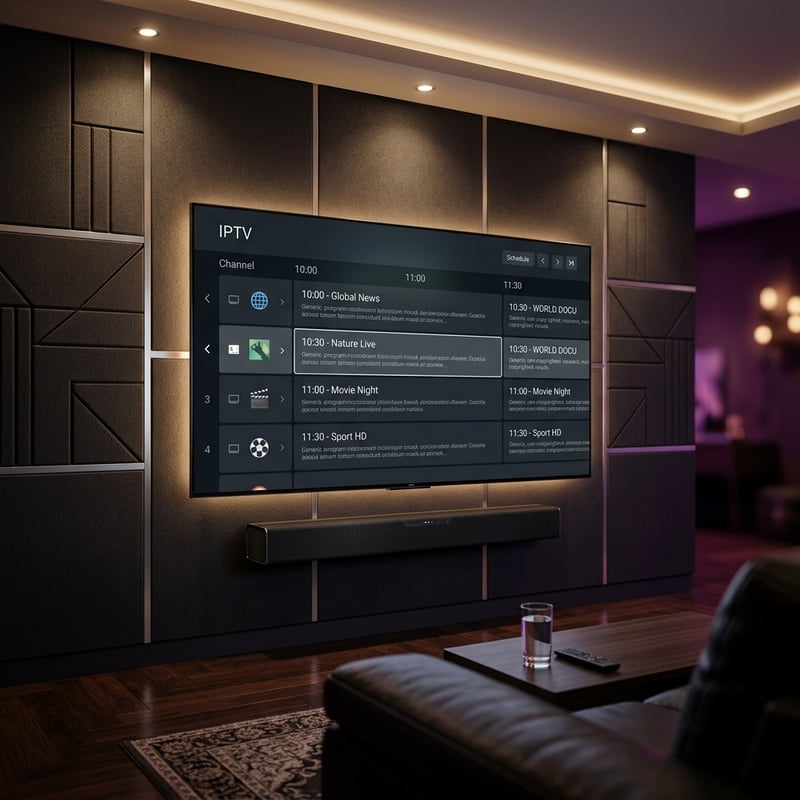
The UK IPTV market in 2025 offers genuinely brilliant value for anyone willing to put in a couple of hours of setup time upfront. With the right UK IPTV provider, a copy of TiviMate Premium, a solid VPN running in the background, and a wired connection if possible, you'll have a streaming setup that rivals anything Sky or Virgin Media offer at a fraction of the monthly cost. Take the trial, test it during peak hours, and once you're happy, browse our full channel list and pricing plans to find the perfect package for your household.
Frequently Asked Questions
Ready to get started?
Try our service risk-free with a 24-hour free trial.
Related Articles

Explore the Best IPTV Service UK Subscriptions for 2026
Find top IPTV service UK subscriptions and streaming tips.

Discover the Best UK IPTV Provider for 2026 Streaming Needs
Explore the best UK IPTV provider options for 2026.

Best IPTV Sports Subscriptions Compared for 2026
Find the top sports streaming packages with low latency, true 4K quality, and 99.9% uptime.