
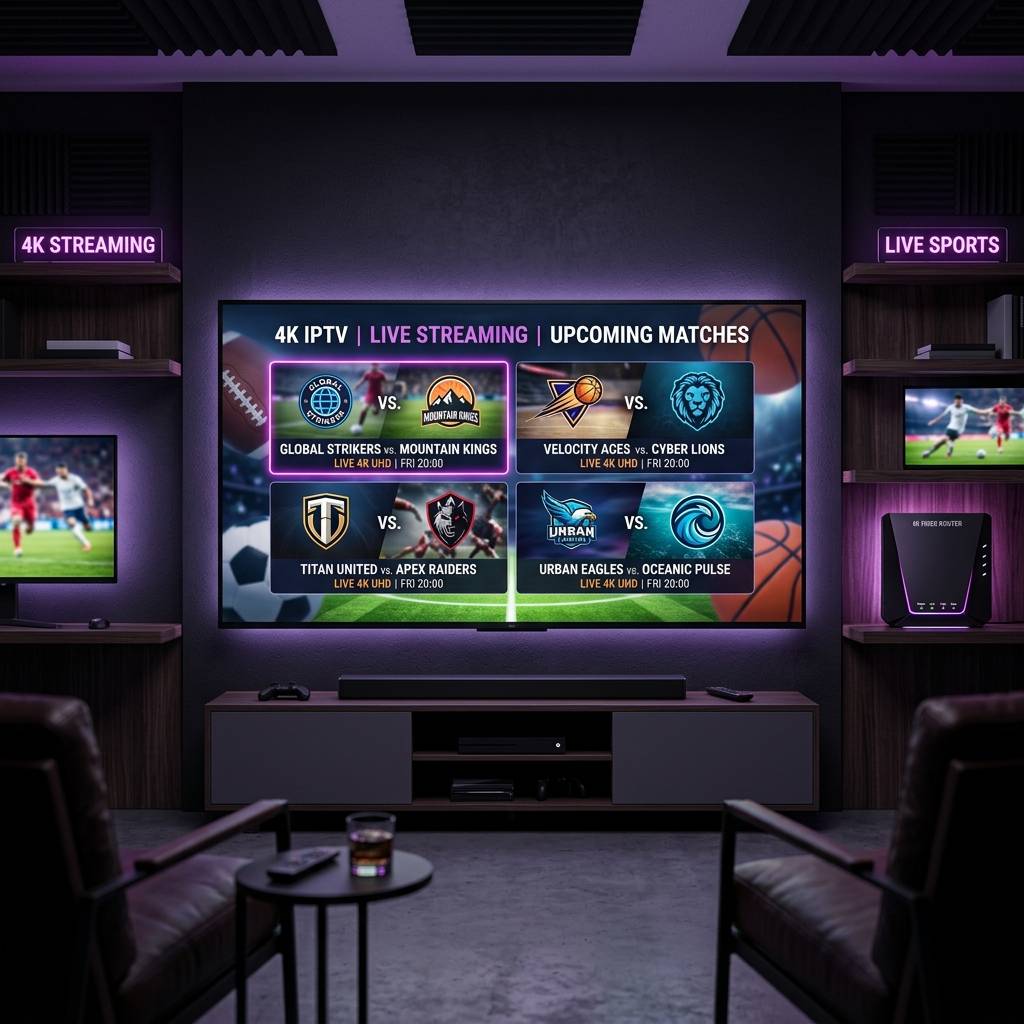
How to Set Up 4K IPTV: The Complete Guide for Streaming

You finally upgraded to that gorgeous 4K TV, and now you want your IPTV subscription to actually look the part — razor-sharp football matches, blockbuster movies with every detail popping, live news feeds that look better than being there. But instead of cinematic clarity, you're staring at a frozen screen, a pixelated mess, or worse, constant buffering that kills the moment right when it matters most. The good news? Every single one of those problems is fixable, and this guide walks you through exactly how to get flawless 4K IPTV streaming on any device — Firestick, Android TV, Smart TV, or anything in between.
When your 4K IPTV setup is dialed in correctly, the difference is not subtle — it is the difference between watching TV and feeling like you are actually there. Getting there requires understanding a few key technical realities first.
Core Concepts & Need-To-Know Info
- Bitrate is everything in 4K: A true 4K IPTV stream requires 25–50 Mbps of sustained bandwidth per stream. If your connection dips below that, quality drops instantly
- M3U playlist vs. Xtream Codes: Your IPTV provider gives you either an M3U URL or Xtream Codes API credentials — both work, but Xtream Codes offers better EPG integration and stability
- ISP throttling is real: Many Internet Service Providers deliberately slow down IPTV streams, especially during peak hours — this is one of the most common and least obvious causes of 4K buffering
- Hardware decoding matters: Not all devices can hardware-decode 4K HEVC (H.265) streams. A Firestick 4K Max can. A basic Amazon Fire TV Stick cannot
- Buffer size settings: Apps like TiviMate let you manually increase the stream buffer — this single setting alone can eliminate 80% of stuttering issues
- HDR compatibility: HDR10 and Dolby Vision 4K streams require both your IPTV app and your TV to support those formats — check both before assuming it should just work
- DNS settings affect stream speed: Using a fast DNS server like Cloudflare (1.1.1.1) or Google (8.8.8.8) instead of your ISP's default can noticeably reduce channel load times
Step-by-Step Guide to Setting Up 4K IPTV
- Step 1: Choose the Right Device:
- Do not cut corners here. For genuine 4K IPTV, you need a device capable of hardware decoding H.265/HEVC at 4K resolution. The Amazon Firestick 4K Max, NVIDIA Shield Pro, or an Android TV box with an Amlogic S905X4 chip are your best options. Navigate to your device's specs and confirm 4K HDR and HEVC support before proceeding.
- Step 2: Install Your IPTV App:
- On Firestick, go to Settings, then My Fire TV, then Developer Options, then Install Unknown Apps, and enable the Downloader app. Use Downloader to sideload TiviMate by entering its APK URL. On Android TV, simply search the Google Play Store for TiviMate or IPTV Smarters Pro and install directly.
- Step 3: Enter Your IPTV Credentials:
- Open TiviMate and select Add Playlist. If your provider gave you an M3U URL, paste it directly. If you have Xtream Codes, select that option and enter your server address, username, and password exactly as provided — one wrong character breaks the entire connection. Tap Next and let the playlist load fully before moving on.
- Step 4: Configure Video Settings for 4K:
- Inside TiviMate, go to Settings, then Player, then Video. Set the hardware decoder to HW+ or HW (not software — software decoding will stutter on 4K). Set your buffer size to 10–15 seconds for stable streams. If you are using VLC as an external player, navigate to its settings and set the network caching value to 3000ms.
- Step 5: Set Display Output to 4K:
- On your Firestick, go to Settings, then Display and Sounds, then Display, then Video Resolution and manually set it to 2160p (4K). Enable Dolby Vision or HDR if your TV supports it. This step is skipped by most users and explains why their 4K subscription looks no different than HD.
- Step 6: Test Your 4K Stream:
- Navigate to a 4K channel in TiviMate (your provider should label these clearly — look for 4K, UHD, or 2160p tags in the channel name). Play it and watch for three minutes. Zero buffering? Good. Now stress-test by playing VOD content in 4K — these streams are often heavier and reveal any remaining network weaknesses.
- Step 7: Fine-Tune Your Network:
- If you see any buffering, connect your streaming device via Ethernet instead of Wi-Fi using a USB-to-Ethernet adapter. If Ethernet is not possible, move your router closer or invest in a Wi-Fi 6 router. Run a speed test directly on your streaming device using an app like Fast.com — you want a minimum of 50 Mbps for 4K.

Imagine finally getting your 4K setup running, only to have your ISP quietly throttle the connection at 7 PM every night — right when the big game starts. Or picture carefully setting up your M3U playlist only to realize you typed a lowercase L where there should be an uppercase I in the URL, leaving you staring at a permanent loading screen — these are the two most common real-world scenarios that IPTV users report, and both are completely avoidable with the right knowledge upfront.
Best VPNs to Stop ISP Throttling on 4K IPTV
ISP throttling is the silent killer of 4K IPTV. Your provider's streams might be perfect, but if your ISP is squeezing your bandwidth, you will never know it unless you test with a VPN. ExpressVPN is consistently the fastest for streaming, with servers optimized for high-bitrate video and its Lightway protocol maintains 4K speeds even under heavy server load while working natively on Firestick via its dedicated app. NordVPN is excellent for 4K IPTV thanks to its NordLynx protocol which adds virtually no latency overhead, and its Meshnet feature lets you route multiple devices through the same secure tunnel. Surfshark offers the best value if you need unlimited device connections, works well on Android TV boxes, and supports split-tunneling so only your IPTV traffic goes through the VPN. When choosing a VPN for 4K IPTV, prioritize servers physically close to your IPTV provider's server location, connect, rerun your speed test, and compare — if speeds jump back up, throttling was your problem all along.
TiviMate vs. IPTV Smarters Pro: Which App Handles 4K Better?
TiviMate is the clear winner for 4K streaming — its hardware decoder implementation is more stable, its buffer controls are granular, and its EPG rendering is faster, with the TiviMate Premium subscription at $5.99 per year unlocking multiple playlists, recording, and panel customization. IPTV Smarters Pro is more beginner-friendly with a cleaner interface, but its 4K playback can stutter on complex H.265 streams without careful player configuration, so use it with ExoPlayer set as the default player for best results. GSE Smart IPTV is a solid third option for users who want an external player like MX Player or VLC to handle the heavy decoding work, giving you more control over buffer size and codec selection. For Android TV boxes with more RAM (3GB+), TiviMate with HW+ decoding is essentially bulletproof for 4K, while on lower-spec devices Smarters with ExoPlayer often performs more consistently.
Network Requirements for True 4K IPTV Streaming
Your streaming setup is only as good as the pipe feeding it. You need a minimum internet speed of 25 Mbps per 4K stream, but realistically you should aim for 50 Mbps or higher to account for fluctuation and household usage. Ethernet delivers roughly 40% more consistent throughput than Wi-Fi for IPTV streams, so if you can run a cable, do it. Your router should be in the same room or directly adjacent to your streaming device if you are using Wi-Fi, since walls, microwaves, and neighboring Wi-Fi networks all degrade signal quality. Log into your router admin panel and set your streaming device as a high-priority device using QoS (Quality of Service) settings to ensure 4K streams get bandwidth before anything else on the network. Finally, change your streaming device's DNS to 1.1.1.1 (Cloudflare) in network settings — this does not increase your speed but dramatically reduces channel-switching lag.
Common 4K IPTV Setup Mistakes and How to Fix Them
Even technically savvy users make these errors. Leaving the device on automatic resolution causes your Firestick to dynamically switch between resolutions mid-stream, creating visible quality drops, so always set it manually to 2160p. IPTV providers refresh their M3U or Xtream server links periodically, so if channels suddenly stop working, go to TiviMate's playlist settings and hit Update Playlist before assuming the provider is down. After weeks of use, cached data from your IPTV app can corrupt stream requests, so go to Settings, then Apps, then TiviMate, then Clear Cache every few weeks to keep things clean. On a Firestick, having Silk Browser, Downloader, and other apps running in the background eats into the RAM available for 4K decoding, so force-close everything before streaming.
Getting your 4K IPTV setup right the first time saves you hours of frustrating troubleshooting down the road — follow this guide from top to bottom, double-check your network speeds, use TiviMate with hardware decoding enabled, and protect yourself with a quality VPN. Ready to take the next step? Check out our full channel list and pricing plans to find the perfect 4K IPTV subscription for your setup.
Frequently Asked Questions
Ready to get started?
Try our service risk-free with a 24-hour free trial.
Related Articles

Discover the Best IPTV Options for 2026: Ultimate Guide
Uncover the best IPTV options for seamless streaming in 2026.

The Complete IPTV Subscription Guide: How to Choose, Set Up, and Save
Find the best IPTV subscription options for seamless streaming.

Discover the Best Free IPTV for Firestick in 2026
Uncover the best free IPTV options for your Firestick.