
Discover the Best IPTV Providers for Your Streaming Needs in 2026

Paying over $100 a month for a cable package that's 60% infomercials and shopping channels is something millions of households are quietly furious about — and that frustration is exactly what's driving the explosive shift toward IPTV. But here's the real problem: the moment most people start searching for the best IPTV providers, they get buried under shady forums, broken M3U playlist links, and services that buffer every 10 minutes during a crucial game-winning goal. Choosing the wrong provider doesn't just waste your money — it ruins your entire streaming experience. This guide cuts through all of that noise and gives you a clear, tested, expert breakdown of exactly what to look for, how to get set up, and how to keep your streams running smoothly on any device — Firestick, Android TV box, Smart TV, or TiviMate.
Choosing the right IPTV provider is arguably the single most important decision in your cord-cutting journey. A bad provider with weak servers will throttle your stream at peak hours, drop connections mid-episode, and leave you staring at a frozen screen — which is why doing this research upfront saves you massive headaches down the road.
Core Concepts & Need-To-Know Info
- M3U Playlist / M3U URL: This is the file format or web link your IPTV app uses to load all your channels. Your provider sends you this URL after purchase, and you paste it directly into apps like TiviMate, IPTV Smarters Pro, or GSE Smart IPTV.
- Xtream Codes API: A more stable connection method than M3U — your provider gives you a server URL, username, and password instead of a single playlist link. This method handles reconnections better and is preferred for 4K streams.
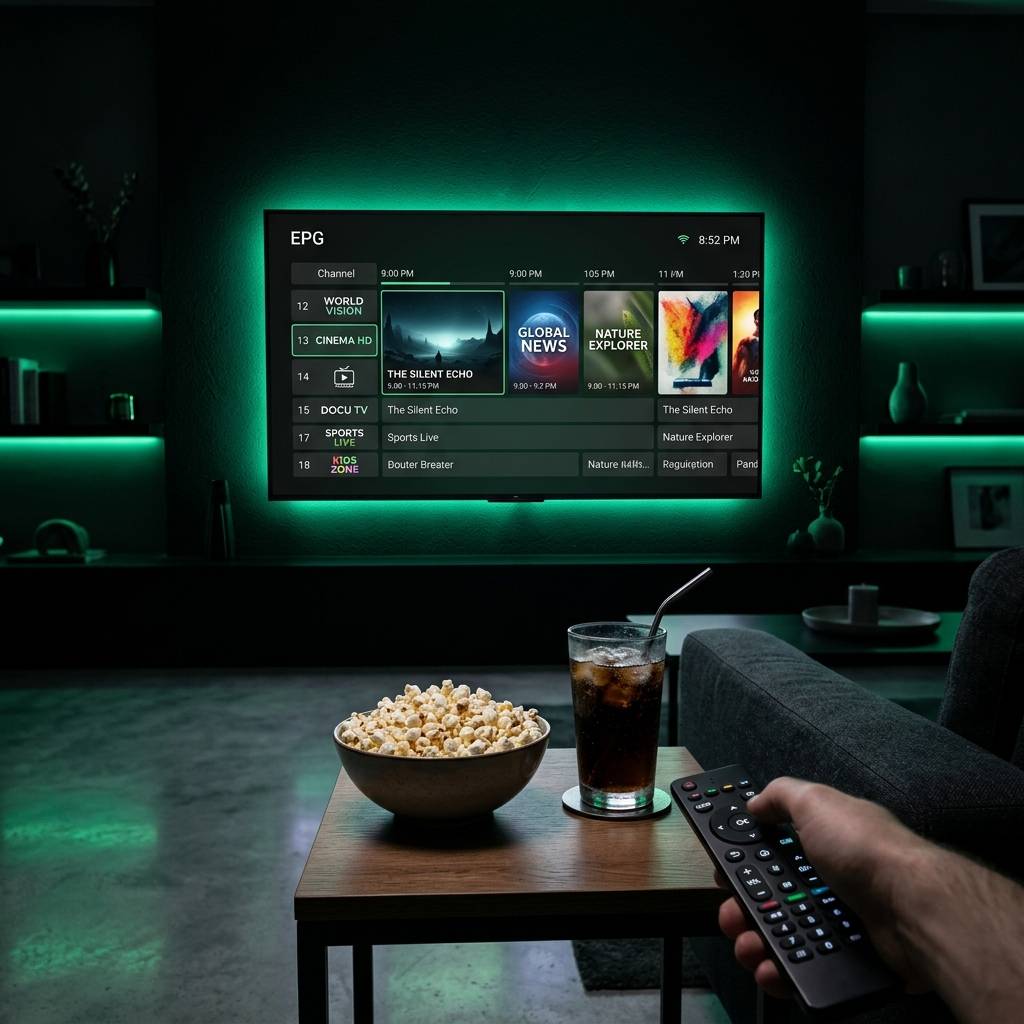
- EPG (Electronic Program Guide): The on-screen TV guide that shows what's currently airing and what's coming up. A quality provider always includes a working EPG URL.
- VOD (Video On Demand): The library of movies and TV series separate from live channels — quality providers update this daily with thousands of titles.
- Server Uptime & Load Balancing: The best IPTV providers run multiple redundant servers so that if one goes down during peak hours, traffic automatically shifts — this is what separates stable services from choppy ones.
- ISP Throttling: Your Internet Service Provider can detect high-bandwidth streaming and intentionally slow your connection. This is a major cause of unexpected buffering even when your internet speed test looks fine.
- VPN Compatibility: A good IPTV provider won't block or penalize you for using a VPN, which is essential for bypassing ISP throttling and geo-restrictions.
Step-by-Step Guide
- Step 1: Choose Your Provider and Get Your Credentials:
- After purchasing a subscription from a reputable IPTV provider, check your email for your M3U URL or Xtream Codes login details (server URL, username, password). Never buy a plan without a free trial — any legitimate service offers at least 24 hours to test before you commit.
- Step 2: Install TiviMate or IPTV Smarters on Your Device:
- On a Firestick, go to Settings, My Fire TV, Developer Options, then turn on Apps from Unknown Sources. Then open the Downloader app (search it in the Amazon Store), type in the APK URL for TiviMate or IPTV Smarters Pro, and install it. On Android TV, you can find IPTV Smarters directly in the Google Play Store.
- Step 3: Open the App and Select Your Connection Method:
- Launch TiviMate and tap Add Playlist. Choose either M3U URL and paste your playlist link, or select Xtream Codes and enter your server URL, username, and password. Xtream Codes is the more reliable option when available.
- Step 4: Load Your EPG (Program Guide):
- Inside the app settings, find the EPG or Program Guide section. Paste the EPG URL provided by your IPTV provider. Set the refresh interval to every 24 hours so your guide stays current automatically.
- Step 5: Organize Your Channel Groups:
- Once your playlist loads, go into TiviMate's Group Manager and hide categories you don't need (like foreign language packs you'll never use). This dramatically speeds up the app's loading time and makes navigation smoother.
- Step 6: Test Across Channel Types:
- Before settling in, test a live sports channel, a 4K VOD title, and a news channel simultaneously if your plan allows multiple connections. This stress-tests your provider's server quality and your home network's capacity together.
- Step 7: Connect a VPN Before Your First Full Session:
- Open your VPN app (ExpressVPN or NordVPN are the top choices), connect to a server in your country, and then launch your IPTV app. This step protects you from ISP throttling from day one.
Picture this: you've paid for a 12-month IPTV subscription, invited friends over for the championship game, and midway through the second quarter the stream freezes — because your ISP identified the traffic pattern and throttled your bandwidth to 2 Mbps. Or worse, your lifetime provider simply goes offline with no warning and no refund path. These aren't edge cases — they're routine experiences for people who skip the research phase. The warnings above exist because thousands of people learn these lessons the expensive, frustrating way every single month.
Best VPNs to Stop ISP Throttling With IPTV
ISP throttling is the silent killer of IPTV streams. Your speed test shows 100 Mbps, but your live football match is buffering — that's throttling in action, and a quality VPN is the fix.
- ExpressVPN: Consistently the fastest VPN for streaming with MediaStreamer DNS, ideal for 4K IPTV streams and compatible with Firestick as a native app. Its Lightway protocol keeps latency minimal.
- NordVPN: Excellent server infrastructure across 60+ countries with dedicated streaming servers. The Meshnet feature is useful for households running multiple IPTV devices on one account.
- Surfshark: The best value option for IPTV users — unlimited simultaneous connections means every TV in your house is covered under one affordable subscription.
- Key tip: Always connect to a VPN server in your same country first. Routing through international servers adds unnecessary latency and can trigger geo-blocks on regional sports content.
- Router-level VPN setup: For the cleanest solution, flash your home router with a VPN configuration. Every device on your network — Smart TV, Firestick, phone — gets automatic VPN protection without needing individual apps.
TiviMate vs IPTV Smarters Pro: Which App Is Right for You?
The app you use matters almost as much as the provider itself. These two dominate the IPTV app space for good reason, but they serve slightly different users.
- TiviMate is the gold standard for Firestick and Android TV Box users. Its interface feels like a genuine cable TV experience, the EPG integration is flawless, and the Premium version (under $5/year) unlocks multi-screen viewing, catch-up TV, and recording features.
- IPTV Smarters Pro is more flexible across platforms — it runs on iOS, Android, Smart TVs, and PC. It's the better choice if you're switching between a phone and a TV regularly, and it natively supports Xtream Codes with a clean series/movie browser for VOD.
- For families: TiviMate's parental PIN lock and favorite channel grouping make it easier to manage what different family members access.
- For pure VOD browsing: IPTV Smarters Pro renders movie and TV series libraries in a Netflix-style grid that's significantly more visually appealing than TiviMate's list format.
- Bottom line: If your primary device is a Firestick or Android TV box and you watch mostly live TV, TiviMate wins. If you want cross-platform flexibility and heavy VOD use, go Smarters.
Network Requirements for Smooth 4K IPTV Streaming
Your internet connection needs to match your streaming ambitions — and most people underestimate what 4K IPTV actually demands compared to Netflix 4K.
- Minimum speeds by quality: SD streams need 5 Mbps, HD (1080p) needs 15-25 Mbps, 4K live IPTV channels need 40-50 Mbps consistently (not just peak speed).
- Wired always beats wireless: An Ethernet connection to your Firestick (via an OTG Ethernet adapter) or Android TV box eliminates the packet loss that Wi-Fi introduces, which is one of the most common causes of mid-stream drops.
- Router placement matters: If you must use Wi-Fi, position your router within clear line-of-sight of your streaming device and use a 5GHz band rather than 2.4GHz for less interference.
- Avoid network congestion times: Peak hours (7 PM - 11 PM) on your ISP's network can reduce your effective bandwidth by 30-40%. A VPN with obfuscation can partially mitigate this by disguising your traffic type.
- Check your router's QoS settings: Quality of Service settings let you prioritize streaming device traffic over other household devices — a simple change in your router admin panel that makes a noticeable difference during busy household hours.
Common Setup Mistakes and How to Fix Them
Even with the best IPTV providers, setup errors create problems that feel like provider issues but are entirely fixable on your end.
- Mistake: Using HTTP instead of HTTPS in your M3U URL. Some providers give you both formats. Always use the HTTPS version — it's encrypted and less likely to be blocked by your ISP or router firewall.
- Mistake: Not refreshing your playlist after provider updates. If channels suddenly stop working, it's often because your provider updated their server and your cached playlist is outdated. Go into your app settings and force a manual playlist refresh.
- Mistake: Running the IPTV app while other devices hammer the network. Someone streaming 4K on Netflix while you're trying to watch a live IPTV stream on the same network without QoS settings creates bandwidth competition. Manage your household network actively.
- Mistake: Ignoring app cache buildup. TiviMate and Smarters accumulate cache data over weeks. On your Firestick, go to Settings, Applications, Manage Installed Applications, select your IPTV app, then Clear Cache. Do this monthly.
- Mistake: Buying yearly before testing. Always start with a monthly or trial plan. Spend a full week testing during peak hours (evenings and weekends) before upgrading to an annual subscription.
Finding the best IPTV providers isn't about picking the cheapest option or the one with the biggest channel count advertised on a forum — it's about matching server reliability, app compatibility, and your specific viewing habits into one setup that simply works every time you press play. Use a trial period aggressively, pair your subscription with a paid VPN, run TiviMate or Smarters on proper hardware, and manage your home network proactively — then explore our full channel list and pricing plans to find the perfect fit for your household.
Frequently Asked Questions
Ready to get started?
Try our service risk-free with a 24-hour free trial.
Related Articles
Discover the Best IPTV Subscription Options for 2026
Explore top IPTV subscriptions for seamless streaming.

Discover the Best IPTV for Firestick: Top Picks for 2026
Find the best IPTV options for your Firestick today!
Discover the Best IPTV Service: Your Complete 2026 Guide
Find the best IPTV service and enhance your streaming.