

Unlocking the Secrets of IPTV Services: Your Ultimate Guide

Paying hundreds of dollars a year for a cable package that still somehow misses the channels you actually want is one of the most frustrating traps in modern entertainment. If you have been dealing with frozen screens, overpriced bills, or a cluttered remote that somehow controls nothing properly, an IPTV service is the solution that millions of cord-cutters have already switched to, and for very good reason. This guide cuts through the noise and walks you through everything from choosing the right IPTV service to getting it running flawlessly on your Firestick, Smart TV, or Android box, without the headaches most tutorials skip over.
Solving your streaming setup properly matters because a poorly configured IPTV service leads to constant interruptions, buffering wheels, and the kind of frustration that sends people running back to cable. Getting it right from day one means years of uninterrupted, premium entertainment at a fraction of the cost.
Core Concepts & Need-To-Know Info
- M3U Playlist / M3U URL: This is the file or link your IPTV provider gives you. It contains all your channel data and tells your IPTV app where to pull streams from. Always guard this URL, it is tied to your subscription.
- Xtream Codes API: An alternative login method where you receive a username, password, and server URL instead of an M3U link. Many premium apps like TiviMate and IPTV Smarters Pro support this format natively.
- EPG (Electronic Program Guide): The on-screen TV guide that shows what is playing now and what comes next. A good IPTV service provides an EPG URL so your app displays accurate schedules.
- VOD (Video-On-Demand): The movie and series library section of your IPTV service, separate from live channels.
- ISP Throttling: Your internet provider can detect and deliberately slow down IPTV streaming traffic. This is one of the most common hidden causes of buffering.
- Codec Support: Streams are typically encoded in H.264 or H.265 (HEVC). Your device and app must support the codec your provider uses, or you will experience playback errors.
- Internet Speed Requirements: HD streams require at least 10 Mbps. Full HD needs 20 Mbps. 4K streams demand 25 to 50 Mbps with a stable, low-latency connection.
- Panel/Provider Reliability: Server uptime, the number of simultaneous connections allowed, and how frequently the channel list is updated all directly affect your daily experience.
Step-by-Step Guide
- Step 1: Enable Apps from Unknown Sources:
- On your Firestick home screen, go to Settings, My Fire TV, Developer Options. Toggle Apps from Unknown Sources to ON. This unlocks the ability to install third-party IPTV apps that are not available on the Amazon App Store. Without this, your installation will be blocked.
- Step 2: Install the Downloader App:
- Return to the Firestick home screen and open the Search bar. Type Downloader and install the free app developed by AFTVnews. This acts as a browser and file manager that lets you sideload apps onto your Firestick. Open Downloader and enable JavaScript in its settings for best results.
- Step 3: Download Your Preferred IPTV App:
- Inside Downloader, type the direct APK download URL for your chosen app. For TiviMate, visit the official TiviMate website URL. For IPTV Smarters Pro, use the APK URL from the Smarters website. Once downloaded, tap Install when prompted. Both apps support M3U playlists and Xtream Codes login methods.
- Step 4: Launch the App and Add Your Playlist:
- Open your newly installed IPTV app. In TiviMate, tap Add Playlist and choose M3U Playlist or Xtream Codes. If using M3U, paste the URL your IPTV provider sent you. If using Xtream Codes, enter the server URL, username, and password exactly as provided. One wrong character will break the connection entirely, so copy-paste whenever possible.
- Step 5: Add Your EPG Source:
- Navigate to the playlist settings inside your app and look for the EPG or XMLTV URL field. Paste the EPG URL provided by your IPTV service. This populates the TV guide with accurate show schedules. Set the EPG update interval to every 24 hours so it refreshes automatically.
- Step 6: Configure Your Player Settings:
- Inside TiviMate, go to Settings, Playback. Set the video player to ExoPlayer as your default for the best hardware decoding performance on Firestick. If a specific channel buffers, switch that channel's player to Software Decoding or try the external MX Player as a backup.
- Step 7: Test Channels and Organize Favorites:
- Browse through your channel list and test a mix of SD, HD, and sports channels. Add frequently watched channels to your Favorites group for quick access. If any channels show errors, note the channel name and contact your IPTV provider, as specific stream links occasionally need to be refreshed on the server side.
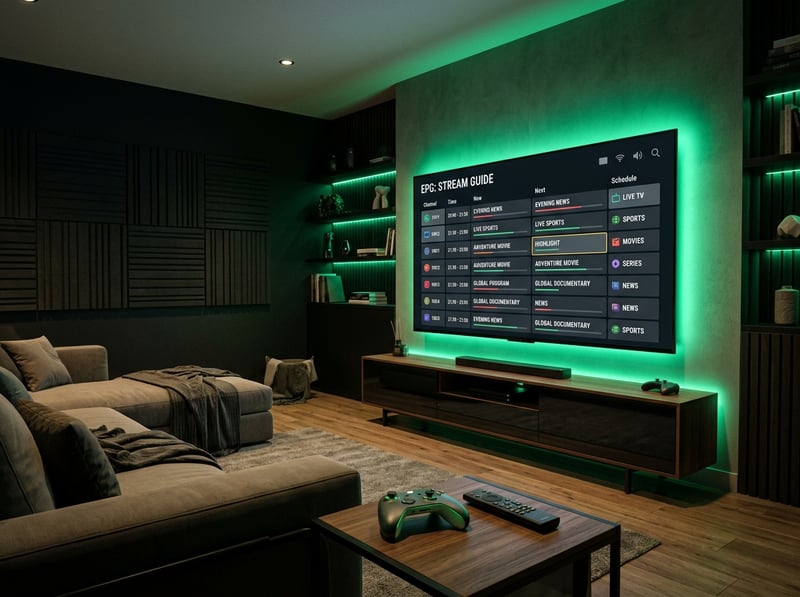
A real-world scenario that happens constantly: someone sets up a flawless IPTV service, everything works beautifully for two weeks, then streams start buffering every evening during prime time. They blame the provider and cancel, never realizing their ISP was throttling the connection specifically during high-traffic hours. A VPN would have solved it in minutes. These warnings are not theoretical, they represent the most common reasons people give up on IPTV prematurely.
Best VPNs to Stop ISP Throttling on Your IPTV Service
- ExpressVPN: Consistently the fastest option for IPTV, with servers optimized for streaming and MediaStreamer DNS built in. Works seamlessly on Firestick, Android TV, and routers.
- NordVPN: Offers an excellent balance of speed and privacy with NordLynx protocol delivering near-native speeds. Its Smart DNS feature is handy for devices that do not support VPN apps natively.
- Surfshark: The best budget option with unlimited simultaneous device connections. Particularly useful if you run IPTV on multiple TVs in the same household.
- VPN Router Setup: For the cleanest solution, install your VPN directly on your router. Every device on your network gets protection without needing individual app installs, and your Smart TV or MAG box will benefit automatically.
- Always use UDP or WireGuard protocol: These protocols produce the lowest latency for live stream data, which is critical for sports and live news without delay.
TiviMate vs IPTV Smarters Pro: Which App Should You Use?
- TiviMate: Widely considered the gold standard for Firestick and Android TV users. Its interface resembles a traditional cable guide, making it intuitive for people switching from cable. The premium version ($4.99/year) unlocks multiple playlists, recording, and catch-up features. The catch-up and DVR functionality alone make it worth every cent.
- IPTV Smarters Pro: The better choice for beginners because it is free and walks you through a simple login process. It supports both M3U and Xtream Codes and separates Live TV, Movies, and Series into clean sections, making VOD browsing much easier than TiviMate.
- GSE Smart IPTV: Worth having as a backup app. When a stream fails in your primary app, switching to GSE often resolves the issue because it handles certain codecs differently, offering a quick workaround while your provider investigates.
- For 4K content specifically: TiviMate with ExoPlayer hardware decoding is the superior choice because it leverages the Firestick's hardware decoder chip, reducing CPU load and preventing overheating during long streaming sessions.
Network Requirements for 4K IPTV Streaming
- Minimum speed for 4K IPTV: You need a consistent 25 Mbps dedicated to the streaming device. Run a speed test directly on your Firestick using the Speedtest by Ookla app, not on your phone across the room.
- Wired Ethernet always beats Wi-Fi: A cheap Ethernet adapter for your Firestick (available for under $15) transforms buffering-prone streams into rock-solid ones. Wi-Fi signal fluctuations are a leading cause of mid-stream drops, especially during live sports.
- Router placement matters enormously: If you must use Wi-Fi, place your router in the same room as your TV or use a Wi-Fi 6 router with beamforming technology to direct signal strength toward your streaming devices.
- QoS (Quality of Service) settings: Log into your router admin panel and enable QoS. Assign your Firestick or Android TV box the highest bandwidth priority. This prevents other devices on your network from stealing bandwidth during big games or movie nights.
- DNS Server optimization: Change your device DNS to 1.1.1.1 (Cloudflare) or 8.8.8.8 (Google). Your ISP's default DNS servers are often slower and can cause playlist loading delays that look like buffering but are actually connection handshake failures.
Common Setup Mistakes and How to Fix Them
- Wrong time zone in EPG settings: If your TV guide shows programs two or three hours off, your app's time zone is not set correctly. In TiviMate, go to Settings, EPG, Time Offset and adjust until the guide matches your local schedule.
- Not refreshing the playlist after provider updates: IPTV providers periodically update their channel URLs on the server side. If channels stop working suddenly, go into your app's playlist settings and trigger a manual refresh. Set automatic refresh to daily.
- Installing outdated APK versions: Older versions of IPTV apps contain bugs that cause crashes and login failures. Always download the latest APK from the official source and check for in-app update notifications regularly.
- Firewall blocking IPTV ports: Some routers with aggressive firewall settings block the ports IPTV streams use. If you can access the internet but IPTV streams fail to load, temporarily disable your router firewall to test. If that fixes it, configure port exceptions instead of leaving the firewall off.
- Too many background apps on Firestick: Firestick has limited RAM. Running multiple apps in the background starves your IPTV app of memory, causing crashes. Regularly clear the cache on all apps via Settings, Applications, Manage Installed Applications.

The right IPTV service, paired with a properly configured device, a reliable VPN, and a solid network setup, delivers an entertainment experience that genuinely rivals anything cable ever offered at a fraction of the price. Every tip and step in this guide comes from real-world setup experience, not theory, so follow it once, set everything up correctly, and explore our full channel list and pricing plans to get started today.
Frequently Asked Questions
Ready to get started?
Try our service risk-free with a 24-hour free trial.
Related Articles
Unlock the Best IPTV Services: Your Ultimate 2026 Guide
Find the best IPTV services and troubleshooting tips here.
How to Choose the Best IPTV Subscriptions for Streaming Devices
Explore top IPTV subscriptions and streaming tips.

Unlocking the IPTVUK Free Trial: What You Need to Know
Learn how to make the most of your IPTVUK free trial.