

How to Choose the Best IPTV Subscription for 2026: A Complete Guide

Paying hundreds of dollars a year for a cable package that still somehow manages to miss half the channels you actually want is the kind of frustration that drives people straight to IPTV and for good reason. But the moment you start searching for how to IPTV subscribe, you hit a wall of confusing jargon: M3U playlists, Xtream Codes, EPG links, panel URLs. It feels like you need a computer science degree just to watch live sports on your Firestick. Here is the truth: setting up an IPTV subscription is genuinely straightforward once someone walks you through it step by step, and that is exactly what this guide does. By the end, you will know how to pick a reliable provider, load your playlist into the best apps, and keep your stream running smoothly without buffering killing the mood during the big game.
Getting your IPTV subscription set up correctly from day one is not just about convenience, it directly determines whether you get a butter-smooth 4K stream or a pixelated, buffering nightmare. A solid setup protects your investment and ensures you actually enjoy what you are paying for.
Core Concepts & Need-To-Know Info
- M3U Playlist / M3U URL: This is a text-based file or web link that your IPTV app uses to load your channel list. Your provider gives you this URL after you subscribe.
- Xtream Codes API: An alternative login method where you enter a server URL, username, and password directly into supported apps like TiviMate or IPTV Smarters. It is more stable than a raw M3U URL for large channel lists.
- EPG (Electronic Program Guide): The on-screen TV guide that shows what is currently airing and what is coming up. Your provider supplies an EPG URL to populate this automatically.
- VOD (Video on Demand): The on-demand movie and TV series library bundled with many IPTV subscriptions, separate from live channels.
- Bitrate and internet speed: Live HD streams typically need 10 to 25 Mbps, while 4K streams demand 50 Mbps or more. Your connection quality directly affects buffering.
- ISP throttling: Internet Service Providers sometimes deliberately slow down streaming traffic. A VPN encrypts your connection and bypasses this throttling.
- Panel URL: The web address for your IPTV provider's server, used alongside your username and password when connecting via Xtream Codes.
Step-by-Step Guide
- Step 1: Choose a Reputable IPTV Provider:
- Research providers that have a verified track record. Look for services offering a free trial (even 24 to 48 hours), responsive customer support, and multiple server locations for reliability. Avoid providers with no contact information or no trial period, these are red flags. Once satisfied, select your subscription plan (monthly is safest to start) and complete payment. You will receive your M3U URL or Xtream Codes credentials by email, usually within minutes.
- Step 2: Download Your IPTV Player App:
- On a Firestick, press the Search icon on the home screen and type Downloader, then install the free Downloader app from AFTVnews. Navigate to Settings, My Fire TV, Developer Options and enable both Install Unknown Apps and ADB Debugging. This unlocks the ability to sideload apps like TiviMate. For Android TV or Smart TV users, open the Google Play Store and install IPTV Smarters Pro or TiviMate directly without sideloading.
- Step 3: Install TiviMate or IPTV Smarters Pro:
- Inside the Downloader app on Firestick, enter the APK download URL for TiviMate (available from the official TiviMate website). Once downloaded, tap Install and then Open. For IPTV Smarters Pro, open the Play Store on Android TV, search for the app name, and install it. Both apps are industry favorites for their clean interface, EPG support, and Xtream Codes compatibility.
- Step 4: Add Your IPTV Subscription Playlist:
- Open TiviMate and select Add Playlist. Choose Xtream Codes if your provider gave you a server URL, username, and password, then enter each field carefully, paying close attention to whether the URL uses HTTP or HTTPS and the correct port number (commonly 8080 or 80). If you received an M3U URL instead, select M3U Playlist and paste the full link. Tap Next and let the app load your channel list, which may take 1 to 3 minutes depending on list size.
- Step 5: Set Up Your EPG Guide:
- Inside TiviMate, go to Settings, Playlist, EPG URL and paste the EPG link provided by your IPTV service. Set the EPG refresh schedule to Once a day to keep program guides current without hammering your provider's server. If using IPTV Smarters, the EPG URL field appears during the initial playlist setup screen.
- Step 6: Organize Your Channels and Test Your Stream:
- Browse your channel list and add frequently watched channels to your Favorites group for quick access. Select a live HD sports channel and let it play for 2 to 3 minutes as a real-world buffering test. If the stream plays smoothly without hesitation, your setup is working correctly. If buffering occurs, move to the troubleshooting section below before assuming your provider is at fault.

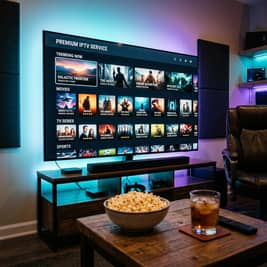
Imagine settling in to watch a playoff game, popcorn ready, only to get hit with a buffering spinner every 30 seconds because your ISP decided to throttle your stream that evening. Or picture your M3U URL suddenly failing to load because someone else is using your subscription simultaneously after you accidentally shared the link. These scenarios happen constantly to underprepared IPTV users, and every single one of them is entirely avoidable with proper setup habits.
Best VPNs to Stop ISP Throttling on Your IPTV Subscription
ISP throttling is the silent killer of IPTV streams, and a quality VPN is your most effective defense. ExpressVPN consistently delivers the fastest speeds across its global server network, with a dedicated MediaStreamer DNS feature and its Lightway protocol dramatically reduces latency, making live sports streams significantly more responsive. NordVPN offers 6,000+ servers worldwide with NordLynx protocol built on WireGuard, one of the fastest tunneling protocols available, and its split tunneling feature lets you VPN only your IPTV app while leaving other traffic unaffected. Surfshark is the best value for money, especially if you run IPTV on multiple devices simultaneously, with unlimited simultaneous connections and strong 256-bit AES encryption making it ideal for households with several streaming devices. When using a VPN with your Firestick, install the VPN app directly on the Firestick for full device-level protection and connect to a server in the same country as your IPTV provider's servers for the best performance.
Common IPTV Setup Mistakes and How to Fix Them
Even tech-savvy users fall into these traps, so knowing them in advance saves hours of frustration. A wrong port number in Xtream Codes setup is one of the most common issues: if TiviMate shows a connection error after entering your credentials, double-check the port number since providers use ports 80, 8080, or 25461 most commonly. EPG not loading or showing wrong times usually means your device's time zone setting does not match the EPG source's time zone, so go to Settings, Device, Time Zone on your Firestick and set it correctly, then refresh the EPG inside TiviMate. Channels loading but producing no audio is almost always a codec issue, so switch the player from internal to ExoPlayer inside TiviMate settings, or install the MX Player add-on as an external player to resolve most audio and video codec incompatibilities instantly. If the app crashes during channel load, clear the TiviMate or Smarters app cache via Settings, Applications, Manage Installed Applications, then select your IPTV app and tap Clear Cache before restarting the Firestick.
TiviMate vs IPTV Smarters Pro: Which App Should You Use?
Both apps dominate the IPTV player market but serve slightly different users. TiviMate is the gold standard for Firestick and Android TV users who prioritize a native TV-like interface, with unmatched channel grouping, multi-panel EPG, and a Favorites system. The premium version unlocks multiple playlists, automatic recording, and catch-up TV support, making it worth every penny for power users who watch several hours of IPTV daily. IPTV Smarters Pro is a more accessible option for beginners and works seamlessly on a wider range of devices including iPhone and iPad, with a guided setup wizard that makes it the better first choice if you are brand new to IPTV subscribe setups. GSE Smart IPTV is a strong third-party alternative worth considering, particularly for users with custom M3U playlists who need more granular control over stream quality settings.
Network Requirements for Buffer-Free IPTV Streaming
Your IPTV experience is only as good as your internet connection. Standard HD (720p/1080p) requires a minimum of 15 to 25 Mbps dedicated to streaming, and if others in your household are gaming or video calling simultaneously, add 10 Mbps as a buffer. Full HD with multiple streams calls for 50 Mbps or higher if you are running two or more IPTV streams simultaneously on different devices. 4K and Ultra HD streaming requires a stable 50 to 100 Mbps connection, and stability matters more than raw speed since a 100 Mbps connection with high jitter will buffer more than a rock-solid 50 Mbps line. Wired Ethernet beats wireless every time, so if your Firestick is on Wi-Fi and you experience buffering, plug in an Ethernet adapter since the Firestick 4K Max supports USB-C Ethernet adapters and the difference in stream stability is immediately noticeable. Connect your streaming device to your router's 5 GHz Wi-Fi band rather than 2.4 GHz for significantly less interference and higher throughput in close-range setups.
Troubleshooting: Fixing Playlist Errors and Stream Failures
When something breaks mid-stream or a playlist refuses to load, work through this systematic checklist. If the playlist fails to load entirely, test your M3U URL by pasting it directly into a web browser: if it downloads a file the URL is valid and the problem is app-specific so try clearing the app cache, but if the browser shows an error your provider's server may be down or your subscription has expired. If specific channels buffer while others play fine, this indicates a server-side issue with that particular channel stream and not your internet connection, so report the channel to your provider and use an alternative stream if available since many providers offer backup streams labeled with BACKUP or a second listing for the same channel. If the entire stream goes down during a live event, large live events can overload provider servers, so switch to a backup server URL if your provider supplies one, or connect your VPN to a different server location to route through a less congested path.

Getting your IPTV subscribe setup right the first time is the difference between a premium streaming experience that makes you wonder why you ever paid for cable and a frustrating tangle of buffering, error messages, and wasted money on a service you never got working properly. Follow the steps above, respect the warnings, invest in a quality VPN, and then head over to our channel list and pricing plans to find the subscription that fits your needs perfectly.
Frequently Asked Questions
Ready to get started?
Try our service risk-free with a 24-hour free trial.
Related Articles

How to Buy IPTV in the UK: 2026 Buyer's Guide
Everything UK viewers need to know about pricing, compatibility, and choosing reliable providers.
IPTV Streaming Services Explained: How Live TV Over Internet Works in 2026
Beginner-friendly 2026 guide explaining what IPTV streaming services are, how they deliver live TV over the internet, and how to choose the right one.

IPTV UK Free Trial How to Test Before You Subscribe 2026
How to get a reliable IPTV free trial in the UK. Test provider quality, check channel availability, and verify stream stability before subscribing.