
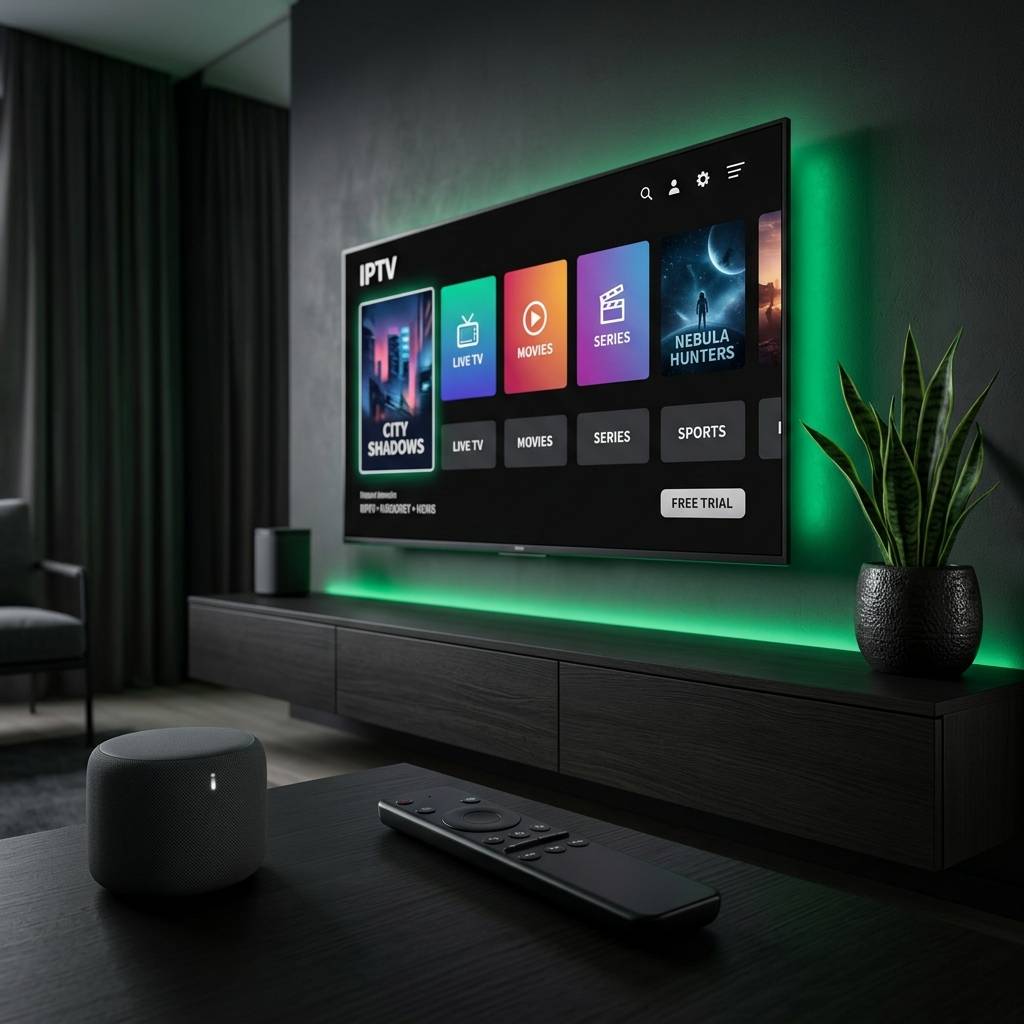
Unlock the Best Free Trial IPTV Options: A Complete 2026 Guide

You've probably been burned before — you pay for an IPTV subscription, get excited about hundreds of live channels and a massive VOD library, and then spend the first weekend staring at a spinning buffer wheel instead of actually watching anything. It's one of the most frustrating experiences in streaming, and it happens because most people jump straight into a paid plan without properly vetting the service first. A free trial IPTV offer is your insurance policy against that exact scenario, and knowing how to find, test, and evaluate one correctly is the difference between landing the perfect streaming setup and throwing money away.
Choosing an IPTV provider without a trial is like buying a car without a test drive. The marketing page will always look perfect — it's only when you load an M3U playlist into TiviMate at 9 PM on a Saturday night that the truth comes out. Getting this step right protects your wallet and your sanity.
Core Concepts & Need-To-Know Info
- What is a free trial IPTV? — It's a short-access period (typically 24 to 48 hours) granted by an IPTV provider so you can evaluate their service without paying. Some offer full access; others limit channel counts.
- M3U playlist URL — The link your provider gives you that contains all the channel and VOD stream data. You'll paste this into your player app (TiviMate, IPTV Smarters Pro, etc.).
- Xtream Codes API — An alternative login method using a server URL, username, and password instead of a raw M3U URL. Many modern providers use this.
- EPG (Electronic Program Guide) — The on-screen TV guide. A quality trial service will have a fully populated EPG, not blank time slots.
- VOD library — Video On Demand content including movies and TV series. Test this separately from live channels during your trial.
- Concurrent connections — Most trials are single-connection. Know this before trying to stream on two devices simultaneously.
- Your internet speed matters — You need at least 25 Mbps for stable HD streaming and 50+ Mbps for 4K content. Run a speed test before blaming the provider.
Step-by-Step Guide: Activating and Testing a Free Trial IPTV Service
- Step 1: Find a Reputable Provider Offering a Free Trial
- Search specifically for IPTV services that openly advertise a 24-hour or 48-hour free trial without requiring credit card details upfront. Avoid any service demanding full payment before a trial — that's a red flag. Check Reddit communities and IPTV review forums for current recommendations with user-verified uptime data.
- Step 2: Request Your Trial Credentials
- Most providers have a simple form on their website. Enter your email address and receive your M3U URL or Xtream Codes login (server URL, username, password) within minutes. Some use Telegram bots for instant delivery. Save these credentials somewhere accessible — you'll need them across multiple apps.
- Step 3: Install Your IPTV Player App
- On a Firestick, go to Settings, My Fire TV, Developer Options, then enable Apps from Unknown Sources. Then use the Downloader app (free on the Amazon App Store) to sideload TiviMate or IPTV Smarters Pro. On Android TV, you can install these directly from the Google Play Store. For Smart TVs, check your app store for IPTV Smarters or use the manufacturer's built-in browser to sideload.
- Step 4: Load Your M3U Playlist or Xtream Codes
- Open TiviMate, tap Add Playlist, then choose M3U playlist or Xtream Codes. Paste your M3U URL exactly as provided (one wrong character breaks the entire feed). If using Xtream Codes, enter the server URL, username, and password in their respective fields. Hit Add and let the playlist load — this can take 30 seconds to several minutes depending on channel count.
- Step 5: Run Your Systematic Trial Checklist
- Don't just click around randomly. Test these categories in order: local news channels (for EPG accuracy), a live sports channel during an actual event, a premium movie channel in HD, a 4K stream if available, and at least 5 VOD titles across different genres. Note any buffering, pixelation, or streams that refuse to load.
- Step 6: Test During Peak Hours
- The worst thing you can do is evaluate an IPTV service at 2 PM on a Tuesday. Test it between 7 PM and 10 PM on a weekday — that's when server load is highest and when a weak provider will expose itself. If it holds up during peak hours, it'll hold up pretty much any time.
- Step 7: Test With and Without a VPN
- Connect to a VPN server (preferably one close to your physical location) and rerun your checklist. Some providers perform better over VPN because it bypasses ISP throttling. Others slow down slightly due to encryption overhead. Knowing this upfront helps you optimize your setup from day one.
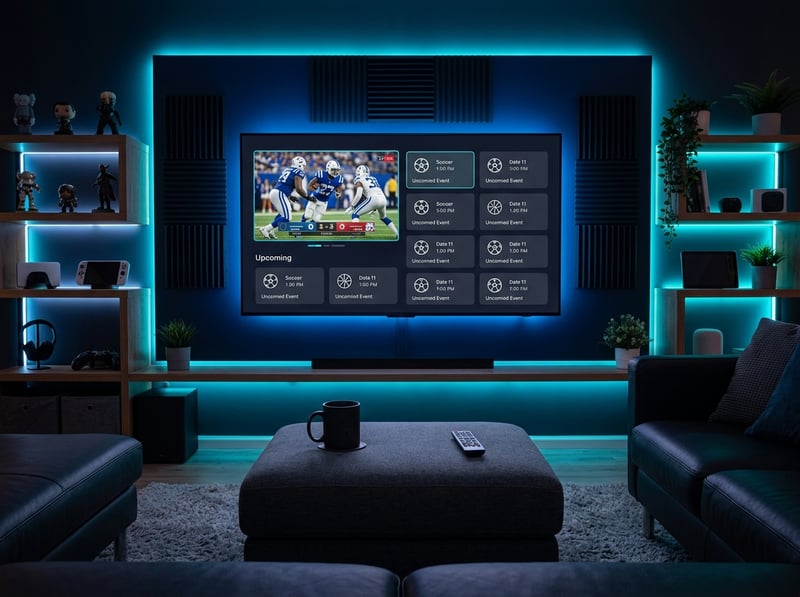
Picture this: you load up what looks like a flawless IPTV service for a free trial at noon, everything plays perfectly, you subscribe — then Friday night rolls around and half your channels are buffering because their servers can't handle real traffic. Or worse, you're mid-game in a playoff match and the stream drops completely because their CDN is overloaded. These aren't hypothetical scenarios — they're the exact complaints you'll see flooding IPTV forums every single weekend. Taking your free trial seriously, at the right time and across the right content types, is the only real protection you have.
Best VPNs to Stop ISP Throttling During Your IPTV Trial
ISP throttling is one of the most common and least diagnosed reasons for IPTV buffering. Your provider's servers might be flawless, but if your ISP is choking your connection on port 80, 8080, or custom IPTV ports, you'll see degraded performance that has nothing to do with the service itself.
- ExpressVPN — Consistently the top performer for IPTV use, with servers optimized for streaming and minimal speed overhead from encryption. Lightway protocol is particularly effective for live TV.
- NordVPN — Excellent server coverage and a dedicated streaming mode. NordLynx protocol keeps speeds high enough for 4K IPTV without noticeable lag.
- Surfshark — The best budget option, with unlimited device connections on a single subscription. Useful if you're testing IPTV on a Firestick, phone, and Smart TV simultaneously.
- IPVanish — Popular specifically in the IPTV community because it works seamlessly with the Firestick and has a dedicated Fire TV app. Fast server switching without disconnecting your stream.
Always connect to a VPN server in your own country first — routing through a distant server adds latency and can actually make things worse. The goal is to mask your traffic type from your ISP, not to dramatically change your virtual location.
Common Setup Mistakes & How to Fix Them
Getting a free trial IPTV working correctly on the first attempt is rarer than most guides admit. Here are the mistakes that trip up even experienced users:
- Wrong app format for your credentials — If your provider uses Xtream Codes, loading the M3U URL into the Xtream Codes fields (and vice versa) will produce an authentication error. Always confirm which format your trial credentials use before setup.
- Not refreshing the EPG — After loading your playlist, the program guide won't populate automatically in all apps. In TiviMate, go to Settings, EPG, then Update Now to force a refresh. Without this, every channel shows blank schedule data.
- Firewall blocking IPTV ports — Some home routers with aggressive firewall settings block the ports IPTV streams run on. Try temporarily disabling your router's firewall or enabling DMZ for your streaming device to test if this is the issue.
- DNS causing resolution failures — If channels fail to load with a connection error (not buffering), your DNS might be blocking the IPTV server domain. Switch to Google DNS (8.8.8.8) or Cloudflare (1.1.1.1) in your device's network settings.
- App cache causing stale playlist data — If you've previously loaded a different IPTV service, old cached data can interfere. Clear the app cache completely (Settings, Apps, App Name, Clear Cache) before loading new trial credentials.
Recommended Apps: TiviMate vs IPTV Smarters Pro
Your IPTV player app matters almost as much as the service itself. Using the wrong one can make a great provider look terrible.
TiviMate is widely considered the gold standard for Android-based devices. Its interface feels like a native Smart TV experience, the EPG is beautifully rendered, and it handles large M3U playlists (10,000+ channels) without slowing down. The free version is functional, but the Premium upgrade ($5/year) unlocks multiple playlist support, recording features, and catch-up TV. If you're on a Firestick or Android TV box, TiviMate should be your default choice for evaluating any free trial IPTV service.
IPTV Smarters Pro is the better choice for Smart TVs with limited sideloading capability and for users who prefer a more app-like interface over a broadcast TV feel. It supports both M3U and Xtream Codes natively, handles VOD catalogs well, and has decent multi-screen support. It's also more widely available on official app stores, which matters on devices where sideloading is restricted.
For trial evaluation purposes, test the service in both apps if possible — different players handle buffering and stream recovery differently, and what looks like a provider issue might actually be an app-specific problem.
Network Requirements for Smooth IPTV Streaming
- HD streaming (1080p): Minimum 15 Mbps per stream, recommended 25 Mbps for headroom.
- 4K streaming: Minimum 40 Mbps per stream — anything less and you'll see constant buffering on 4K sources.
- Wired connection is always preferable: An Ethernet adapter for your Firestick or direct cable connection to your Android TV box eliminates Wi-Fi interference entirely.
- Router placement matters: If you're stuck on Wi-Fi, get your streaming device within clear line-of-sight of your router. Walls, microwaves, and neighboring Wi-Fi networks all introduce interference on the 2.4 GHz band.
- Use 5 GHz Wi-Fi when possible: It's faster and less congested than 2.4 GHz, though it has slightly less range. Most modern routers broadcast both — connect your streaming device to the 5 GHz network specifically.
Troubleshooting: Fixing Playlist and Stream Errors
Even with a solid free trial IPTV setup, things occasionally go wrong. Here's how to diagnose and fix the most common issues fast:
- Playlist failed to load error — Usually a URL or credentials issue. Double-check every character in your M3U URL, confirm your trial hasn't expired, and try loading the playlist on a different network (like mobile data) to rule out local network issues.
- Channels load but immediately buffer — Run a speed test first. If your speed is fine, try switching the stream protocol in your app settings from UDP to TCP (or vice versa). Also try enabling hardware decoding in TiviMate's player settings.
- EPG shows wrong times or blank schedules — Your EPG source URL may be outdated or incompatible. Ask your provider for their specific EPG URL and enter it manually in your app's EPG source settings.
- Some channels work, others don't — This is usually a server-side issue on specific channel categories. Note which channels fail and report them to the provider — it's useful data for deciding whether to subscribe, and it's also the type of thing a good provider will fix quickly.
- App crashes when loading large playlists — Reduce the playlist size by filtering to your preferred categories only, or allocate more memory to the app if your device allows it. TiviMate handles this better than most alternatives.

A free trial IPTV offer is genuinely one of the most useful tools available to any cord-cutter — but only if you use it strategically rather than casually clicking through a few channels and calling it done. The providers worth subscribing to are the ones whose servers hold up at 8 PM on a Friday with a live match running, whose VOD library actually loads without errors, and whose M3U playlist populates cleanly in TiviMate with a full EPG. You now have a complete framework for evaluating exactly that, on your hardware, on your network, during real usage conditions — run the trial properly, trust what you see during peak hours, and check out our full channel list and pricing plans to find the service that earns your subscription.
Frequently Asked Questions
Ready to get started?
Try our service risk-free with a 24-hour free trial.
Related Articles

How to Choose the Best IPTV Subscription for 2026: A Complete Guide
Learn to select the best IPTV subscription for 2026.

How to Buy IPTV in the UK: 2026 Buyer's Guide
Everything UK viewers need to know about pricing, compatibility, and choosing reliable providers.
IPTV Streaming Services Explained: How Live TV Over Internet Works in 2026
Beginner-friendly 2026 guide explaining what IPTV streaming services are, how they deliver live TV over the internet, and how to choose the right one.